Document-first lesson creators
Teachers and support staff who spend most of their preparation time typing, formatting and revising handouts. Word templates, school storage and the required editing workflow may determine which device works for them.


Choose a tablet for lesson handouts around the school files and apps you must use, rather than pen support or screen size alone. An iPad Air or Galaxy Tab S10 FE can suit annotation-led work if the required mobile apps handle your documents; a Windows 2-in-1 is the route to consider when the work requires Windows software. Check the school’s account, storage and device requirements before committing to any route.
Teachers and support staff who spend most of their preparation time typing, formatting and revising handouts. Word templates, school storage and the required editing workflow may determine which device works for them.
People who read source materials, mark up PDFs or add handwritten comments before sharing a handout. They need to check both pen compatibility and whether a pen comes with the device.
People who prepare materials away from a desk and need to balance carrying weight and screen space. A keyboard or case can change how convenient the complete setup is to carry.
Start with a real school handout and the apps needed to edit and share it. Then decide whether typing, handwriting or carrying the device matters most in your day-to-day preparation.
Consider it when: Your school files and storage work in the required iPadOS apps, and reading or handwritten markup is a regular part of preparation.
Check: Apple lists compatible Pencil models and an optional keyboard, but Microsoft says mobile editing features depend on the Microsoft 365 plan and file type.
Consider it when: Pen-based notes and PDF markup matter, and the school’s documents work in the Android apps you will use.
Check: Samsung lists an S Pen in the box, but not a keyboard; test text-heavy edits in the intended app.
Consider it when: Handout preparation calls for Windows software or a laptop-style document workflow alongside touch input.
Check: The device’s keyboard, pen and carrying arrangement. Microsoft lists the Surface Pro keyboard and Slim Pen as optional.
| Concern | What to check | Who this matters to |
|---|---|---|
| Documents and typing | Edit and export a real school template; check required apps and Microsoft 365 access. | If I regularly revise formatted handouts, I need my files and typing workflow to hold up through the final version. For roughly 36% of consumers, that would be the primary concern. |
| Handwriting and annotation | Check pen compatibility and inclusion; try markup in the intended PDF or notes app. | When I mark up source material before sharing it, pen input needs to fit that task. Around 29% of consumers would put annotation first. |
| Portability and screen space | Compare carrying weight with accessories attached and the screen space needed for a handout. | If I prepare lessons while moving between rooms, I need a device I can carry and still read comfortably. Portability would come first for roughly 21% of consumers. |
| Accessories for the workflow | Confirm what the exact bundle includes, particularly a keyboard, pen and charging accessories. | I want to know whether the device comes with the input tools my handouts require. For around 14% of consumers, having the right working setup would be the main concern. |
A device that works well for reading may need different input tools for long handouts or handwritten markup. Apple lists a keyboard and compatible Pencils separately for iPad Air, while Samsung lists an S Pen in the Galaxy Tab S10 FE box.
Check the contents of the exact configuration against the way you type and annotate.
Microsoft says mobile features depend on the Microsoft 365 plan and file type; its mobile Word guidance says macros cannot be edited or run.
Open and edit a representative handout, then check its formatting and export or printing route before choosing a mobile platform.
The device still needs to fit the school’s required apps, storage and security arrangements. The Department for Education advises schools to assess devices against educational and technical needs.
Ask the school’s digital lead or IT support about approved platforms, accounts, file storage and printing.
iPad Air offers an iPadOS route for preparing and annotating lesson materials.
Galaxy Tab S10 FE is an Android tablet route for lesson creators who use pen input.
Surface Pro provides a Windows 2-in-1 route when lesson preparation calls for laptop-style document work and tablet input.
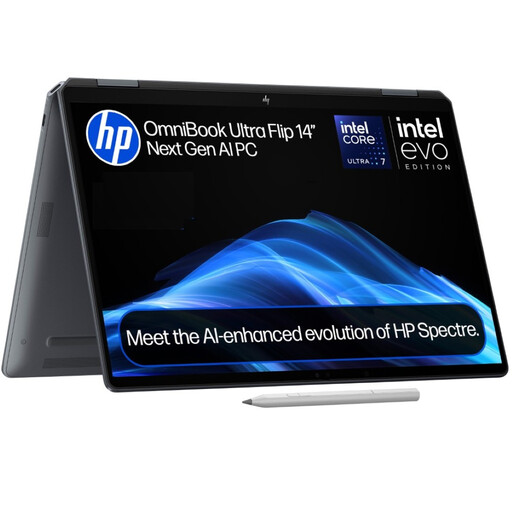
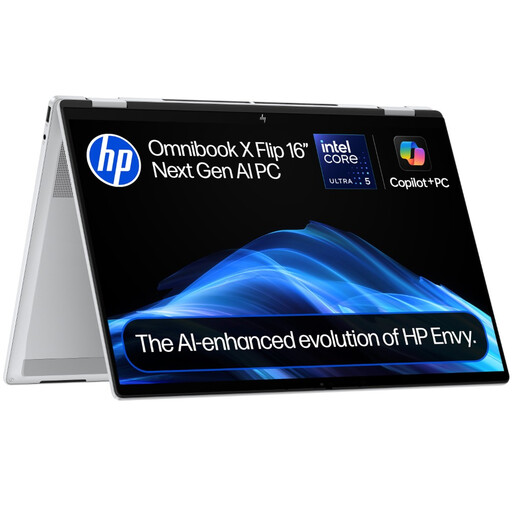
These HP choices are Windows convertible computers for people considering a laptop-style route to handout preparation. Their attached-keyboard design is a different proposition from a standalone iPad or Android tablet.
 No image available
Consider this convertible if preparing handouts calls for a Windows 11 Home device that can also be used as a 2-in-1.
The listed configuration has 16GB RAM and a 1TB SSD.
If handwritten markup or tablet-mode rotation matters, check pen compatibility and how rotation works. Confirm that the school’s apps and handout files work as required.
 No image available
Consider this Windows 11 Home convertible if you want a stated 16-inch touchscreen for document work as well as touch input.
The listed configuration has an Intel Core Ultra 5 226V processor, 16GB RAM and a 512GB SSD.
Check its carrying weight, keyboard and pen arrangements, and whether the school’s apps and actual handout files work as required.
A keyboard is worth considering if you regularly write long handouts, build tables or make detailed formatting changes; occasional edits may not call for one. Apple lists the iPad Air Magic Keyboard separately, and Microsoft describes the Surface Pro keyboard as optional.
Check the actual files rather than assuming they will behave as they do on a desktop. Microsoft says mobile features depend on the Microsoft 365 plan and file type, and its mobile Word guidance says macros cannot be edited or run. Try a school template through editing, export and printing.
Wi-Fi may be sufficient if you normally work where the school or home connection is reliable. Consider whether you need connectivity away from Wi-Fi before choosing a cellular configuration, and check how it fits the school’s account and storage arrangements.
Check with the school’s digital lead or IT support before relying on a personal device. The Department for Education advises schools to assess device use alongside technical and security requirements; ask which apps, accounts and storage locations your school permits.