Choose a tablet that works with your team’s document service and editing app before comparing screen sizes. A smaller tablet can suit quick list updates, while longer typed edits, source comparison or desktop tools may call for a keyboard, more screen space or a Windows 2-in-1; check file permissions, offline behaviour and accessory compatibility before buying.
Who needs which setup?
Quick shared-list editors
If you add or tidy a few entries between other tasks, prioritise access to the team’s app and a size you are comfortable carrying. For Google Docs on iPad, Google explains how to make selected files available offline; that does not replace checking how your team shares the list.
Research-heavy reviewers
If you read sources alongside the list or annotate them by hand, compare screen sizes and pen arrangements. Apple lists 11-inch and 13-inch iPad Air options with Apple Pencil support, while Samsung describes the 10.9-inch Galaxy Tab S10 FE as supplied with S Pen.
Desktop-workflow collaborators
If updates involve Windows applications, specialist browser tools or sustained typing, assess a Windows 2-in-1 and its compatible keyboard. Microsoft describes the Surface Pro 12-inch as changing from tablet to laptop use when its model-specific keyboard is attached.
What matters when choosing?
Start with the workspace software, then decide how much reading, handwriting and typing you will do. These needs can point to different operating systems without making one tablet right for every shared list.
iPad Air
Consider it when: You want an 11-inch or 13-inch iPadOS tablet and may use Apple Pencil for annotation.
Check: A keyboard is a separate accessory, and the editing features available through your work account may differ between apps and browsers.
Galaxy Tab S10 FE
Consider it when: You prefer Android and want the S Pen supplied with a 10.9-inch tablet.
Check: Samsung sells its keyboard accessory separately; confirm both the exact accessory fit and the functions your team’s app offers on Android.
Windows 2-in-1
Consider it when: Your list-editing workflow requires Windows software or desktop browser tools.
Check: A detachable keyboard may be optional and model-specific; compare the complete setup with the portability you need.
| Concern | What to check | Who this matters to |
|---|
| Workspace compatibility |
Identify the file service and test editing, comments and sharing with the intended account and app or browser. |
If my team edits the same list, I need my changes and permissions to work in its actual service. Around 36% of consumers would put workspace compatibility first. |
| Reading and annotation |
Compare display sizes and check whether the pen you want is included or merely supported. |
When I review several sources or mark them up, I want enough room to read and annotate comfortably. Reading and annotation would be the primary concern for around 29% of consumers. |
| Typing and navigation |
Check the exact keyboard’s compatibility and whether it provides a stand and trackpad. |
If I add substantial notes and links, I do not want every edit to depend on the on-screen keyboard. Around 21% of consumers would prioritise typing and navigation. |
| Portable access |
Compare device size and weight; check the steps needed to open the list away from your desk. |
For brief updates as I move between tasks, I would rather carry a manageable device than maximise screen space. Portable access would come first for around 14% of consumers. |
Common buying mistakes
-
Choosing a tablet before checking the workspace
A tablet’s operating system alone does not establish whether your account can edit and share the team’s list. Microsoft says browser-based collaboration in Microsoft 365 depends on documents being stored in the relevant libraries or team site.
Ask which service holds the list, then check the intended app or browser with the permissions and editing features your team uses.
-
Planning around a keyboard you have not selected
Longer updates may make a keyboard or trackpad useful, but accessory arrangements differ. Apple, Samsung and Microsoft each list the keyboards discussed here separately from the corresponding tablets.
Compare the complete working setup and confirm that the exact keyboard fits the exact device model.
-
Confusing pen support with pen inclusion
Samsung describes S Pen as supplied with the Galaxy Tab S10 FE; Apple lists Pencil compatibility for iPad Air. Those are different statements about what comes with a device.
Check box contents and accessory compatibility for the particular tablet variant before relying on handwriting or markup.
-
Expecting offline edits to update colleagues immediately
Google allows selected Docs files to be edited offline on iPhone or iPad, but colleagues’ latest changes and synchronisation require a connection.
Make essential files available offline in advance, then reconnect before treating the shared list as up to date.
Relevant brands to consider
Apple
iPad Air offers an iPadOS route with 11-inch and 13-inch sizes for readers who want touch editing and optional pen input.
- Apple lists USB-C and support for Apple Pencil Pro and Apple Pencil (USB-C) on iPad Air.
- The matching Magic Keyboard is separate. Confirm the editing features available to your particular iPad and work account.
Samsung
Galaxy Tab S10 FE is an Android option with a 10.9-inch display and S Pen supplied, according to Samsung.
- Samsung lists microSD support of up to 2TB for the Tab S10 FE.
- Its slim keyboard is separate. Do not assume a keyboard for another Tab variant fits or includes a trackpad.
Microsoft
Surface Pro 12-inch is a Windows 2-in-1 to assess when the reading-list workflow calls for desktop software or laptop-style input.
- Microsoft describes tablet use with Slim Pen and laptop use when the Surface Pro 12-inch Keyboard is attached.
- That keyboard is optional and, according to Microsoft, compatible only with the 12-inch Surface Pro Copilot+ PC.
Joybuy product choices
These choices cover compact tablets for shorter updates and touchscreen 2-in-1 devices for more typing or screen space. Check each one against your shared-list service before choosing a format.
 No image available
TABWEE T20 10.1-inch tablet, 256 GB, with keyboard, mouse and stylus
Consider this compact tablet if you want to type short list updates and have a stylus available. The product title lists a 10.1-inch display and a keyboard, mouse and stylus; confirm the box contents, software version and compatibility with your workspace.
View on Joybuy
 No image available
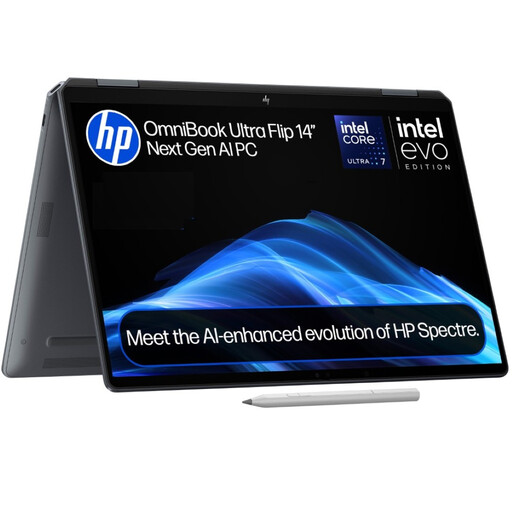
HP OmniBook Ultra Flip 14-fh0006na, 16GB RAM, 1TB SSD
Consider this Windows 11 Home 2-in-1 if longer typed updates call for a laptop-style device that can also be used as a touchscreen tablet. Check your team’s app and account requirements, and confirm pen arrangements if you plan to annotate by hand.
View on Joybuy
 No image available
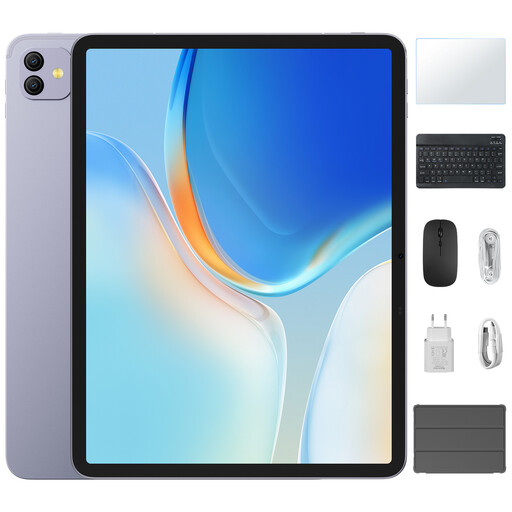
Blackview Link 8 12.7-inch tablet, 256 GB, with keyboard and stylus
Consider its larger display if reading sources alongside the list matters to you. The product title lists a 12.7-inch, 90Hz screen and keyboard and stylus use; confirm the operating system, exact box contents and your editing app’s compatibility.
View on Joybuy
 No image available
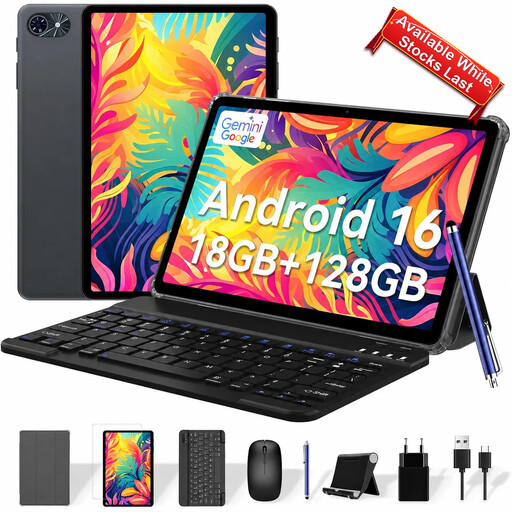
TABWEE T80 10-inch Android 16 tablet, 128GB, with keyboard
Consider this 10-inch format for brief edits if the team’s service works as you need it to on Android. The title lists a keyboard, but confirm that it is in the box for this variant and check editing and sharing with your account.
View on Joybuy
 No image available
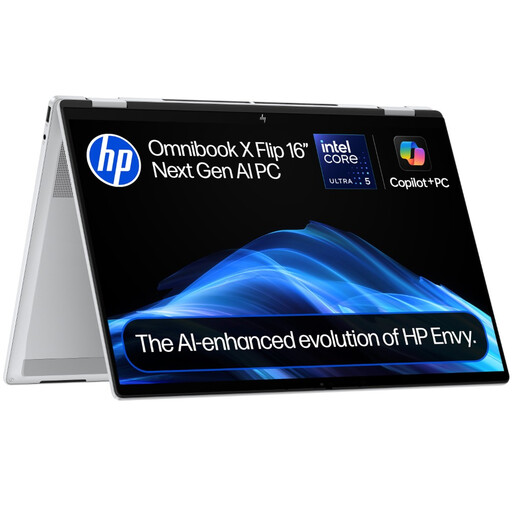
HP OmniBook X Flip 16-as0004na, 16-inch touchscreen, 512GB SSD
Consider this Windows 11 Home 2-in-1 if a larger touchscreen and typed editing suit your workspace. Its title lists 16GB RAM; check the device’s carrying weight and whether your team’s app and account support the intended workflow.
View on Joybuy
Frequently asked questions
Do colleagues need the same tablet brand to edit one reading list?
No: the shared service, file location and account permissions matter more than matching tablet brands. Microsoft describes collaboration through Microsoft 365 for the web for documents stored in the relevant libraries or team site; check the editing features your team actually uses on each proposed device.
Can I edit the reading list without Wi-Fi?
You can edit a Google Docs file offline on iPhone or iPad if you make that file available offline in the app beforehand, according to Google. Reconnect to synchronise your edits and see colleagues’ newer changes; check the separate offline arrangements if your team uses another service.
Is a keyboard included with a tablet?
Do not assume it is included. Apple, Samsung and Microsoft list the keyboards discussed in this article separately for their corresponding tablets; check the contents and compatibility of the exact tablet or bundle you intend to buy.


