Shared rehearsal-space coordinators
If the schedule stays at a desk, door or sign-in point, several people need to see it without holding the tablet. Check the viewing position and network connection as well as the screen size.


For a rehearsal schedule checked regularly in a shared workspace, start with a tablet whose screen is readable at the intended position and can be placed securely. An approximately 11-inch model is a useful starting point among the options discussed here; give more weight to a stand, pen or keyboard according to how the group will use it, and confirm that the scheduling service works on the chosen device before buying.
If the schedule stays at a desk, door or sign-in point, several people need to see it without holding the tablet. Check the viewing position and network connection as well as the screen size.
If you add notes or update call times during rehearsals, confirm that the scheduling service supports the edits you need. A compatible pen or keyboard may be useful for longer changes.
If the device opens private contact, attendance or access details, decide who may unlock it and maintain its account. The National Cyber Security Centre advises protecting shared devices with a PIN or password and keeping software updated.
Check the schedule at its usual zoom and viewing distance before choosing a screen; then decide how the tablet will stand, who can access it and whether anyone needs to make changes.
| Concern | What to check | Who this matters to |
|---|---|---|
| Shared viewing and placement | View the actual timetable at its normal zoom and distance; check glare and how the tablet will stand. | If I am checking a schedule at a shared desk, I need to read it without holding the tablet. Around 36% of consumers put readable, stable placement first. |
| Controlled access | Decide who can unlock the device and schedule account, and who will apply updates. | When the schedule contains restricted details, I need authorised colleagues to get in without leaving the account open to everyone; around 29% of consumers prioritise controlled access. |
| Editing and annotation | Test changes in the intended app or browser; confirm compatibility of any pen or keyboard. | If I update call times or mark up notes during rehearsal, I need an input method that works with our schedule. For roughly 21% of consumers, making changes is the primary need. |
| Dedicated-device setup | Check whether dependable workspace Wi-Fi makes cellular connectivity unnecessary, and which accessories the setup requires. | For a tablet used mainly to show the rota, I would rather keep the setup focused on features the group will use; about 14% of consumers put that need first. |
A large screen still needs a workable viewing angle at a shared desk. Lenovo specifies an integrated 175-degree kickstand for the Tab Plus; check the placement arrangement separately for other models.
Open the real schedule at its usual zoom and assess it from the positions where people will read it.
A separate stand or case may add another item to carry and set up.
An open device can expose its schedule account and stored information. The National Cyber Security Centre advises a PIN or password for shared devices even when biometric unlocking is available.
Agree who is authorised to use the account, set a strong lock and assign responsibility for device and app updates.
Accessory support does not establish box contents. Apple lists Pencil and keyboard compatibility for the iPad (A16), while Samsung says the Galaxy Tab S10 FE and FE+ do not include a travel adapter.
Check the exact model’s included items and the compatibility of any pen, keyboard, case or adapter needed for the workspace.
The iPad (A16) is an 11-inch iPadOS option for a shared screen that may also be used for notes or edits.
The Galaxy Tab S10 FE line offers an Android option where note-taking or a specified bright-screen mode matters.
The Tab Plus is worth considering when the schedule will often remain at a fixed shared position.
These tablets offer different screen sizes and input options for checking or updating a rehearsal schedule. Assess each one with the group’s scheduling service, viewing position and shared-access arrangements.
 No image available
Consider the larger screen if several people need to consult the schedule at close range; check where it can stand securely.
The product name specifies a 12.7-inch 2K display and an included stylus pen.
Test the scheduling service and agree how the device will be locked when shared.
 No image available
The included Focus Pen may suit a group that marks up documents as well as reading its schedule, provided the intended software supports that work.
Check the viewing position and the charging items needed for the shared setup.
 No image available
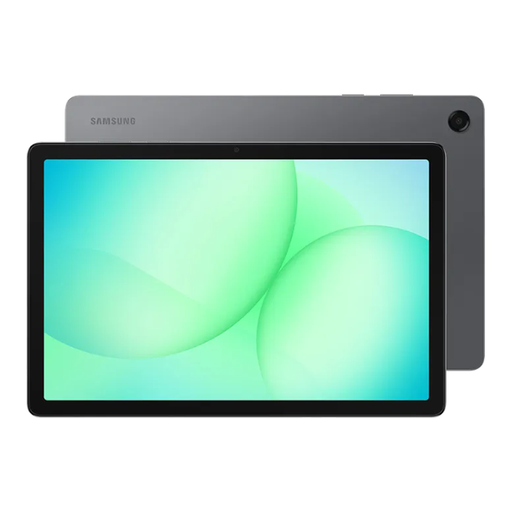
This roughly 11-inch Wi-Fi tablet is an option for viewing the schedule where the workspace connection is dependable.
Check its placement at the shared point and establish a PIN or password process for authorised users.
 No image available
The listed keyboard, mouse and stylus may suit occasional schedule edits if the scheduling service works with the tablet.
The product name specifies a 10.1-inch display and 256GB storage. Check the schedule at its normal zoom, and confirm the Android version before relying on app compatibility.
No image available
Consider this Wi-Fi configuration if it fits the group’s scheduling service and network.
The product name distinguishes it by 8GB RAM and 256GB storage. Check how it will stand and who will manage access to the shared device.
A stand is useful when the tablet stays at a regular check-in point, because people can read it without holding it. Lenovo specifies an integrated 175-degree kickstand for the Tab Plus; for another model, check the intended stand or case and its viewing angle.
A Wi-Fi model can be enough if the venue connection is dependable and the schedule works over it. Consider cellular capability if the device must stay connected where that Wi-Fi is unavailable, and confirm that the scheduling service works with the chosen connection.
Set a strong PIN or password, decide who may access the schedule account and keep the device and apps updated. The National Cyber Security Centre advises a PIN or password on shared devices even when biometric unlocking is available.
Check the box contents for the exact model rather than assuming an accessory is included because the tablet supports it. Apple lists Pencil and keyboard compatibility separately for the iPad (A16); Samsung says the Galaxy Tab S10 FE and FE+ do not include a travel adapter.