Large-print journal readers
If you enlarge article text substantially, check whether the remaining screen area still accommodates captions, photographs and enough of each paragraph to follow the page comfortably.


Choose a 13-inch-class tablet if enlarged text leaves too little room for journal articles, captions and wildlife photographs on a smaller screen. An 11-inch tablet makes more sense if your journal remains comfortable to read at that size and you prefer a smaller device to handle. Test an issue in the exact app, website or PDF you use: a larger screen does not ensure that its text will resize or reflow.
If you enlarge article text substantially, check whether the remaining screen area still accommodates captions, photographs and enough of each paragraph to follow the page comfortably.
Magnification, spoken text, stronger contrast or a simplified reading view may matter more to you than screen size alone. RNIB’s tablet guidance addresses accessibility features for blind and partially sighted readers.
If you mainly read digital issues and web articles, an 11-inch reading area may be sufficient. Try your usual pages at the text size you need before choosing a larger device.
Start with a real journal page at your preferred text size, then decide whether screen area, accessibility controls or everyday handling should drive your choice.
| Concern | What to check | Who this matters to |
|---|---|---|
| Readable page area | Compare an 11-inch and a 13-inch-class screen using an enlarged article with captions and photographs; check how much scrolling or panning each requires. | I want larger text without losing track of the surrounding article and images. Around 40% of consumers would put readable page area first. |
| Adaptable reading | Try magnification, contrast, spoken text and any reading view with the journal’s actual app, website or PDF. | If my reading needs change between pages, I need controls that work with the content I use. Adaptable reading would be the primary concern for around 30% of consumers. |
| Everyday handling | Hold the tablet in your usual reading position and inspect screen reflections where you plan to read. | I often read away from a desk, so a comfortable hold and a usable screen in my usual light matter most. Around 30% of consumers would prioritise these practicalities. |
A larger display gives a page more physical space, but a fixed-layout PDF or image-based page may still require zooming and panning.
Open an issue in the format you actually use. Check article columns, captions and photographs at your intended reading size.
Extra page area is less useful if holding the device through a long article is uncomfortable.
Try it in your usual reading position and decide whether you would use a stand or folio. If you often read while travelling, handle an 11-inch option too.
A tablet on its own may not provide the charging or supported reading position you intend to use.
Check what is included and whether you need a compatible charging adapter, case or stand.
Samsung states that a travel adapter is not included with the Galaxy Tab S10 FE+.
System-level text and display controls do not establish how a particular publisher presents its articles, captions or controls.
Try the journal platform with your preferred magnification, contrast or spoken-reading settings before committing to the device.
Consider iPad models if adjustable visual controls and an alternative reading presentation are important to you.
The Galaxy Tab S10 FE+ is a 13.1-inch Android option to consider when enlarged pages need more physical screen area.
The Tab M11 is an 11-inch Android option for readers whose enlarged journal pages remain comfortable on a smaller display.
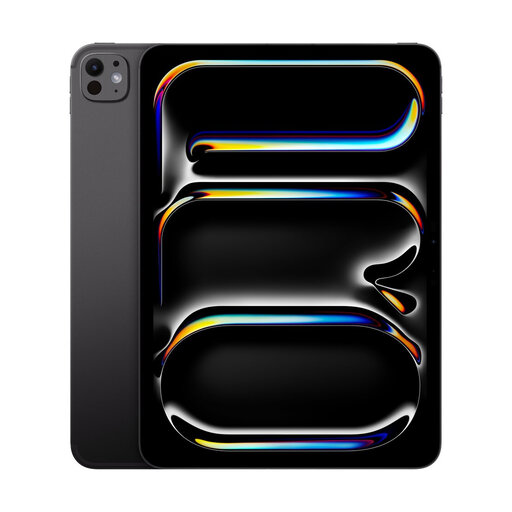
These two iPad Pro configurations offer 13-inch and 11-inch screen sizes. Compare them using the same wildlife-journal issue at your preferred text size, and check handling before choosing.
 No image available
Consider the 13-inch screen if enlarged journal text leaves you needing more physical room for captions and photographs. Apple documents text-size, contrast and Accessibility Reader controls for iPad; test them with your journal’s app, website or PDF. Check the device’s weight if you plan to hold it for long reading sessions.
 No image available
Consider the 11-inch screen if your journal stays comfortable to read after enlargement and you prefer a smaller device to handle. Apple documents text-size, contrast and Accessibility Reader controls for iPad; check how your journal responds to them. Try the tablet’s weight and your usual reading position before deciding.
No: the result depends on how the journal presents its content. Apple documents iPad text and contrast settings and Accessibility Reader, but a particular app, website or fixed-layout PDF may respond differently. Try a real issue, including its captions and image pages.
Choose a 13-inch-class screen when enlarged text on an 11-inch tablet leaves too little surrounding article, caption or image visible. If an 11-inch screen works with your journal and feels easier to handle, the larger display may offer little practical benefit for your reading routine.
Open a representative issue in the app, website or PDF format you normally use. Enlarge an article, inspect captions and photographs, try any contrast or spoken-reading controls you need, and hold the device in your usual reading position.