People lettering on a compatible iPad
If you already own an iPad, start with its exact model. Apple lists compatibility by Pencil model and lists pressure sensitivity for Apple Pencil Pro, but not for Apple Pencil (USB-C).


Choose a pen for the device you will actually use: Apple Pencil models work only with listed iPads, Samsung offers an S Pen with the Galaxy Tab S10 FE range, and One by Wacom is a separate input tablet used with a computer. If varying thick and thin lettering strokes matters, check both pen pressure sensitivity and support in your lettering app. On a small desk, weigh direct-on-screen writing against the space and cable needed for a computer-connected setup.
If you already own an iPad, start with its exact model. Apple lists compatibility by Pencil model and lists pressure sensitivity for Apple Pencil Pro, but not for Apple Pencil (USB-C).
If cards and materials share your work surface, consider where the screen, writing surface and cable will go. Wacom describes One by Wacom Small as taking up little desk space, but it remains a computer-connected input device.
If you need a tablet as well as a pen, Samsung lists the S Pen among the Galaxy Tab S10 FE+ box contents. This is a different decision from replacing a stylus for a tablet you already own.
For greeting-card lettering on a small desk, settle device compatibility first, then decide whether your workspace and lettering style call for direct-on-screen writing or a separate pen tablet.
| Concern | What to check | Who this matters to |
|---|---|---|
| Device compatibility | Match the exact tablet model to the pen maker's compatibility list; for a tablet bundle, check its box contents. | I need a pen that works with the tablet I own, rather than one that merely looks compatible. Around 36% of consumers put exact device compatibility first. |
| Desk space and setup | Decide between writing on the screen and using a separate input surface; allow for the computer and USB cable required by One by Wacom. | When cards and materials occupy my desk, I need a lettering setup that fits alongside them. Roughly 36% of consumers prioritise workspace fit. |
| Lettering stroke control | Check pen pressure sensitivity and whether the intended lettering app supports pressure-sensitive brushes. | I want pressure-responsive strokes for varying line weight as I letter. About 28% of consumers place that control first. |
Apple lists different compatible iPads for Apple Pencil Pro and Apple Pencil (USB-C); the Pencil name alone does not establish a match.
Find your exact iPad model and check it against Apple's compatibility list before choosing a Pencil.
With One by Wacom, you write on a separate input surface while viewing a computer screen. Wacom specifies a USB connection and driver installation for Windows and Mac setup.
Choose this arrangement only if you can accommodate both the pen tablet and its connected screen on your desk.
Samsung lists an S Pen in the Galaxy Tab S10 FE+ box, but choosing that route means taking on a complete tablet setup.
If you already have a suitable tablet, check which replacement pen it supports before deciding to change devices.
Apple Pencil is a direct-on-screen route for owners of compatible iPads.
The Galaxy Tab S10 FE range offers a tablet-and-pen route for someone starting without a suitable tablet.
One by Wacom Small is a separate pen-tablet route for a computer-based lettering workflow.
These pens are options for writing directly on a tablet screen. Choose by your exact device and intended lettering app, particularly if pressure-responsive strokes matter; a separate computer-connected pen tablet calls for a different setup.
 No image available
Consider this for direct-on-screen lettering if your iPad is on Apple's Pencil Pro compatibility list. Apple lists pressure sensitivity, squeeze, barrel roll and haptic feedback; check that your lettering app supports the pressure-sensitive brushes you want to use.
 No image available
This is a direct-on-screen option for an iPad listed as compatible with Apple Pencil (2nd generation). The Joybuy listing describes magnetic pairing, charging and storage, plus double-tap tool switching; confirm your exact iPad model before ordering.
 No image available
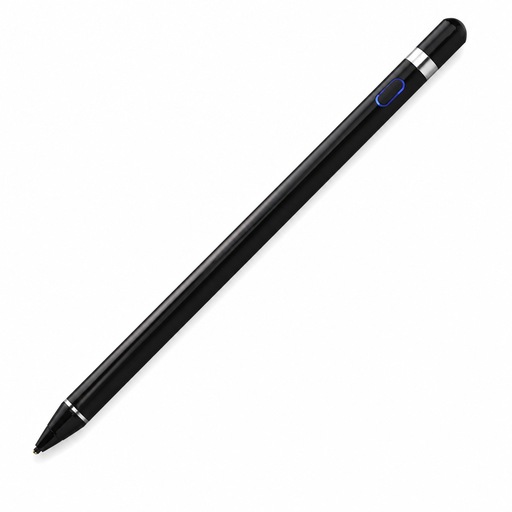
Consider this active stylus only after checking it against the tablet you plan to use. Confirm compatibility with your exact device and lettering app, including whether pressure-responsive strokes work in that combination.
 No image available
This is a direct-on-screen option if Apple lists your exact iPad as compatible. Apple lists tilt sensitivity but not pressure sensitivity for this model, so choose a compatible pressure-sensitive pen instead if pressure-driven line variation is central to your lettering.
Check your exact iPad model against Apple's compatibility list before choosing a Pencil. Apple Pencil Pro and Apple Pencil (USB-C) have different supported model ranges, so neither the connector nor the Pencil name establishes compatibility by itself.
Not if your lettering depends on pressure-driven thick and thin strokes: Apple does not list pressure sensitivity for Apple Pencil (USB-C). Look for a pen compatible with your iPad that has pressure sensitivity, and check that your chosen app supports pressure-sensitive brushes.
Only if you are comfortable writing on a separate pen tablet while viewing a computer screen. One by Wacom connects by USB, and Wacom specifies driver installation for Windows and Mac setup.