Match the stylus to your exact tablet model before choosing its lettering controls. For brush lettering that changes width with hand pressure, choose a compatible pressure-sensitive pen and an app brush that responds to it. For straightforward card messages, a compatible tilt-sensitive option may be enough, but tilt does not replace pressure sensitivity.
Who needs which kind of stylus?
Brush-lettering card makers
If you want thick-and-thin strokes or flourishes, check both the pen’s pressure sensitivity and whether your chosen app and brush respond to pressure. Apple and Samsung describe pressure-sensitive pens for selected tablets; Adobe Fresco also offers stylus-pressure controls.
Occasional home-office card writers
For a neat message, signature or simple decoration, straightforward writing controls may matter more than pressure-led brush effects. Check that the pen works with your tablet and that its pairing and charging routine suits your desk.
Existing Galaxy Tab owners
If you already use a compatible Samsung tablet, check the S Pen intended for its model before considering a pen from another tablet ecosystem. Samsung describes pressure and tilt sensitivity for its Tab S9/S10-series S Pen.
What matters when choosing?
Check your tablet model first, then decide whether your lettering needs pressure-responsive strokes or simply a comfortable way to write a message. Finish by checking the app and charging arrangement you will use at home.
| Concern |
What to check |
Who this matters to |
| Tablet compatibility |
Find your tablet’s exact model name and match it to the pen maker’s compatibility list. Check how the pen pairs. |
If I already own an iPad or Galaxy Tab, the pen must work with that model before its lettering features matter; around 42% of consumers put tablet compatibility first. |
| Stroke control |
Check for pressure sensitivity and a pressure-responsive brush in your intended app; tilt is a separate control. |
For brush-style words and flourishes, I want line width to respond to my hand pressure. Around 33% of consumers place expressive stroke control first. |
| Occasional-use convenience |
Compare the pairing and charging method, required accessories and what comes with the tablet or pen. |
When I write only an occasional card, I want a manageable desk routine rather than controls I will not use; roughly 25% of consumers prioritise that simplicity. |
Mistakes to avoid
-
Choosing by connector rather than tablet model
A USB-C port does not tell you which Apple Pencil works with an iPad. Apple publishes different compatibility lists and features for Apple Pencil Pro and Apple Pencil (USB-C).
Find the iPad’s model name in its settings and compare it with Apple’s current compatibility list before ordering.
-
Expecting tilt to act like pressure
Changing the pen angle is different from changing how hard you press. That distinction matters if your chosen brush varies stroke width with pressure.
For pressure-led brush lettering, check the compatible pen’s pressure feature and the brush settings in your intended app.
-
Forgetting how the pen charges
Apple Pencil (USB-C) pairs and charges through a USB-C cable, whereas Apple Pencil Pro pairs and charges magnetically on compatible iPads.
Check which arrangement fits your workspace and what cable or compatible tablet you will need.
-
Treating a warranty as the only route for a fault
Citizens Advice explains that warranties and guarantees add to legal rights; their terms do not replace those rights.
Keep your proof of purchase and read the seller’s return terms and any warranty paperwork so you know whom to contact if the stylus is faulty.
Relevant brands to consider
Apple
Apple Pencil models are designed for specified iPad generations, with different controls and charging methods across the range.
- Apple lists pressure sensitivity, squeeze, barrel roll and magnetic pairing and charging for Apple Pencil Pro on compatible iPads.
- Apple Pencil (USB-C) supports tilt but is not listed with pressure sensitivity or wireless charging. Check the compatibility list for the exact Pencil and iPad models.
Samsung
Samsung’s S Pen route is relevant to owners of compatible Galaxy Tab models, including some tablets presented with an S Pen.
- Samsung describes pressure and tilt sensitivity for its Tab S9/S10-series S Pen.
- A separately sold S Pen should be matched to the relevant tablet family; do not assume it fits every Galaxy Tab.
Logitech
Logitech Crayon is an alternative digital pencil for compatible iPads when tilt-led line variation suits the intended lettering.
- Logitech describes palm rejection and line-weight changes based on pen angle for Crayon.
- Confirm your exact iPad model and intended app before choosing it for card lettering.
Styluses to consider on Joybuy
These listings include Apple Pencil options for compatible iPads and a ZTE Nubia Pen listing to assess for a simple message. Choose by your tablet model and intended stroke behaviour; check the ZTE listing’s standalone purchase terms before relying on it.
 No image available
Apple Pencil Pro
Consider this for pressure-responsive brush lettering if your exact iPad is compatible and your app brush responds to pressure.
Apple lists pressure sensitivity, tilt, barrel roll and squeeze controls, plus magnetic pairing and charging for Apple Pencil Pro on selected iPads. Check your precise iPad model against Apple’s compatibility list before buying.
View on Joybuy
 No image available
Apple Pencil (USB-C)
Consider this for messages or simple decoration on a compatible iPad when pressure-controlled strokes are not essential.
Apple lists tilt sensitivity but not pressure sensitivity for this model. It pairs and charges through a USB-C cable; check your iPad model and the brush behaviour you want.
View on Joybuy
 No image available
Apple Pencil (2nd Generation)
This is another iPad-specific option to check for a handwritten greeting or drawing when you own a compatible model.
Match the 2nd Generation Pencil to your exact iPad, and check its stroke controls against the needs of your lettering app before ordering.
View on Joybuy
 No image available
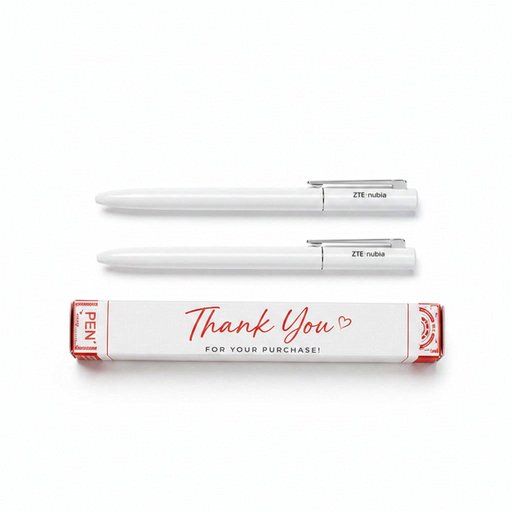
ZTE Nubia Pen, white — Free Gift Only
If you are considering it for a simple card message, confirm that its input works with your exact tablet and lettering app.
The listing title says “Free Gift Only”, so check whether it can be obtained as a standalone item. Check its stroke behaviour separately if you want brush-style lettering.
View on Joybuy
Questions about card lettering
Will any active stylus work with my tablet?
No: match an active stylus to your exact tablet model. Apple Pencil Pro and Apple Pencil (USB-C) have different compatible iPad lists, while Samsung identifies its Tab S9/S10-series S Pen for particular Galaxy Tab families.
Do I need pressure sensitivity for a greeting card?
Not for a simple handwritten message, but choose a compatible pressure-sensitive pen if you want a pressure-enabled brush to vary line width as you press. Apple lists pressure sensitivity for Apple Pencil Pro, whereas Apple Pencil (USB-C) has tilt sensitivity without a listed pressure feature.
Why might a pressure-sensitive pen still make the wrong-looking strokes?
The app and selected brush affect how the strokes respond. Adobe Fresco, for example, provides a stylus pressure-curve adjustment; try your chosen brush and adjust its response before making the final card.
Does a stylus warranty replace my rights if it develops a fault?
No. Citizens Advice says warranties and guarantees add to legal rights. Keep your proof of purchase, check the warranty’s claim terms and contact the seller about the fault rather than assuming the manufacturer warranty is your only option.


