Bright-window slide annotators
Students who handwrite on lecture PDFs near a bright window and need to assess reflections, display specifications and their usual viewing angle before focusing on pen features.


Choose the tablet and compatible pen together, starting with how clearly you can see a lecture PDF at your usual window-side desk. Apple and Samsung describe anti-reflective treatment on the tablet ranges discussed here, but neither that treatment nor a brightness figure guarantees a clear view at every angle. An iPad suits an established iPadOS workflow, a Galaxy Tab S10+ or S10 Ultra includes an S Pen, and a Surface Pro suits a Windows-based workflow if you also check screen visibility and obtain the optional pen.
Students who handwrite on lecture PDFs near a bright window and need to assess reflections, display specifications and their usual viewing angle before focusing on pen features.
Students using iPadOS who want to mark up slides by hand and need to match an Apple Pencil to the exact iPad model they choose.
Students whose coursework relies on Android or Windows apps and who need to check both PDF-annotation features and whether the active pen comes with the tablet.
Choose when: Your lecture-PDF workflow is on iPadOS and you want an iPad with documented Apple Pencil support.
Trade-off: Check the pen for the exact iPad model and select it separately; Apple restricts the iPad Pro nano-texture option to 1TB and 2TB configurations.
Choose when: You prefer an Android tablet and want the S Pen supplied with either of these models.
Trade-off: Check that the larger tablet fits your desk and carrying routine, and that your PDF app provides the Android features you need.
Choose when: Windows applications and switching between tablet and laptop-style work matter to your coursework.
Trade-off: Microsoft describes the Surface Slim Pen as optional, so check the complete setup and view the screen at a comparable window-side angle.
| Concern | What to check | Who this matters to |
|---|---|---|
| Window-side visibility | Compare anti-reflective treatment and stated brightness for the exact variant. View a slide PDF at your usual desk angle; brightness alone does not settle reflections. | If reflected light makes slide text hard to follow, I need to see the page clearly before pen features matter. Around 36% of consumers put window-side readability first. |
| Pen compatibility | Match the active pen to the exact tablet model, then check whether it is supplied and how it charges. | I want to write on slides without discovering that my chosen pen and tablet do not work together. Compatible pen input is the primary concern for around 29% of consumers. |
| PDF workflow and screen space | Try a representative PDF in the intended app and check the handwriting and export features you use. Compare slide space with carrying comfort. | If I move annotated slides between devices or need room for margin notes, the app and usable screen area shape my choice. Around 21% of consumers prioritise that workflow. |
| Included items and configuration | Check the pen and other supplied items against what you need; confirm whether a display option requires a particular storage configuration. | I do not want to choose a tablet and then find that the pen is separate or a desired glass option changes the configuration. For around 14% of consumers, completing the intended setup comes first. |
Pen support depends on the tablet model and generation. Apple lists supported Pencil models for its iPads, while Microsoft describes the Surface Slim Pen as an optional accessory.
Check the tablet manufacturer's compatibility information for the exact model rather than relying on a general claim that a pen works with tablets.
Stated brightness and anti-reflective treatment describe different display properties. Even a treated screen may show distracting reflections at a particular window angle.
Compare the exact display variant, then view a representative slide PDF in lighting close to where you study. Adjust the screen angle if reflections obscure the page.
Samsung lists an S Pen with the Galaxy Tab S10+ and S10 Ultra, whereas Apple offers Pencil choices separately when buying an iPad Air. Goodnotes says features can vary by platform, device, account and plan.
Check the box contents and test the handwriting and export features you need in the app version for your chosen operating system.
A larger screen gives a different workspace, but it also changes how a tablet fits on a small desk or in your bag.
Open a typical lecture slide at your usual reading distance and check whether you can read its text and add notes comfortably before settling on a size.
The iPad Air and iPad Pro are iPadOS routes for handwriting on lecture PDFs with a model-compatible Apple Pencil.
The Galaxy Tab S10+ and S10 Ultra offer an Android route with an S Pen listed among the supplied items.
Surface Pro is a Windows-oriented route for students who want tablet use alongside laptop-style work.
These iPad and Android tablet choices give you different screen sizes and pen arrangements for marking up lecture slides. For each exact variant, check window-side visibility, pen compatibility and your PDF app before choosing.
 No image available
An 11-inch iPad option for students who want to annotate slides in an iPadOS workflow. Check which Apple Pencil works with this exact M4 model, whether a pen is supplied, and how its screen looks at your usual window-side angle.
 No image available
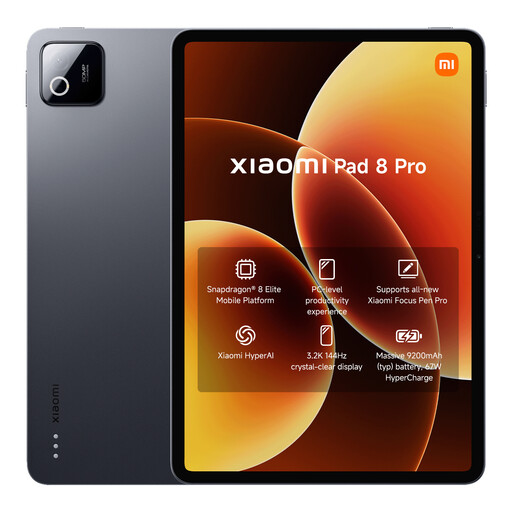
An Android tablet choice if having the Focus Pen in the stated bundle matters to your slide-markup setup. Confirm pen compatibility with this exact variant, the features of your Android PDF app and screen visibility beside your window.
 No image available
Consider this larger Android 15 tablet if you want more space to view a slide while adding notes. Its title specifies a 12.7-inch 2K display and an included stylus; check the pen and your PDF app together, as well as the display at your intended desk.
 No image available
An 11-inch iPad Pro choice for an iPadOS slide-annotation workflow. This is the standard-glass variant, not a nano-texture configuration. Check the compatible Pencil for this exact M5 model and assess the screen at your window-side desk.
 No image available
An Android tablet to consider if your slide-annotation app meets your needs. Before choosing it for handwriting, confirm the exact compatible pen and what is supplied; check screen visibility at your usual window angle too.
Choose the tablet first, then match an active pen to its exact model. Apple Pencil support varies by iPad model, Samsung lists an S Pen with the Galaxy Tab S10+ and S10 Ultra, and Microsoft describes the Surface Slim Pen as optional. Check that your PDF app supports the handwriting and export tasks you need on the chosen operating system.
Anti-reflective treatment is worth assessing if reflections interfere with reading your slides, but it does not guarantee a clear view at every desk angle. Compare the exact tablet variant and try a slide PDF in similar lighting. Apple describes iPad Pro nano-texture glass as intended to minimise glare from bright sources and limits that option to 1TB and 2TB configurations.
Do not assume the same features will be available on every platform. Goodnotes says availability can vary by platform, device, account and plan, so try a representative lecture PDF and check the handwriting, highlighting, search and export functions you actually use.