Families arranging a regular calling spot
If calls usually happen beside an armchair or bed, focus on Wi-Fi at that spot, a stable place for the tablet and a screen position the caller can see without holding the device.


Start with where your relative will usually take calls and how easily they can use the screen. A Wi-Fi tablet with a compatible stand suits a regular calling spot with dependable Wi-Fi; consider cellular connectivity if calls must work away from Wi-Fi, after checking coverage and the required data plan. If ordinary navigation is difficult, test a simpler calling setup and accessibility controls with the person who will use them.
If calls usually happen beside an armchair or bed, focus on Wi-Fi at that spot, a stable place for the tablet and a screen position the caller can see without holding the device.
Age UK notes that vision, hearing or mobility difficulties can make devices harder to use. Try the intended calling app with enlarged controls or a more focused interface rather than relying on screen size alone.
When Wi-Fi does not reach the usual calling place, check mobile coverage in that room before considering a cellular tablet. Calls away from Wi-Fi also require a suitable data plan.
Check the connection and calling position first, then try the controls and agree who will maintain the setup.
| Priority | What to check | Your needs |
|---|---|---|
| Connection | Test Wi-Fi at the actual calling spot. If considering cellular, check the tablet variant, room-level mobile coverage and data-plan requirements. Age UK advises connecting a tablet to Wi-Fi for video calls because they use substantial data. | Calls will mostly happen in one room, so I want to know whether Wi-Fi works there. If the tablet travels or Wi-Fi falls short, I need another connection that works where calls happen. |
| Controls | Try the intended call app with the caller. Check text and control size, magnification and whether the calling workflow can be simplified. Apple documents larger onscreen items in Assistive Access; Google documents Android display and magnification controls. | Finding a contact and answering a call should feel manageable to the person using the tablet, even if ordinary menus are difficult for them. |
| Placement and sound | Check that a stand fits the exact tablet and case, leaves the charging port accessible and holds the camera at a useful angle. Try the speakers or compatible headphones in the usual room. | If holding the tablet throughout a call is uncomfortable, I need it to stay steady where my relative can see and hear the conversation. |
| Ongoing help | Decide whose account the tablet will use, how a trusted person will assist with setup and recovery, and who can help with charging or positioning. Ask a care home what support it can provide rather than assuming staff can manage the device. | Someone may need to help after the first call, but my relative’s agreement and account privacy still matter. |
A cellular model does not fix weak mobile coverage, while a tablet used in one place may already have dependable Wi-Fi. Age UK notes that video calls use substantial data.
Test Wi-Fi where your relative will sit. If it is unsuitable, check mobile coverage in that same room and the data plan needed for calls.
A bigger display may help with viewing, but it does not by itself make contacts, notifications or call controls easier to navigate.
Try the proposed tablet and calling app with the person who will use them. Check which accessibility settings make a practical difference to their calling routine.
A caller who cannot comfortably hold the device needs a stable position that keeps both the screen and camera usable.
Check the stand against the exact tablet and any protective case, including its viewing angle, stability and charging-port access.
Account ownership affects who manages contacts, app access and recovery when the tablet is used over time.
Agree with your relative how a trusted person will help, keep access details secure and decide who will handle updates and account recovery.
These brand features are starting points for testing a calling setup, not a substitute for checking the exact tablet and app.
An iPad is worth considering when a family can set up and maintain a focused FaceTime calling workflow.
The Galaxy Tab A11+ line offers Wi-Fi and 5G variants for families comparing connection options.
The Tab M9 is a smaller-screen Android option to consider when the caller can comfortably view a 9-inch tablet.
These tablets have cellular variants to consider when calls need to work away from dependable Wi-Fi. Check coverage, the calling app, accessibility settings and stand compatibility for the exact setup before choosing.
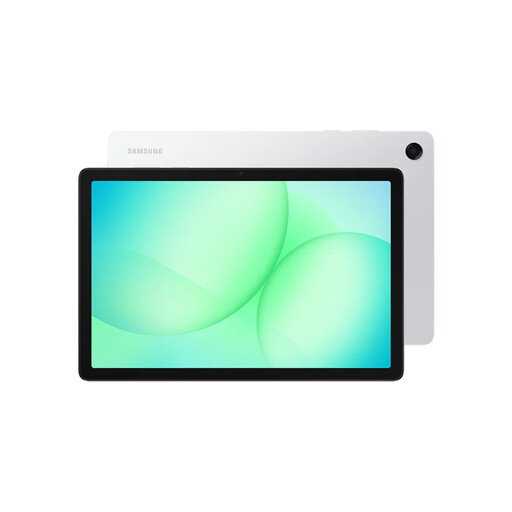 No image available
The 5G variant is an option when the usual calling location lacks dependable Wi-Fi. Samsung lists an 11-inch display for the Galaxy Tab A11+ line. Check mobile coverage, the intended call app and a stand that fits this exact tablet and any case.
 No image available
Dual 4G SIM connectivity makes this a model to assess if calls must take place beyond dependable Wi-Fi. Its stated display resolution is 1920 × 1200. Check network compatibility and coverage where it will be used, then try the calling app and a compatible stand.
 No image available
The 12.7-inch display gives you a larger viewing area to assess for a fixed calling position, while Dual SIM 4G LTE offers a cellular connection option. Confirm that the intended stand supports the tablet’s size, and test coverage, the call app and the accessibility controls your relative needs.
Yes, if Wi-Fi works reliably where your relative normally takes calls. Test that spot rather than another room. Consider a cellular variant when calls must work away from dependable Wi-Fi, and check local coverage and the required data plan. Age UK advises using Wi-Fi for tablet video calls because they use substantial data.
A larger screen may help with viewing, but it does not settle whether the caller can find contacts or answer a call. Age UK highlights vision, hearing and mobility as possible barriers; try the actual calling app alongside suitable iPad or Android accessibility controls.
Use a stand or stand case that fits the exact tablet and any protective case. Try it on the usual table or bedside surface, checking camera framing, screen angle, stability and access to the charging port.
Where practical, let your relative use their own account and agree how a trusted person will help with setup and recovery. Keep account details and the passcode secure, and decide who will maintain the calling app and settings.
Check with the home before relying on it: ask whether residents can connect, whether Wi-Fi reaches the usual calling place and what help is available with connecting the tablet. Department of Health and Social Care guidance distinguishes fixed-line and mobile broadband for adult social-care settings, but the connection at an individual room still needs checking.