Choose a tablet around the shared service and the work your group actually does in it. An iPad or Android tablet can suit reading lists and making comments in compatible apps; consider a Windows 2-in-1 if your review depends on a desktop-style Microsoft 365 workflow. Before choosing a screen size or pen, check the group’s file format, account permissions and editing requirements.
Who is this for?
Shared-document vocabulary reviewers
If your group keeps its lists in shared documents, your main task may be correcting entries and replying to comments without losing track of other people’s edits. Google Docs Editors Help describes commenting tools on iPad; Microsoft Support says co-authoring in OneDrive or SharePoint requires access and edit permissions.
Handwriting and annotation learners
If you circle words, write translations or mark corrections by hand, check both the tablet’s pen support and what your chosen app lets you annotate. Apple UK lists Pencil support for its 11-inch iPad (A16), while Samsung UK describes S Pen note-taking on the Galaxy Tab S10 FE; accessory details depend on the model you select.
Desktop-workflow reviewers
If vocabulary review involves longer Word or Excel files, several browser windows or frequent typing, a keyboard-led setup may matter more than pen input. Microsoft describes its 12-inch Surface Pro as a tablet that can be used with an attachable keyboard, while Microsoft Support documents plan and screen-size conditions for editing in mobile Microsoft 365 apps.
What matters when choosing?
Start with the group’s shared file and the actions you need to perform, then decide whether handwriting, offline access or desktop-style editing should shape the device choice.
| Concern |
What to check |
Who this matters to |
| Shared-file compatibility |
Confirm the group’s app, file format, account permissions and whether you need to comment or edit rather than only view. |
If I correct entries with other people, I need my account to open the actual list and save changes everyone can access. Around 33% of consumers put shared-file compatibility first. |
| Word-level annotation |
Check pen compatibility, whether the pen is included and how the intended app handles handwritten marks. |
When I learn by marking individual words, I need my notes to work in the app the group uses. Annotation is the primary concern for around 27% of consumers. |
| Portable and offline review |
Check the screen size you are comfortable carrying and whether the required files can be prepared for offline use. |
I may review a saved list away from dependable Wi-Fi, then reconnect before others need my changes. Around 20% of consumers chiefly need portable, prepared offline access. |
| Desktop-style editing |
Confirm the Microsoft 365 account and mobile editing conditions, or whether the workflow calls for Windows and a keyboard. |
If the list is part of a more involved Word, Excel or browser workflow, I need the right editing tools rather than a device that only displays the file. For around 20% of consumers, that is the deciding need. |
Buying pitfalls
-
Choosing a large screen before checking Office editing
A larger iPad or Android display does not by itself establish that your Microsoft 365 account can edit the group’s files. Microsoft Support describes mobile editing conditions that depend on the plan and screen size.
Check the exact account, subscription and intended tablet size against the editing features you need; opening a document to read it is not the same test.
-
Treating offline edits as live collaboration
People working on the shared list cannot see your offline changes until you reconnect, and concurrent edits may need attention when they synchronise.
Prepare the required files before going offline and reconnect before the group relies on a final version.
-
Assuming pen or keyboard support means inclusion
A compatible accessory is not necessarily part of the tablet configuration. Apple lists supported Pencil models for the iPad (A16), while Microsoft describes a keyboard used with the Surface Pro.
Check the contents of the exact configuration and whether its pen or keyboard works with your preferred review app.
-
Expecting the tablet to handle every shared-drive task
Reviewing files and organising a shared drive are different jobs. Google Drive Help says moving files and folders from My Drive into a shared drive must be done on a computer.
If you set up the group’s shared drive, arrange computer access for that step before relying on the tablet for everyday review.
Brands to consider for these workflows
Apple
An iPadOS option for shared-document reading, comments and optional handwritten review.
- Apple UK lists an 11-inch display, USB-C and support for Apple Pencil (USB-C) and Apple Pencil (1st generation) on the iPad (A16).
- Those specifications do not establish how your group’s particular vocabulary app or file format works on iPadOS; check its review and editing features.
Samsung
An Android option to examine if pen-based review and local file storage matter to you.
- Samsung UK describes S Pen note-taking and support for up to 2TB of microSD storage on the 10.9-inch Galaxy Tab S10 FE.
- Check the accessories in the precise configuration and the features available in your group’s Android app.
Microsoft
A Windows 2-in-1 option when vocabulary review sits within a keyboard-led Microsoft 365 or browser workflow.
- Microsoft describes the 12-inch Surface Pro as usable as a tablet or, with its keyboard attached, a laptop-style device.
- A keyboard and Slim Pen are separate configuration decisions; check what the particular package contains.
Lenovo
A reading-first Android option to examine when you expect mostly to view lists and make light edits.
- Lenovo UK lists an 11.5-inch 2000 × 1200 display, 8GB memory and 128GB storage for the cited Tab Plus configuration.
- Check the collaboration app and any productivity accessories you need for that configuration rather than assuming they come with it.
Joybuy product choices
These tablets offer different screen sizes and input options for reading or marking vocabulary lists. Choose among them only after checking that your group’s app, account and shared-file workflow work on the device you intend to use.
 No image available
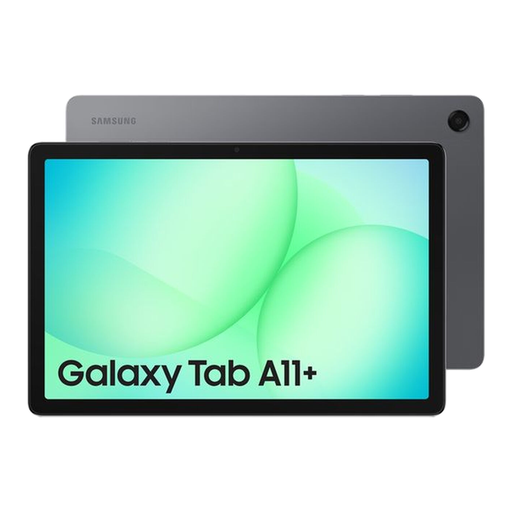
Samsung Galaxy Tab A11+ 8GB 256GB Wi-Fi, grey
Consider this Wi-Fi tablet for reading shared lists if your group’s app and account support the corrections you need to make.
The listed configuration has 8GB memory and 256GB storage. If you plan to handwrite notes, check pen compatibility for this exact model.
Joybuy
 No image available
Xiaomi Pad 7 8GB 128GB, grey, with Focus Pen
The included Focus Pen makes this configuration worth examining if you mark vocabulary by hand; check how your group’s app handles those marks.
The product name specifies 8GB RAM and 128GB storage.
Joybuy
 No image available
Apple 11-inch iPad Air (2026, M4) Wi-Fi 128GB, Starlight
Consider this iPad for shared-list reading and editing if the group’s apps provide the functions your account needs.
This is the 11-inch Wi-Fi, 128GB variant. Check the exact Apple Pencil or keyboard requirements if you intend to annotate or type frequently.
Joybuy
 No image available
TECLAST ArtPad Pro 2025 Edition 12.7-inch 2K tablet with stylus
The larger display and included stylus may suit reading long lists and handwritten markup, provided your collaboration app accepts the marks you need to share.
The product name specifies a 12.7-inch 2K display, T-Pen support with 4096 pressure levels, 256GB storage and Android 15. Check whether this screen size suits how you carry and use the tablet.
Joybuy
 No image available
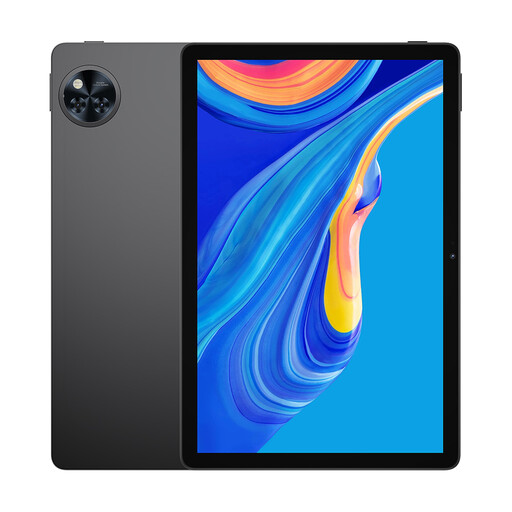
DOOGEE U11 PRO 11-inch Android tablet, 256GB, black
Consider this model for portable list review after checking that your group’s app supports its required shared-file actions.
The product name specifies an 11-inch screen and 256GB storage. Check the display with text at your preferred size, and confirm accessory compatibility if handwriting or repeated typing matters to you.
Joybuy
Common questions
Do I need a keyboard to review shared vocabulary lists?
Not if you mainly read entries and add occasional comments using the touchscreen. A keyboard is more relevant for repeated typed corrections or translations; if you usually mark words by hand, check pen support and how your app saves annotations instead.
Can I review vocabulary lists without Wi-Fi?
Yes, if the required app lets you prepare the files for offline access. Google Drive Help says Android users can make selected files available offline and view or edit Google Docs, Sheets and Slides without a connection; prepare the files in advance and reconnect to synchronise changes.
Will the group see my changes while I am offline?
No. Offline changes cannot be seen by collaborators until the device reconnects, and simultaneous edits may need resolving when work synchronises. Reconnect before the group needs to use your revised list.
Can I edit shared Word or Excel files on a large tablet?
Check your Microsoft 365 account and the intended app before choosing the tablet. Microsoft Support documents mobile editing conditions tied to the plan and screen size, including 10.9-inch and 10.1-inch thresholds for different plan types; the group must also give you access and edit permission for the shared file.


