PDF and guidebook readers
If you read scanned pages, tables or downloadable guides, check whether a page remains legible without constant zooming. Try a representative file in landscape view and test any annotation tools you expect to use.


Choose by guide format before screen size. A Kindle Scribe suits reading Kindle titles and marking up compatible documents, while an iPad or Android tablet makes more sense when you also need language apps, dictionaries or translation tools. Test an actual guide at your preferred text size: a larger display cannot make every fixed-layout page reflow, and system text settings do not affect every app.
If you read scanned pages, tables or downloadable guides, check whether a page remains legible without constant zooming. Try a representative file in landscape view and test any annotation tools you expect to use.
If you regularly move between a guide, dictionary, translation tool and study app, an iPad or Android tablet offers the relevant app-based workflow. Balance the space you want for a guide page against the size you are comfortable carrying and holding.
If you rely on larger type, contrast, zoom, colour controls or spoken reading, test those settings inside your intended guide app. Google notes that Android’s font-size setting does not apply to some apps.
The main choice is between a reading-focused device for compatible books and documents and a general-purpose tablet for guides used alongside apps. Whichever route appeals, the actual file or app determines how far you can enlarge its text.
Choose when: Most guides are Kindle titles or compatible documents, and reading and document annotation take priority.
Trade-off: Its reading-focused workflow does not replace a tablet for language, dictionary and translation apps.
Choose when: You need to use guide files alongside compatible reading, lookup or study apps.
Trade-off: A larger tablet takes more space to carry or support, and text controls still depend on the app and file.
| Concern | What to check | Who this matters to |
|---|---|---|
| Guide layout and page area | Open a representative PDF or guide; compare portrait and landscape views, zoom and whether text reflows. | If my guide has parallel translations or dense notes, I need the page to stay readable without losing my place. Around 33% of consumers would put guide layout first. |
| Focused reading and glare | Check that your guides work in the reading format you prefer, then assess the display and lighting in the places you read. | For long sessions centred on a guide, I would favour a reading-focused setup over extra apps. Roughly 25% of consumers would make focused reading their primary concern. |
| Language apps and lookups | Confirm that your exact guide, dictionary and translation apps are available and practical to switch between. | If I move between a lesson and unfamiliar words, access to my lookup tools matters more than a dedicated reading interface. About 25% of consumers would prioritise that app-based workflow. |
| Text and accessibility controls | Try your guide with larger text, zoom, contrast or spoken reading in its intended app. | When ordinary text size is difficult to use, I need the guide itself—not just the menus—to respond to my settings. Around 17% of consumers would put those controls first. |
A scanned or fixed-layout page may still require zooming rather than allowing its words to reflow like an e-book.
Try a sample chapter or representative PDF. Check text selection, page navigation and readability at your usual viewing distance.
Google states that Android’s font-size setting does not apply to some apps, so enlarged menus do not establish that a course or reader app will be usable.
Open the exact app and try the text, controls and navigation at your preferred settings before deciding to keep the device.
Apple lists the 13-inch Wi-Fi iPad Air at 616g; the cited Lenovo Idea Tab Plus configuration is around 530g. Consider how either size feels during a long reading session.
Try a similar-sized device in hand if possible, or plan to read with it supported on a desk or table.
A stable stand or protective case may be useful for extended sessions.
Samsung UK states that its Galaxy Tab S10 FE and S10 FE+ purchase bundles do not include a travel adapter.
Check the exact seller bundle for its cable and power adapter before ordering.
You may need a compatible power adapter separately.
Kindle Scribe is the reading-focused option here for Kindle books and compatible imported documents.
Galaxy Tab S10 FE+ represents a large-screen Android route for guides used alongside language and lookup apps.
The cited Idea Tab Plus configuration is a 12.1-inch Android option for reading guides and using study tools.
The 13-inch iPad Air is an iPadOS route for guide reading alongside compatible apps and visual accessibility controls.
These conventional tablets offer different screen sizes for reading language guides alongside compatible apps. Before choosing one, open your actual guide to assess page layout and text controls; none of these product choices stands in for the reading-focused e-reader route.
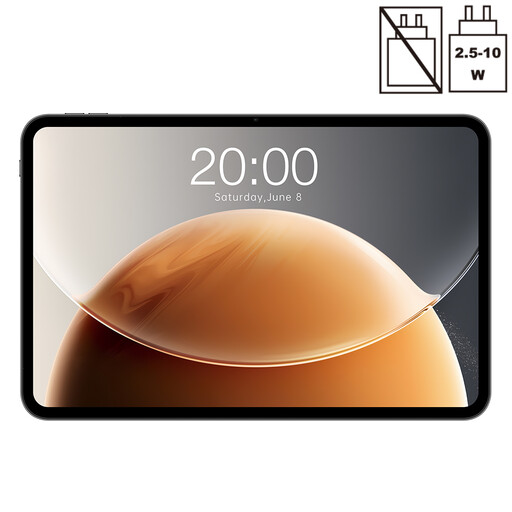 No image available
Consider its 13.4-inch screen if you want room for a guide page on a conventional tablet; test how your own files and reading apps display enlarged text.
The product title also specifies a 120Hz display, 128GB storage and 6GB RAM plus 20GB virtual memory. Check the display resolution if fine print or dense page layouts matter to you.
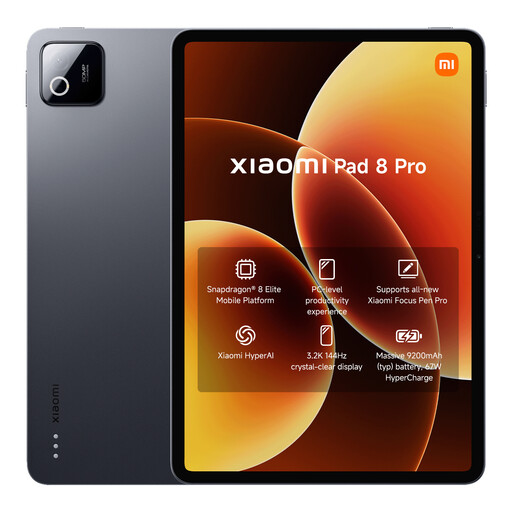 No image available
This tablet is a choice to examine if you want to read guides alongside apps. Open your intended guide before relying on its text-size or document controls.
The product title specifies the grey variant with 12G RAM and 512G ROM. Consider how you will support the tablet if you read for long periods.
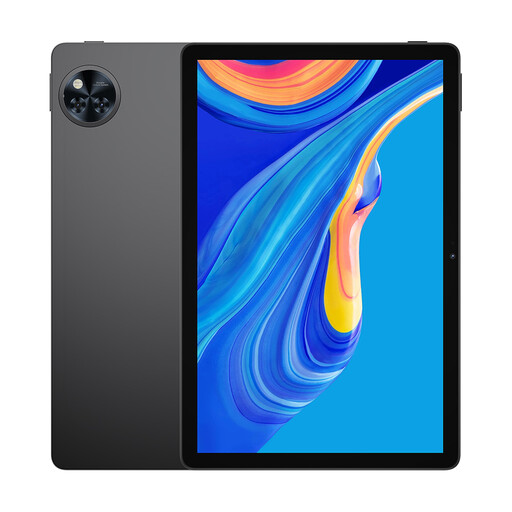 No image available
Its 11-inch format may suit readers who want a tablet for guides and language apps without choosing a larger device. Check a dense sample page at your preferred text size.
The product title specifies 256GB storage and a 90Hz IPS screen. Google cautions that Android font-size changes do not apply to some apps, so test your intended reader app.
 No image available
Consider this smaller-screen option if you want to read guides and use the named input accessories. Test a representative page to see whether its text remains comfortable at the size you need.
The product title specifies a 10.1-inch In-Cell display and 256GB storage. Confirm the operating-system version on the exact listing if your intended apps require one.
Open a representative guide in the exact app you intend to use and increase its text and display settings. Check the guide pages as well as the menus: Google says some Android apps do not apply the system font-size setting, while Apple’s Larger Text and Zoom controls should likewise be tried in the intended iPad app.
Kindle Scribe supports imported documents and PDF annotation, according to Amazon UK. Test your own PDF before choosing it: being able to mark up a fixed page does not mean its text will reflow like an e-book.
Samsung UK states that the Galaxy Tab S10 FE and S10 FE+ purchase bundles do not include a travel adapter. Check the exact seller offer for its included accessories before ordering.