Reviewers marking up plans at the table
If handwritten comments on detailed PDFs are central to the meeting, prioritise a legible drawing area, a compatible pen and an app that saves annotations in the required format.


For a floor-plan review seated at a kitchen table, start with a tablet of around 13 inches if viewing detailed drawings and making pen annotations are the main tasks. A smaller rugged tablet becomes more relevant when the device regularly moves into dusty or wet work areas; a Windows 2-in-1 makes more sense when the team needs Windows applications or keyboard-led work. Whichever route you consider, test the actual drawing files, annotation export and document-control workflow before buying.
If handwritten comments on detailed PDFs are central to the meeting, prioritise a legible drawing area, a compatible pen and an app that saves annotations in the required format.
If the tablet will also be used around dust, wet conditions or gloves, check the exact model’s protection claims and touch behaviour. Samsung identifies these features for its Galaxy Tab Active5 Pro, which has a smaller screen than the large-screen options discussed here.
If review depends on a Windows application or keyboard-led file handling, consider a Windows 2-in-1 such as Microsoft’s Surface Pro. Confirm that the required software works on the chosen configuration.
For a kitchen-table plan review, check the drawing and annotation workflow first, then decide how much on-site protection, Windows compatibility and access away from Wi-Fi the device needs.
| Concern | What to check | Who this matters to |
|---|---|---|
| Plan viewing and mark-up | Compare screen size with a typical plan PDF; check pen compatibility and whether the app exports comments in the required format. | When I review detailed plans at the table, I want room labels and handwritten notes to remain practical to work with. Around 33% of consumers put plan viewing and mark-up first. |
| Site exposure | Check the exact model’s ingress-rating conditions, case options and response to the gloves used on site. | If the tablet moves into dusty or wet work areas, I care more about protection and usable touch controls than maximum screen area; around 25% of consumers make site exposure their primary concern. |
| Windows workflow | Confirm the required software on the selected hardware, plus keyboard and peripheral compatibility. | My team needs its Windows drawing or document-control workflow to carry through the meeting, not just a PDF viewer. For around 25% of consumers, that workflow is the deciding need. |
| Connection and power | Check site Wi-Fi or approved hotspot access, the chosen model’s cellular options and charging arrangements. | When current drawings are needed away from a dependable network or power point, I need a workable way to stay connected and keep reviewing; around 17% of consumers prioritise that continuity. |
A large display does not establish that the team’s PDF, CAD or document-control workflow will work on the chosen device.
Open a representative plan and, if relevant, a controlled project file in the intended app. Check annotation export, revisions, offline access and managed sign-in.
Samsung’s IP68 claims apply to stated test conditions and models; they do not establish protection against every impact, liquid or work-area hazard.
Match the exact tablet and its case to where it will be used, including outdoor movement, gloves and the site’s equipment rules.
Apple lists compatible Pencil options for iPad Air separately from its stated box contents, while Microsoft offers Surface pen and keyboard options across configurations.
Check the selected listing for the compatible pen, keyboard, case, charging equipment and cellular capability you actually need.
Microsoft’s stated Surface Pro battery figure is based on local video playback, not a meeting with repeated syncing, annotation and changing screen brightness.
Assess the intended working day and confirm suitable charging arrangements; where battery replacement matters, check the exact field-device procedure.
Apple’s 13-inch iPad Air is a reference point for iPadOS-based plan viewing and pen annotation at a table.
Samsung offers a 13.1-inch Galaxy Tab S10 FE+ for larger-screen review and a 10.1-inch Galaxy Tab Active5 Pro for field-oriented use.
Microsoft’s 13-inch Surface Pro is relevant when plan review must fit a Windows application and keyboard workflow.
These large-screen tablets are choices for viewing plans at a table. If handwritten mark-up is essential, check the selected device’s pen and app workflow; if work regularly moves into harsher areas or requires Windows software, make those requirements part of the decision before choosing from this list.
 No image available
Consider this for seated plan viewing when a large screen and the listed input accessories suit your setup.
The product name specifies a 12.7-inch 2K display, Android 15, 256GB storage and a 10,000mAh battery. Test your PDF or CAD files and annotation export in the intended apps.
 No image available
Consider this 13-inch iPad for seated plan viewing if your required drawing and document apps work on the chosen configuration.
This variant has 1TB storage and Wi-Fi + Cellular connectivity. Check the compatible Pencil and bundle contents if handwritten mark-up is required.
 No image available
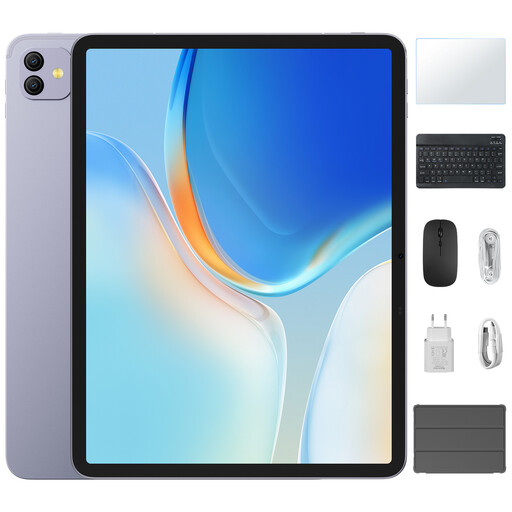
Consider this for table-based plan viewing if you want the listed keyboard and stylus alongside a large display.
The product name specifies a 12.7-inch display, 90Hz refresh rate and 256GB storage. Check the stylus behaviour, required apps and annotation export before relying on it for mark-up.
 No image available
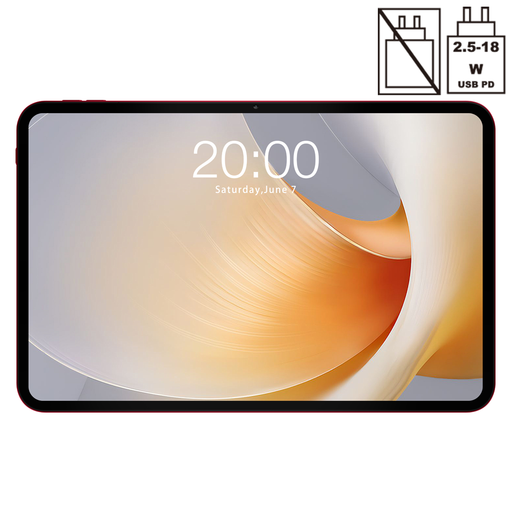
Consider this for viewing plans at a table when screen size is a priority and pen annotation is not assumed.
The product name specifies a 13.4-inch 120Hz display, Android 15, 256GB storage, Dual SIM 4G LTE and 5G Wi-Fi. Check pen compatibility and the required file workflow if you need to mark up drawings.
No, but it is a sensible starting point for seated reviews of detailed drawings because it offers more drawing area than a smaller field tablet. Test a typical plan at the scale you use in meetings; portability and exposure to site conditions may matter more than screen area.
That depends on the exact product and bundle, so check the selected listing. Samsung states that its Galaxy Tab S10 FE+ includes an S Pen, while Apple lists Pencil compatibility for iPad Air and Microsoft offers Surface pen and keyboard choices separately across configurations.
No. Samsung describes the Galaxy Tab S10 FE+ and included S Pen’s IP68 rating under specified laboratory freshwater conditions, not as protection against every impact, contaminant or work-area hazard. Check the exact model, case and site equipment rules.
Choose a cellular-capable configuration if the team needs direct access to current files away from dependable Wi-Fi. Otherwise, site Wi-Fi, an approved hotspot or an authorised offline workflow may meet the need; check coverage, device configuration and company security requirements before deciding.