Volunteer check-in coordinators
If you carry a member list between venues, quick touch updates may matter most at the door. Check whether you can also enter names and notes comfortably when the queue has gone.


For check-in and short updates to shared membership lists, consider an iPad or Android tablet with a suitable keyboard. If the work depends on desktop software or sustained entry across several windows, consider a Windows 2-in-1 instead. Whichever route you choose, try the actual membership files and check how the device will fit your organisation’s rules for handling personal data.
If you carry a member list between venues, quick touch updates may matter most at the door. Check whether you can also enter names and notes comfortably when the queue has gone.
If you maintain larger workbooks or use desktop-dependent administrative tools, make keyboard comfort and compatibility with your actual files the starting point. A tablet that opens a workbook may not support every part of your editing workflow.
If the device will access names, contact details or other personal information, choose it alongside your organisation’s arrangements for access, updates, local storage and lost devices—not as a substitute for those arrangements.
Choose the operating-system route around the membership system and files you already use; then decide how much typing, travel and access to personal data the device must accommodate.
Consider it when: check-in, notes and ordinary list updates fit the iPad apps or browser tools your group uses.
Check before choosing: try your workbook on iPad Excel; Microsoft says some mobile features require a qualifying Microsoft 365 subscription, while Apple lists the iPad Air Magic Keyboard separately.
Consider it when: your membership tools run on Android and you mainly make updates while moving between venues.
Check before choosing: test the exact app, file and account permissions. Microsoft documents Excel editing on Android tablets, but mobile feature availability can differ from desktop Excel.
Consider it when: record keeping involves extended keyboard work, several windows or Windows desktop utilities.
Check before choosing: assess the complete keyboard setup and how comfortable the device will be to carry and use at check-in. Microsoft lists the Surface Pro keyboard separately.
| Concern | What to check | Who this matters to |
|---|---|---|
| Record entry | Try repeated edits with the intended keyboard and layout; check whether the screen gives you enough room for the columns you use. | If I regularly correct contact details or update attendance, I need typing and workbook navigation that remain manageable beyond a quick edit. Around 29% of consumers put record entry first. |
| Mobile check-in | Handle the device as you would at a venue, and check whether Wi-Fi or an approved hotspot will be available where records are updated. | Moving between meetings makes it important for me to reach the list and make short updates away from a desk; roughly 24% of consumers prioritise mobile check-in. |
| Member information | Check account access, software updates, local downloads and the organisation’s lost-device process. The Information Commissioner’s Office advises security measures appropriate to the processing risk. | When I can access members’ personal details, I need the device to fit our organisation’s controls rather than relying on a screen lock alone. Protecting that information comes first for around 29% of consumers. |
| Light-use setup | Decide which accessories and Microsoft 365 features the occasional task actually requires before choosing a configuration. | For viewing lists and making occasional changes, I want a setup that covers those tasks without adding equipment I will rarely use; approximately 18% of consumers put this proportionate setup first. |
Touch input may be enough to view a list or mark attendance, but repeated names, corrections and notes make the complete entry setup more important.
Try the keyboard layout and the tasks you perform most often. Check whether a compatible keyboard is included and whether it also provides the coverage you need when carrying the device.
A workbook opening on a tablet does not establish that every editing, sharing or protected-file step in your process will work as expected.
Test a representative copy of the membership workbook on the shortlisted platform, including permissions, formulas and any protected-file workflow. Microsoft says some mobile features require a qualifying Microsoft 365 subscription.
Personal or shared access can complicate control of local copies and accounts. The Information Commissioner’s Office highlights additional risks in arrangements that use personally owned devices.
Agree who may use the device, how organisational accounts and downloads are managed, and what happens if it is lost. Apply updates and access controls under your organisation’s security process.
Independent connectivity is relevant when records must be updated somewhere without usable Wi-Fi or an approved hotspot; it is less relevant when the usual working locations already provide suitable access.
List the places where check-in and updates happen, then decide whether the workflow needs a cellular-capable tablet.
Apple’s iPad Air is an iPadOS option for touch-first check-in and list maintenance. Apple offers 11-inch and 13-inch versions and states that iPad Air supports Magic Keyboard.
Samsung’s Galaxy Tab S10 FE is a 10.9-inch Android option for groups whose membership tools and files work on Android.
Microsoft’s Surface Pro is a Windows 2-in-1 option when membership administration is closer to laptop work but tablet use still matters.
Lenovo’s cited Tab P12 bundle is a 12.7-inch Android option for record work where a larger screen and keyboard are useful.
These choices include Windows convertible computers for keyboard-led record work and Android tablet bundles for mobile updates. Check each device against your membership software, keyboard needs and data-handling process.
 No image available
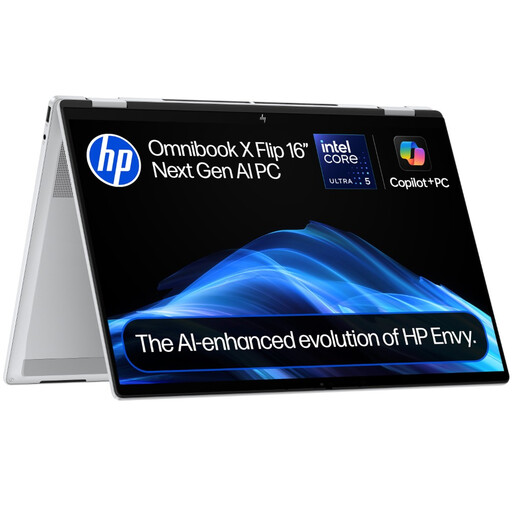
Consider this Windows convertible if you expect frequent keyboard entry alongside tablet-style use. The product name specifies 16 GB RAM, a 1 TB SSD and Windows 11 Home. Try your membership software and workbook before choosing it, and confirm the keyboard layout you need.
 No image available
Consider the larger touchscreen when records are mainly maintained in a seated, keyboard-led workflow with occasional tablet use. The product name specifies an Intel Core Ultra 5 226V, 16 GB RAM, a 512 GB SSD and Windows 11 Home. Check whether its size works at your venues, as well as your software and keyboard-layout requirements.
 No image available
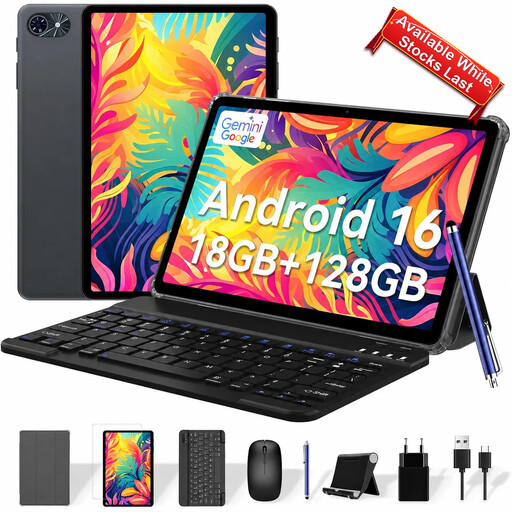
Consider this tablet bundle for short mobile updates if your membership tools work on the supplied Android version. Its product name lists 256 GB storage and TF-card support up to 2 TB. Confirm the Android version, UK keyboard layout and behaviour of your actual workbook before choosing it.
 No image available
Consider this smaller Android tablet for portable list viewing and short keyboard updates. The product name specifies 128 GB storage and TF-card support up to 2 TB. Confirm the actual RAM configuration, UK keyboard layout and compatibility with your membership app or workbook before choosing it.
Excel is available on both platforms, but check the actual membership workbook rather than assuming desktop-equivalent editing. Microsoft documents mobile Excel functions and says some additional features require a qualifying Microsoft 365 subscription; try the organisation’s formulas, templates, permissions and protected-file steps before purchase.
A personal tablet should be used only within an organisational process that controls access to member information. The Information Commissioner’s Office highlights risks with personally owned devices, so agree how organisational and personal data will be separated, how access will be secured and what happens if a device is lost.
UK GDPR does not specifically require every item of personal information to be encrypted, according to the Information Commissioner’s Office. The ICO identifies encryption as an appropriate measure to consider for personal information stored on tablets; the organisation should assess it alongside its other security controls and the risks of its own processing.
Choose cellular capability if records must be updated where neither suitable Wi-Fi nor an approved hotspot is reliably available. If your usual venues provide the connection your membership workflow needs, a Wi-Fi-only device may cover the task.