What should you check before buying?
Check whether the device can complete your actual file and approval workflow before deciding how much screen space and which accessories you need.
iPadOS tablet
Consider it when: PDF annotation and iPad-compatible drawing apps cover your review tasks, and you want a choice of 11- or 13-inch iPad Air screens.
Check before choosing: Confirm the required apps, account access and pen arrangement for your exact configuration.
Android tablet
Consider it when: Android apps cover your files and review steps; Samsung lists a 12.4-inch Galaxy Tab S10+ with an S Pen in the box.
Check before choosing: Mobile drawing support does not establish that a required desktop CAD tool or organisation-specific plug-in will work.
Windows 2-in-1
Consider it when: Your review process depends on desktop Windows software or substantial keyboard-based work.
Check before choosing: On a Snapdragon Surface Pro, test essential applications and connected devices; Microsoft identifies performance overhead when Windows on Arm emulates x64 or x86 applications.
| Concern |
What to check |
Who this matters to |
| Drawing-sheet visibility |
Open a dense project sheet at your usual zoom level. Compare usable screen size and how the display handles your library lighting. |
I want to see more of a plan and its annotations before panning, even if the tablet is larger to carry. Around 31% of consumers would put drawing-sheet context first. |
| Quiet pen markup |
Check pen inclusion and compatibility, then try the comments, highlights and drawing tools in your required app. |
When reviewing a PDF in a quiet space, I need to mark changes by hand without switching to spoken notes. Roughly 25% of consumers would make pen-based markup their primary need. |
| Project-workflow compatibility |
Test your actual file versions, storage access, sign-off steps, applications and essential add-ins on the intended device. |
If my team requires particular project tools, opening a drawing alone will not finish the review. For around 25% of consumers, completing that workflow would come first. |
| Carrying and library use |
Assess the tablet with its case or stand, and check the study-zone rules and silent-alert settings where you will work. |
I carry the device between study sessions and need it to sit comfortably on a desk without disturbing others. About 19% of consumers would prioritise that practical setup. |
Joybuy products for drawing review
These larger-screen tablet configurations are relevant if viewing drawing sheets and checking pen-based review are part of your choice. Confirm your required files and apps against each exact model before treating any of them as a project-workflow solution.
 No image available
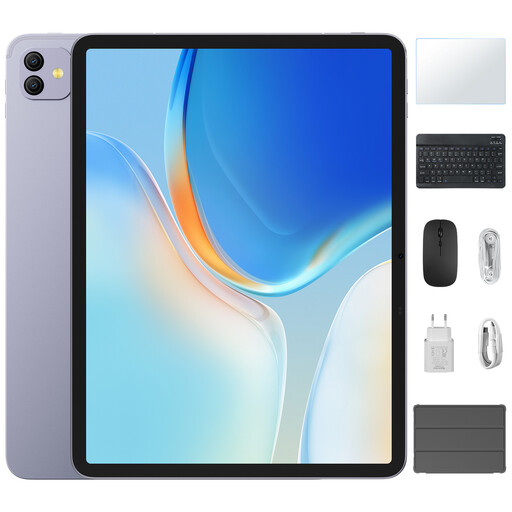
TECLAST ArtPad Pro, 12.7-inch, with stylus, case and keyboard
Consider this large-screen configuration if you want to review drawing sheets and make pen annotations; test your required project files and apps before choosing it.
The listed configuration has a 12.7-inch 2K display, Android 15 and 256GB storage, with a stylus, case and keyboard.
Check its carrying weight and how the display looks in the lighting where you will work.
Joybuy
 No image available
Blackview Link 8, 12.7-inch, with keyboard and stylus
This configuration suits consideration if a larger screen, pen input and a keyboard are useful for your drawing-review tasks; establish whether your exact software and files will work on it.
The product name specifies a 12.7-inch 2K display, 90Hz refresh rate and 256GB storage, with a keyboard and stylus.
Check the operating system, carrying weight and display visibility in your intended study space.
Joybuy
 No image available
Apple iPad Pro 13-inch (M5), Wi‑Fi + Cellular, 1TB, Standard Glass
Consider this 13-inch configuration if screen area and cellular connectivity matter to your drawing review, provided your project apps and file-sharing steps work on the device.
The listed variant has 1TB storage, Standard Glass and a Silver finish.
Confirm the pen arrangement, carrying weight and compatibility with your exact drawing and collaboration workflow.
Joybuy
Questions about library drawing review
Is a 13-inch tablet always better for reviewing drawings?
No: choose the larger screen when seeing more of a sheet before zooming matters more than carrying comfort. For a concrete size comparison, Apple lists its 11-inch Wi‑Fi iPad Air at 464 g and its 13-inch Wi‑Fi model at 616 g, before accessories.
Can an iPad or Android tablet handle PDF and DWG review?
They can handle supported mobile review tasks, but you need to check the exact actions your project requires. Adobe documents PDF comments, highlights and drawing annotations on mobile, while Autodesk describes mobile DWG viewing and editing; neither establishes compatibility with every desktop plug-in or team approval process.
Will a pen come with the tablet?
Pen inclusion depends on the exact model and configuration. Samsung lists an S Pen in the Galaxy Tab S10+ box, while Apple presents Apple Pencil Pro as an optional addition for iPad Air; check the contents and compatibility of the product you intend to order.
Can a Snapdragon Surface Pro replace a Windows CAD laptop?
Only if your essential CAD workflow works on the chosen Surface Pro configuration. Microsoft says Windows on Arm can emulate x64 and x86 applications but that emulation has performance overhead, so check the precise software version, add-ins, licence tools, drivers and connected devices.
How should I prepare the tablet for a quiet library area?
Silence alerts, avoid calls and keep any permitted audio inaudible to other readers. The University of Liverpool Library gives those alert and audio instructions for its study zones; check the rules and designated areas at the library you will use.


