Mobile lesson planners
If you prepare and revise plans in short gaps between visits, carrying comfort and a practical typing setup matter alongside screen size.


Choose a portable tablet with a keyboard if you mainly write plans in short gaps, and prioritise a compatible pen if you regularly mark up worksheets or PDFs. An iPad or Android tablet makes sense when your required tools work in mobile apps; if your work requires full Windows software, consider a Windows 2-in-1 instead. Check your organisation’s rules before using any of these devices for identifiable client or pupil information.
If you prepare and revise plans in short gaps between visits, carrying comfort and a practical typing setup matter alongside screen size.
If you mark up worksheets, slides or PDFs regularly, consider the pen you will use and whether the screen gives you enough room to review a page.
If your work requires Windows-only software, complex files or laptop-style multitasking, start with a Windows 2-in-1. Check your organisation’s applications and device rules before settling on a model.
Establish which work tools and security rules apply, then decide how much you will type, annotate and carry between visits.
| Concern | What to check | Who this matters to |
|---|---|---|
| Carrying and screen space | Compare the exact device’s weight with the screen space you need for plans and resources; account for the kit you will carry with it. | I move between visits and need a device I can carry and set up for brief planning sessions. Around 31% of consumers put portability first. |
| Typing and work software | Try representative plan templates and required applications on the intended operating system; check the keyboard arrangement. | When full plans or required desktop tools drive the work, I cannot rely on touch edits alone. For around 31% of consumers, the desktop-style workflow is the primary concern. |
| Pen annotation | Check pen compatibility and inclusion for the exact model, plus whether your apps can save and share marked-up files. | I regularly annotate worksheets, slides or PDFs and want to work directly on those resources. Around 23% of consumers place annotation first. |
| Secure access while mobile | Confirm your organisation’s requirements for storage, device controls and connectivity before handling identifiable information. | Accessing work away from my usual workplace has to fit the rules for the information I handle. Secure access is the main concern for around 15% of consumers. |
A touchscreen may suit brief edits but leave lengthy lesson plans awkward to type. Microsoft lists the Surface Pro keyboard and Slim Pen as optional; Samsung lists an S Pen, but no travel adapter, in its Galaxy Tab S10 FE package.
Check the exact bundle against the keyboard, pen, case and charging equipment your working day requires.
The device still has to open your required templates, applications and managed work services with the features you use.
Test a representative lesson plan and the exact school or client platforms, or seek confirmation from your IT team. If full Windows software is essential, assess a Windows 2-in-1.
Microsoft’s figure of up to 15.5 hours for Surface Pro refers to video playback, not lesson-plan editing, video calls or cloud synchronisation.
Consider how you will charge between visits and assess battery life with your actual applications and connectivity pattern.
Samsung’s IP68 statement concerns specified water and dust test conditions. It does not establish whether a device meets the rules for handling client or pupil information.
The Information Commissioner’s Office says personal data needs security measures appropriate to the circumstances and risk. Check your organisation’s requirements for device management, authentication, storage, backup and lost-device reporting.
iPad Air offers an iPad-based route for portable document work, with compatible keyboard and pen options.
Galaxy Tab S10 FE is an Android option to assess when marking up lesson resources is part of the workflow.
Surface Pro is a detachable Windows route to assess when lesson planning depends on desktop applications or laptop-style work.
These choices span a Windows 2-in-1 for keyboard-led work and Android tablets for portable planning or lesson-resource annotation. Check each device against your required applications and workplace rules.
 No image available
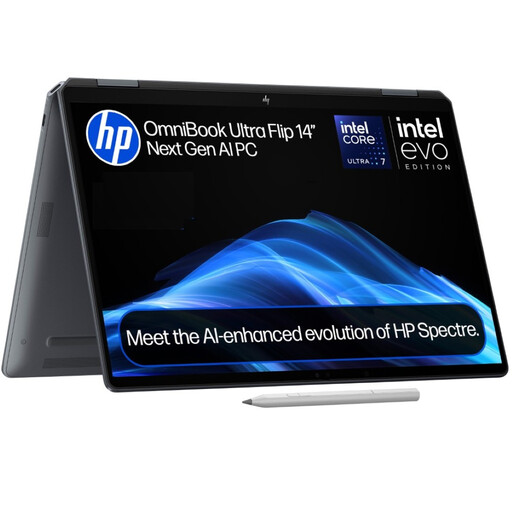
Consider this Windows setup if sustained typing and desktop-style planning are central to your work; check your required applications and whether its laptop-like carry suits your visits.
Windows 11 Home, 16GB RAM and 1TB SSD.
If handwritten annotation matters, confirm stylus compatibility for this model.
 No image available
Consider this Android tablet if you want a pen included for lesson-resource markup; check your annotation apps and whether you need a separate typing setup.
12.7-inch 2K display, 256GB storage, dual-SIM 4G LTE and included stylus pen.
Check its carrying weight and the requirements of your work applications and device policy.
 No image available
Consider this smaller-screen setup if you want keyboard and pen input for short planning sessions; check that its display gives you enough room for your usual documents.
10.1-inch display and 256 GB storage; the product name lists a keyboard, mouse and stylus.
Confirm the exact operating-system version, work-app compatibility and applicable device-security requirements before buying.
Choose the smaller screen if carrying comfort takes priority; consider a larger one if you often review full-page plans or worksheets and accept the extra weight. Within the iPad Air range, Apple specifies 464 g for the 11-inch Wi-Fi model and 616 g for the 13-inch Wi-Fi model.
Prioritise a keyboard for writing full lesson plans and a stylus for regular worksheet, slide or PDF annotation. Check the exact bundle: Microsoft lists Surface Pro keyboard and Slim Pen options separately, while Samsung lists an S Pen in its Galaxy Tab S10 FE package.
Check your organisation’s rules before storing identifiable information on the tablet. Where UK GDPR duties apply, the Information Commissioner’s Office says security measures must be appropriate to the circumstances and risk; confirm the required device management, authentication, storage, backup and lost-device procedures.
A consumer may have a short-term right to reject faulty goods under the Consumer Rights Act 2015, subject to the Act’s conditions. Section 22 sets a 30-day time limit beginning the day after its required conditions have all occurred. Keep your order record and contact the trader promptly; this is distinct from a change-of-mind return.