Who is this for?

Older adults building digital confidence

Someone who wants to keep in touch or use online services may also need time and help with passwords, unfamiliar steps or safety concerns. Age UK identifies skills, trust and access to suitable equipment or broadband as barriers; changing the device alone may not address them.

People with vision, hearing or dexterity needs

Small text, quiet call audio, touch gestures or a hard-to-hold device can affect everyday use. Try the screen, sound and controls with the person who will use them, including any settings or accessories they rely on.

Relatives helping with setup

Start with the calls, messages, shopping or banking tasks the person wants to do. Help them practise those steps on the exact device instead of assuming a product marketed to older people will suit their apps or handling needs.

What should you check?

Tablet

Consider it when: Home video calls, photos and browsing are the main tasks, and the person is comfortable using a touchscreen.

Trade-off: Holding the screen steady and using touch gestures may be difficult; try a stand if positioning is the obstacle.

Simplified smartphone

Consider it when: The person needs calls and familiar apps away from home but finds a conventional phone layout crowded.

Trade-off: A simpler layout does not establish that the required apps, sign-in steps or controls will work for that person.

Larger-screen computer

Consider it when: A physical keyboard and stable workspace help with longer messages, forms, shopping or banking.

Trade-off: The person needs a comfortable way to use the keyboard and pointer, plus a workable camera and audio setup for calls.

Priority What to check Your needs
Confidence and support Try finding a contact, answering a call and returning to the home screen. Plan how the person will get help with setup, updates and account access. I want to find the apps I use without having to remember a complicated sequence, and to know whom to ask when something changes.
Readable controls Adjust text, icons and contrast on the exact device. Check call buttons and messages in the person’s usual lighting; try spoken feedback if needed. Can I read a message and recognise the control to answer a call with my usual glasses and settings?
Call audio Test speech and volume during a real call in a normal room. Check captions or compatibility with the person’s own audio equipment where relevant. Following a conversation matters more to me than simply being able to start the call.
Handling and input Try holding, unlocking and charging the device. Test touch gestures, a keyboard or alternative controls as appropriate; check whether a stand helps camera positioning. Longer forms are easier for me with a keyboard, or I need a device I can use without holding it throughout a call.
Connection and accounts Test Wi-Fi where calls will take place, check the mobile-data allowance for calls away from Wi-Fi, and confirm the required apps and sign-in steps. Keep software and apps updated. I need calls and essential services to work in the places I use them, with an account routine I can manage or get help with.

What can go wrong?

  • Choosing solely by an age-related label

    A simplified interface may suit one person, while another needs a familiar app, keyboard or accessibility control available on a mainstream device.

    Ask the intended user to answer a call, read a message and complete their other essential tasks on the exact device.

  • Assuming accessibility settings settle the choice

    A listed feature does not show whether its controls, the device’s weight or its charging method work comfortably for the individual.

    Try the relevant settings, call audio, camera position and required apps in the environment where the device will be used.

    A stand, input device or audio accessory may be needed if the basic setup is difficult to use.

  • Overlooking the connection during video calls

    Calls can be disrupted by poor Wi-Fi, while calls made over a mobile network use the plan’s data allowance.

    Check Wi-Fi in the usual calling spot and review the mobile plan before relying on video calls away from home.

    Age UK warns that exceeding a mobile-data allowance can lead to charges from the phone network.

  • Adding shopping or banking without a security routine

    Clearer controls do not remove the risk of suspicious messages or websites when personal accounts are in use.

    Keep software and apps updated, set up account protection the person can use, and agree how to check unexpected payment requests.

Relevant brand references

Apple

Apple’s iPhone, iPad and Mac ranges are mainstream options for someone considering a familiar device ecosystem rather than a specialist interface.

  • Apple describes built-in accessibility features across its products.
  • Check the exact device, software version and required apps, then try its controls and audio with the intended user.

Samsung

Galaxy phones and tablets are Android options for buyers who want to assess the available apps alongside accessibility controls.

  • Samsung documents spoken screen feedback among its mobile accessibility features.
  • Check which settings are available on the exact model and software version rather than assuming they apply across the range.

Doro

Doro offers a simplified smartphone route for someone who wants phone-based communication and everyday apps.

  • Doro says apps such as WhatsApp, video calling and banking are presented in a simpler layout on its smartphones.
  • Confirm the required apps and sign-in steps on the exact phone, and try its sound, charging and controls.

Microsoft

Windows is a computer route for someone who prefers a larger screen, physical keyboard or alternative input method.

  • Microsoft documents voice access as a Windows 11 accessibility feature.
  • Software features do not establish whether a particular laptop’s keyboard, camera, speakers or weight suit the person.

Joybuy tablets and larger-screen laptops

These options cover a Wi-Fi tablet for trying home-based tasks and laptops for people considering a larger screen and physical keyboard. Compare each device with the intended user’s calling apps, controls and setup needs.
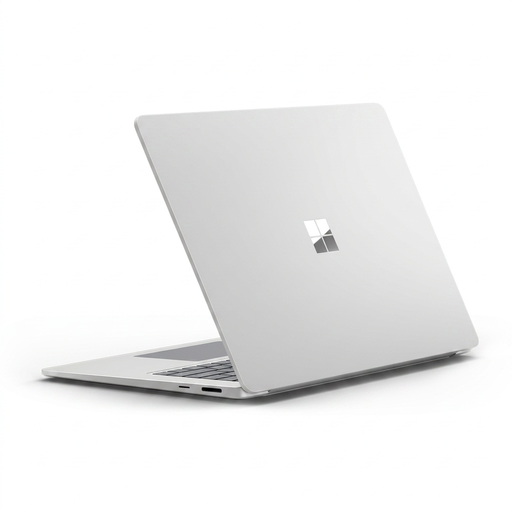
Microsoft Surface Laptop 7 15-inch, Maya colour

Microsoft Surface Laptop 7 15-inch, Snapdragon X Elite, 16GB RAM, 256GB SSD, Maya

Consider this larger-screen laptop if the person wants a keyboard for online tasks and would also like to try touch input. The product name specifies a 15-inch PixelSense touchscreen; test the required apps, call setup and controls with the intended user.

View on Joybuy
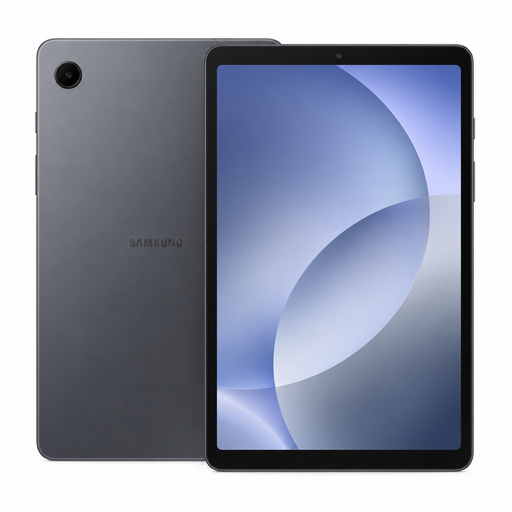
Samsung Galaxy Tab A11 Wi-Fi 64GB tablet

Samsung Galaxy Tab A11 Wi-Fi 64GB tablet

This tablet is an option for someone trying touchscreen-based calls and browsing at home. Check the required calling apps and accessibility settings on this exact model, then try its screen, touch controls and call audio together.

View on Joybuy

MSI Stealth 18 AI Studio A1VGG-001UK laptop

MSI Stealth 18 AI Studio A1VGG-001UK, 18-inch, RTX 4070

The 18-inch laptop format is worth considering if the computer will usually stay in one place and screen size is important to the user. Try the display and controls, and confirm the webcam and microphone meet the intended video-call setup.

View on Joybuy

ASUS ProArt P16 H7606WW-SE006W laptop

ASUS ProArt P16 H7606WW-SE006W, 16-inch 4K OLED touchscreen

This Windows 11 Home laptop offers a larger screen and touch input to try alongside its keyboard for online tasks. Its product name specifies an AMD Ryzen AI 9 HX 370, 64GB RAM and 2TB SSD; confirm the required apps and video-call equipment, and test text visibility and controls with the user.

View on Joybuy

Apple MacBook Pro 16.2-inch M5 Max in Space Black

Apple MacBook Pro 16.2-inch M5 Max, 48GB/2TB, Space Black

Consider the 16.2-inch laptop format where a physical keyboard and larger workspace suit the person’s online tasks. The product name specifies an M5 Max with an 18-core CPU and 40-core GPU; try the required apps and accessibility controls, and check the camera, microphone and speakers for calls.

View on Joybuy

Questions about choosing and setup

Should I choose a tablet, phone or computer for video calls?

Choose according to where calls happen and which controls the person can use. A tablet offers a home-based touchscreen route, a simplified smartphone can travel with them, and a computer offers a larger workspace and keyboard. On the exact device, test the calling app, camera, sound and the steps to answer and end a call.

Which features should we try before buying?

Try text and icon size, contrast, volume, unlocking, charging and the input controls with the intended user. Also open the apps they need and check camera positioning during a call; a feature listed for a device cannot establish whether that person can use it comfortably.

Can video calls use up a mobile-data allowance?

Yes. Age UK notes that video calling uses data and that exceeding a phone plan’s allowance can lead to network charges. Check Wi-Fi where calls usually happen and review the mobile plan before relying on calls away from Wi-Fi.

What should we set up before banking or shopping online?

Update the device and apps, set up account protection the user can manage, and practise checking unexpected messages or payment requests. A trusted person can help with setup without keeping unnecessary access to personal banking credentials.

Is a phone marketed to older people automatically easier to use?

No. A simpler layout may help, but a familiar mainstream device may suit someone who needs a particular app, keyboard or accessibility control. Compare the actual tasks on the exact devices with the person who will use them.