Handwriting-first PDF annotators
If you regularly highlight text and write notes beside it, prioritise a compatible pen and enough usable page space in your PDF app.


Choose a compact conventional tablet if you mainly read research PDFs and write notes by hand; consider a larger screen when page space or working across applications matters more than a smaller device. A dedicated paper tablet suits a document-focused workflow, while a Windows 2-in-1 suits work that also requires desktop software and keyboard writing. Check the pen arrangement, PDF tools, charging and access to your files for the exact device you choose.
If you regularly highlight text and write notes beside it, prioritise a compatible pen and enough usable page space in your PDF app.
If the tablet travels between study locations, consider how it fits in your bag, what you must carry to charge it and whether your papers are available offline.
If annotation happens alongside drafting, reference management or other applications, check your software and keyboard requirements before choosing a document-focused device.
Start with the kind of work you need to do in the café, then compare screen space and what you will need to carry. These routes differ most in their approach to applications and accessories.
Consider it: For handwritten PDFs alongside colour reading and tablet apps.
Check: Apple lists compatible Pencil models for iPad Air as separate additions; the larger model also takes up more carrying space.
Consider it: If you prefer Android and want to compare a compact model with a pen supplied in the package.
Check: Samsung lists an S Pen with the Galaxy Tab S10 FE but no travel adapter in its UK package.
Consider it: When annotation must sit alongside Windows research software and keyboard writing.
Check: Microsoft describes the Surface Pro keyboard and Slim Pen as optional accessories.
Consider it: When reading and marking up imported documents matter more than a broad app workflow.
Accept: A document-focused workflow is not a substitute for the desktop applications you may need for other research tasks.
| Concern | What to check | Who this matters to |
|---|---|---|
| Handwriting and PDF space | Check pen compatibility and whether your PDF app provides the marks and margin space you need on a dense paper. | If I write beside passages rather than just read them, the pen and usable PDF space come first; roughly 31% of consumers put handwritten markup first. |
| Portability and access | Compare carried size with your case, and check charging arrangements and whether papers can be opened offline. | Moving between study locations makes a manageable bag and ready access to papers important; around 31% of consumers prioritise café-ready portability and access. |
| Software and keyboard work | Confirm that your required research applications run on the device and decide whether you need a keyboard. | If annotation is only part of my session, I need to draft or work across applications too; roughly 23% of consumers make that broader workflow their primary concern. |
| Focused reading | Check how your own PDFs, including diagrams and colour-coded figures, appear on a document-focused screen. | For long stretches with a paper, I may prefer low glare and fewer distractions to general-purpose apps; around 15% of consumers put focused reading first. |
Pen and charging arrangements vary. Apple lists Pencil options separately for iPad Air, while Samsung lists an S Pen but no travel adapter in the UK Galaxy Tab S10 FE package.
Check the exact retailer package for the pen, cable and charger; add a keyboard to your checklist only if your work requires one.
reMarkable bases its Paper Pro claim of up to two weeks on about one hour of daily reading and note-taking with occasional Wi-Fi transfers. Its stated estimate excludes reading-light use.
Plan around your own session length, screen settings and syncing habits, and take a compatible charger if you may need one.
Apple lists its 11-inch iPad Air Wi-Fi model at 464 g and its 13-inch Wi-Fi model at 616 g, before a case or keyboard. More page space also means a larger device to position on a café table.
Compare your bag and table space, then consider the weight of the accessories you would actually take.
The UK National Cyber Security Centre warns that attackers on an insecure or public network may intercept or modify data.
Download papers you are permitted to store locally before leaving, and use your institution’s approved connection method for protected material.
iPad Air is an iPadOS option for colour PDF reading and handwriting in an 11-inch or 13-inch format.
Galaxy Tab S10 FE is an Android option with a 10.9-inch display and expandable local storage.
Surface Pro is a Windows 2-in-1 option when PDF annotation must fit alongside keyboard writing and Windows applications.
Paper Pro takes a document-focused approach to importing, reading and marking up PDFs.
These tablets cover compact conventional reading, a dedicated E-Ink option and larger-screen devices. For any model you plan to use for handwritten research PDFs, check the exact pen and PDF-app workflow before choosing it.
 No image available
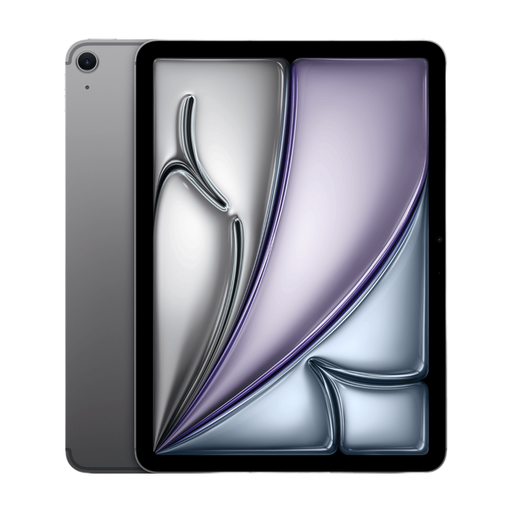
The 11-inch format suits a compact conventional tablet setup for reading papers away from a desk.
This Wi-Fi model has 128GB storage. Check the compatible Apple Pencil model and whether your preferred PDF app handles your handwritten notes; the Pencil is listed separately.
 No image available
This is a document-focused option if reading and handwriting matter more to you than a general tablet workflow.
The described configuration has a 10.65-inch E-Ink screen, 64GB storage and a stylus, and lists PDF file support. Before choosing it for paper annotation, check how handwriting on PDFs, export and collaboration work.
 No image available
Consider this larger-screen tablet if you want more physical space for viewing a paper and also plan to use a pen.
The listed configuration has a 12.7-inch 2K display, 256GB storage, Android 15 and an included stylus with T-Pen drawing support. Check handwriting in your PDF app separately; drawing support does not establish how PDF annotation works.
 No image available
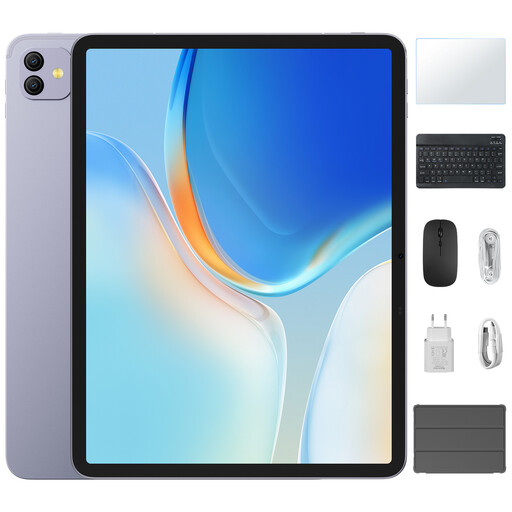
The compact tablet bundle may suit sessions that combine reading with typing, provided its pen meets your annotation needs.
The name lists a 10.1-inch screen and 256GB storage; the product details list a keyboard, mouse and stylus. Check whether the stylus writes in your chosen PDF app, and confirm the operating-system version and screen details for this exact configuration.
 No image available
This larger-screen option is worth checking if you expect to read papers and type notes in the same session.
The product name specifies a 12.7-inch display, 256GB storage, keyboard and stylus. Confirm how the stylus works with your PDF app, along with the device’s carrying weight and connectivity configuration.
Choose around 11 inches if carrying and holding the tablet are your priorities; consider 12–13 inches if you regularly need more visible page area or work alongside another application. For iPad Air Wi-Fi models, Apple lists 464 g at 11 inches and 616 g at 13 inches, before accessories.
Pen inclusion depends on the exact model and package. Samsung lists an S Pen in its UK Galaxy Tab S10 FE box, Apple lists compatible Pencils separately for iPad Air, and Microsoft describes the Surface Slim Pen as an optional accessory.
Not if you can download the papers you need and work offline. If you need a connection when Wi-Fi is unavailable, check the exact cellular configuration and data arrangement; Apple says its Wi-Fi + Cellular iPad models can connect through a mobile-data plan.
Treat public Wi-Fi as a security consideration, particularly for protected research files. The UK National Cyber Security Centre warns that attackers on insecure or public networks may intercept or modify data; follow your institution’s approved connection process for sensitive work.
reMarkable says Paper Pro can import and mark up PDFs, including adjusting the view to make more margin space. Check that its import, export and collaboration steps suit the way you exchange annotated papers.