Choose a larger pen-compatible tablet if reading drawing details and adding handwritten mark-ups are the main tasks. If the tablet will be used around dust, water or gloves, a smaller rugged model may suit the site better; if your plan-review workflow requires Windows software, start with a Windows 2-in-1. Whichever route you consider, test your actual files, apps and sharing process before buying for a team.
Who needs which tablet?
People who annotate plans on screen
For meetings and site walk-throughs involving small drawing details, handwritten comments and revision checks, a larger pen-compatible display is a useful starting point. Check the mark-up tools in the app your team actually uses.
Mobile teams working in demanding conditions
Dust, wet conditions, gloves, cleaning between users and battery changes can matter more than maximum drawing area. Assess the conditions in which the tablet will be handled, not just where plans will be discussed.
Teams tied to Windows workflows
If the required plan viewer, file-handling process or workplace software depends on Windows, confirm that it runs on the exact tablet configuration before choosing a mobile operating system instead.
What matters when choosing?
Large-screen iPad
Consider when: Your team uses iPadOS-compatible plan tools and wants the drawing area and Apple Pencil support of the iPad Air 13-inch model.
Trade-off: Check the compatible pen and bundle separately; Apple does not present this as a rugged, IP-rated site tablet.
Windows 2-in-1
Consider when: Your plan-review process needs Windows software alongside tablet use, typing or pen input.
Trade-off: Microsoft offers different Surface Pro keyboard and pen configurations, so check the exact bundle and required software.
Rugged Android tablet
Consider when: Site handling, gloves and cleaning between users take priority over a large plan view.
Trade-off: Samsung lists a 10.1-inch display for the Galaxy Tab Active5 Pro, smaller than the 13-inch-class alternatives discussed here.
| Concern |
What to check |
Who this matters to |
| Drawing detail and annotation |
Compare usable screen size and compatible pens; try a representative drawing in your mark-up app. |
If I need to read small labels and write comments during reviews, drawing space and pen input come first. Around 31% of consumers prioritise this need. |
| Site resilience and shared use |
Check the exact model's ingress rating, glove operation and manufacturer cleaning instructions. |
When a tablet passes between colleagues or is handled in exposed conditions, I need it to suit that environment. Around 31% of consumers put site resilience and shared use first. |
| Workplace software |
Open an actual plan and test editing, permissions, saving, sharing and offline access on the intended operating system. |
If a required viewer or sign-off process depends on particular software, I cannot choose by screen alone. For around 23% of consumers, workflow compatibility is the primary concern. |
| Carrying, access and charging |
Compare device weight and suitable network options; assess charging against site electrical-safety procedures. |
Moving between walk-throughs and a shared desk, I need a tablet I can carry and connect without overlooking safe charging. Around 15% of consumers place these practical needs first. |
Mistakes to avoid
-
Choosing the operating system before testing the work
A suitable screen cannot make up for an incompatible plan viewer, missing permissions or a file-sharing process that fails on the device.
Try representative files from opening and mark-up through to saving revisions, sharing and offline access before equipping a team.
-
Assuming the pen or keyboard is in the box
Apple lists compatible Pencil models for iPad Air, while Microsoft offers Surface Pro keyboard-and-pen configurations. Compatibility does not establish what a particular bundle includes.
Check the selected configuration, pen compatibility and charging arrangement before relying on it for mark-up.
-
Choosing screen size without considering site handling
A larger display gives a plan more physical viewing area, but it does not by itself establish protection against dust or water, or usability with gloves.
Decide how and where staff will carry, handle and clean the tablet before settling on display size or protective accessories.
-
Improvising a site charging setup
Charging equipment and its supply need to suit the work environment. The Health and Safety Executive advises checking that electrical equipment is suitable for its use and that the supply is safe.
Follow the site risk assessment and electrical-safety procedures; do not use damaged or unsuitable cables, adapters or supplies.
Brands to consider for these tablet routes
Apple
An iPadOS route for teams whose plan-review and collaboration tools work on iPad and who want a larger pen-compatible screen.
- Apple lists a 12.9-inch viewable display, 2732 × 2048 resolution, 600-nit brightness, anti-reflective coating and Apple Pencil support for the iPad Air 13-inch model.
- Check the compatible Pencil and exact bundle. Apple does not describe the iPad Air as a rugged, IP-rated site tablet.
Samsung
An Android route centred on site handling and shared use rather than the largest drawing view.
- Samsung specifies a 10.1-inch display, IP68 protection, MIL-STD-810H compliance, glove-responsive touch and cleaning support with several common sanitisers for Galaxy Tab Active5 Pro.
- Its smaller display leaves less physical space for a plan than a 13-inch-class model. Follow Samsung's model-specific protection and cleaning instructions.
Microsoft
A Windows 2-in-1 route for teams that need tablet handling alongside Windows-oriented plan and document workflows.
- Microsoft offers Surface Pro 13-inch (11th Edition) keyboard configurations with Surface Slim Pen storage and charging.
- Confirm the exact processor, Windows edition, accessories and compatibility with required workplace software for the configuration selected.
Joybuy tablets for plan review
These tablets offer larger-screen or pen-related options for reviewing plans between a site and a shared workspace. Choose by your actual app workflow and handling conditions; the products shown here should not be treated as rugged site tablets without checking the exact model.
 No image available
TECLAST ArtPad Pro (2025), 12.7-inch 2K, 20GB RAM/256GB, with stylus, case and keyboard
Consider this Android tablet if a larger plan view, pen input and a keyboard matter for moving between drawing reviews and desk work.
The title specifies a Helio G99 processor, Android 15 and a 10,000mAh battery. Test your plan apps and workplace file process, and check the protection needed for site conditions.
View on Joybuy
 No image available
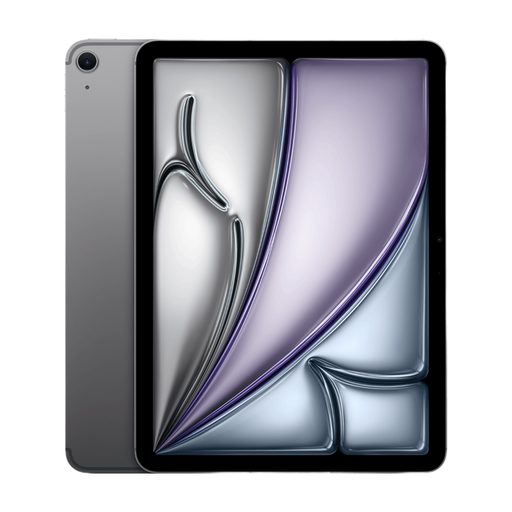
Apple iPad Air 13-inch (2026, M4), Wi-Fi 256GB, Space Grey
This iPadOS option is relevant if your team uses compatible plan-review tools and wants a large display with pen support for mark-up.
Apple lists Pencil support for the iPad Air 13-inch model. Confirm the precise display model before buying: the product listing gives conflicting screen-size descriptions. Also check app compatibility and whether a compatible Pencil is in the selected bundle.
View on Joybuy
 No image available
Apple iPad Pro 13-inch (M5), Wi-Fi + Cellular, 1TB, standard glass, Silver
Consider this configuration for large-screen plan viewing when cellular connectivity is useful and your required tools work on iPadOS.
The product title identifies a 13-inch display, Wi-Fi + Cellular connectivity and 1TB storage. Test representative plans and confirm the exact pen or keyboard bundle before relying on either accessory for work.
View on Joybuy
 No image available
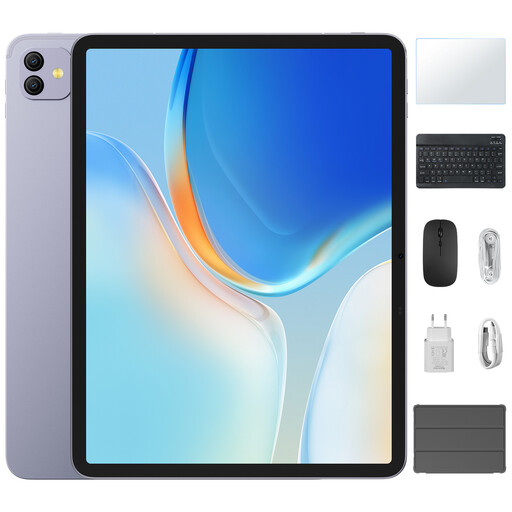
Blackview Link 8, 12.7-inch 90Hz, 18GB (6+12) RAM/256GB, with keyboard and stylus
The listed keyboard and stylus make this a configuration to examine if you want to view plans and switch to typing in a shared workspace.
The title specifies a 12.7-inch display and an 8,400mAh battery. Check what the stylus can do in your annotation app, confirm the bundle contents and assess site protection separately.
View on Joybuy
 No image available
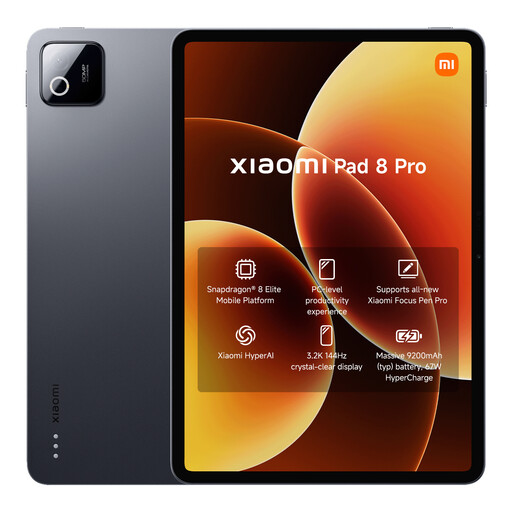
Xiaomi Pad 8 Pro, Grey, 12G RAM/512G storage
Consider this Android tablet if your plan-review apps work on it and you prefer a smaller viewing area than the larger-screen options shown here.
The Xiaomi Focus Pen is listed as compatible but not included. Check the pen configuration before planning handwritten mark-ups, and follow the listing's advice to keep the device away from moisture, dust and high-pressure water.
View on Joybuy
Frequently asked questions
What screen size works for reviewing floor plans?
A 13-inch-class tablet provides more physical viewing area than a 10.1-inch model when you regularly inspect dense plans. Apple lists a 12.9-inch viewable display for the iPad Air 13-inch, while Samsung lists a 10.1-inch display for Galaxy Tab Active5 Pro; choose according to how much drawing area you need versus how the tablet must be handled on site.
Do I need a stylus for floor-plan review?
You do not need a stylus just to view plans, but a compatible pen matters if handwritten mark-ups are part of the job. Apple lists Pencil support for iPad Air, and Microsoft offers Surface Pro configurations with Slim Pen storage and charging; check compatibility and the contents of the exact bundle.
Can a tablet be cleaned between users?
Follow the cleaning instructions for the exact tablet model. Samsung says Galaxy Tab Active5 Pro supports cleaning with several common sanitisers, which may suit shared use; do not apply the same cleaning method to another model without checking its guidance.
What should I check before charging a tablet on site?
Use equipment and an electrical supply suitable for the work and its conditions. The Health and Safety Executive advises checking both; follow the site risk assessment and electrical-safety procedures, particularly where damp conditions affect charging arrangements.


