What should you check first?
Try the relative’s usual activities and controls together, then check the accessories and support needed to keep that arrangement usable.
Touch-first tablet
Consider it when: Tapping already feels comfortable for calls, streaming, browsing and games away from a desk.
Bear in mind: Someone used to a desktop pointer may have to relearn navigation; test the actual apps and accessibility settings.
Tablet with physical input
Consider it when: A portable tablet appeals, but physical typing or pointer navigation makes familiar activities easier.
Bear in mind: The keyboard or pointer must suit the exact device and be manageable to connect again after setup.
Windows detachable
Consider it when: Required Windows programs, a keyboard-and-trackpad workflow or trusted Windows remote assistance drive the choice.
Bear in mind: The keyboard can be a separate accessory, and remote control needs the user’s consent and a trusted helper.
| Priority |
What to check |
Your needs |
| Familiar controls |
Try typing, tapping and pointer navigation in the intended apps. For accessories, check the exact tablet, connection and keyboard layout; Google notes that some Android keyboard-setup steps require Android 14 or later. |
Typing searches and messages on physical keys may feel more familiar than using an on-screen keyboard. |
| Readable interface |
Try the needed text size, contrast, spoken feedback or simplified layout on the device. GOV.UK notes that tablets and computers often have built-in accessibility features, but settings need to suit the individual. |
I want to read the screen and find the right controls at settings that work for me, not rely on screen size alone. |
| Calls and viewing |
Open the intended calling and streaming apps. Check screen readability, camera position, sound, Wi-Fi and where the device will stand while charging. |
For calls and programmes away from the desk, I need a setup I can see, hear and operate comfortably. |
| Setup and help |
Complete Wi-Fi and account sign-in, place the main apps where they are easy to find, and agree on account recovery. If using Windows Remote Assistance, follow Microsoft’s guidance on trusted helpers and unsolicited support requests. |
Someone in the family may help with setup, but I should know how to request help and who is allowed access. |
| Complete arrangement |
Confirm whether the required keyboard, mouse, adapter, stand and charger are included or separate. Check that accessories fit the exact model and can be reconnected during normal use. |
I need the device and controls together to work where I will use them, rather than choosing a tablet in isolation. |
Relevant brand options
These brand features help frame a setup to try; they do not establish that a particular model or accessory will suit your relative.
Apple
An iPad route for a household considering touch input alongside optional keyboard, trackpad or compatible pointer controls.
- Apple documents iPad accessibility settings and external-keyboard and assistive-device support. Its iPad (A16) has an 11-inch display and supports the Magic Keyboard Folio.
- Check the chosen iPad, accessory and apps together; Apple notes that feature availability can vary by region, language and service.
Samsung
An Android tablet route for viewing and calls where display settings or compatible physical input may also matter.
- Samsung documents spoken feedback through TalkBack and display controls for larger content or greater contrast. Its UK Galaxy Tab A11+ materials describe an 11-inch display and front camera.
- Confirm keyboard and pointer behaviour on the exact tablet and installed Android version before relying on those controls.
Microsoft
A Windows detachable route when a familiar keyboard-and-trackpad workflow or Windows software is important.
- Microsoft describes an optional keyboard and touchpad for Surface Pro. It also documents Windows Remote Assistance for help from someone the user trusts.
- Check keyboard compatibility for the exact Surface model. Remote assistance must be arranged with consent and care over unsolicited support requests.
Joybuy tablet options
These options include conventional tablets and one tablet bundle with physical controls. Match the exact device and included accessories to your relative’s preferred way of using calls, streaming and online information.
 No image available
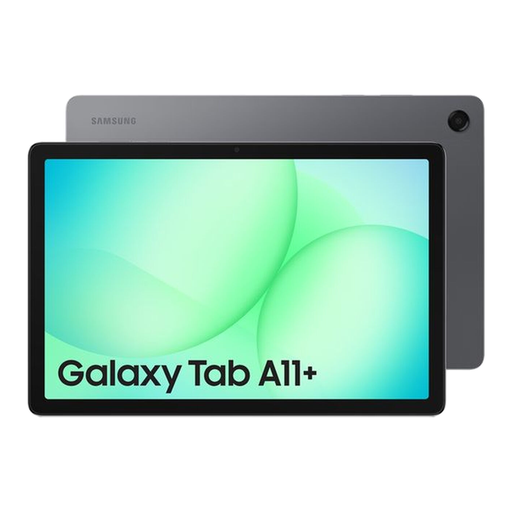
Samsung Galaxy Tab A11+ 8GB 256GB WiFi Gray
A conventional tablet to consider if touch input suits the relative’s portable browsing and viewing. If physical controls matter, confirm a compatible keyboard or mouse and how it connects before buying.
View on Joybuy
 No image available
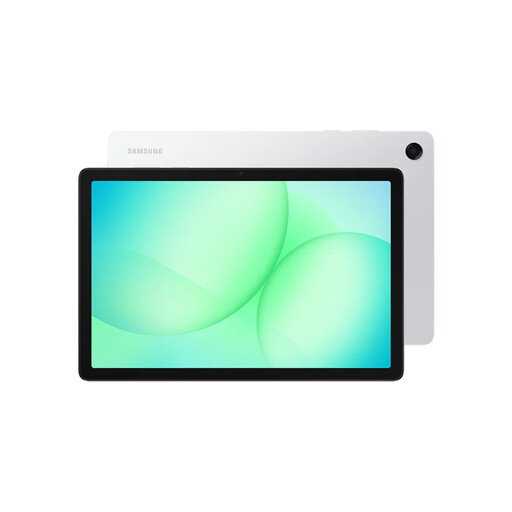
Samsung Galaxy Tab A11+ 5G X236 6GB RAM 128GB Silver
The 5G variant is worth considering if access away from household Wi-Fi is part of the plan. Check the connection arrangement and any keyboard or mouse needed for familiar input.
View on Joybuy
 No image available
TABWEE T20 10.1-inch tablet with keyboard, mouse and stylus
This bundle includes physical controls for someone who prefers typing and pointer navigation alongside a touchscreen. Its title lists 256 GB ROM and 24GB (8+16) RAM. Confirm the operating-system version, charger contents, keyboard layout and mouse connection before buying: the listing gives conflicting operating-system and charger details.
View on Joybuy
 No image available
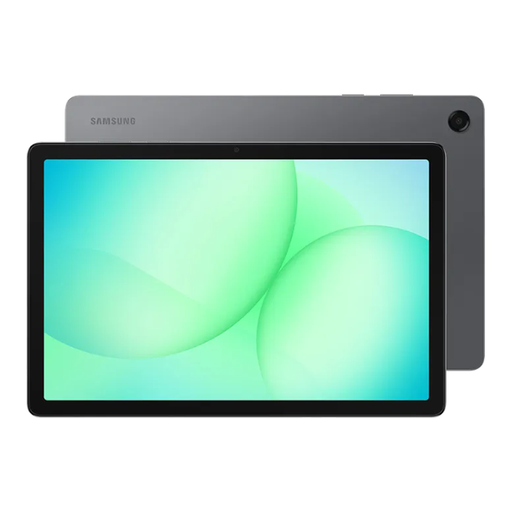
Samsung Galaxy Tab A11+ 11-inch 128GB WiFi Gray
An 11-inch Wi-Fi tablet for trying touch-based viewing, browsing and calls. If the relative uses a physical keyboard or mouse, check the exact compatible accessory and connection method; try any needed display settings during setup.
View on Joybuy
 No image available
Apple 11-inch iPad Air (2026, M4) Wi-Fi 128GB Starlight
An 11-inch iPad option for a relative comfortable with touch input. If physical typing is important, confirm the exact compatible keyboard and whether it comes with the device; try the required apps and accessibility settings together.
View on Joybuy
Common questions
Should I start with a tablet or a detachable-keyboard device?
Start with the controls and activities your relative already manages. A tablet is a sensible trial for someone comfortable tapping through calls, streaming and browsing; try physical input or a Windows detachable if regular typing, pointer navigation or required Windows programs are central to their use.
Can an iPad or Android tablet use a keyboard and mouse?
Both have documented physical-input routes, but compatibility depends on the device and accessory. Apple documents external keyboards and pointer use with AssistiveTouch; Google documents Android-compatible keyboards and notes that some setup steps require Android 14 or later. Check the exact model, connection and UK keyboard layout.
Which accessibility settings should we try?
Try the settings that address the relative’s own needs: text size or contrast, spoken feedback, pointer controls or a simpler layout where useful. GOV.UK notes that tablets and computers often include built-in accessibility features; test the chosen settings in the apps the person will actually use.
How can a family member help remotely?
Agree on a trusted helper, a way to request help and consent before any connection. Microsoft documents Windows Remote Assistance but warns about tech-support scams, so do not grant control after an unsolicited call, message or pop-up. For an iPad or Android setup, check the intended support and account-recovery process before purchase.


