What matters when choosing?
Start with the commands and physical keys your terrain-mapping work uses, then check how the keyboard and mouse fit at the two-screen desk.
| Concern |
What to check |
Who this matters to |
| Shortcut access |
Check the exact keyboard's key-assignment options and test your intended commands in the installed mapping application. Esri ArcGIS Pro Documentation notes that not every command accepts a shortcut. |
If I repeat the same editing and view commands, I want them within easy reach rather than building a profile I cannot use. Around 36% of consumers put shortcut access first. |
| Mouse reach |
Position both screens and the mouse, then measure the width available for the keyboard. Follow the Health and Safety Executive's guidance on keeping the keyboard central and the mouse close to the elbow. |
When I move constantly between typing and map navigation, I need room to keep the mouse close without giving up my working position. For around 29% of consumers, that desk fit is the primary concern. |
| Physical layout |
Check the selected variant's UK-ISO or US-QWERTY layout and whether it retains the numpad, arrows or navigation keys you use. |
If I enter coordinates or use familiar navigation keys, I do not want a smaller layout to interrupt those actions. Physical key access comes first for around 21% of consumers. |
| Host switching |
Count separate computers and tablets, rather than monitors; check the keyboard's stated device limit and connection options. |
If my mapping work moves between separate devices, I want to change keyboard control without rearranging the desk. Around 14% of consumers primarily need host switching. |
Joybuy keyboards for a two-screen desk
These keyboards offer different physical layouts for balancing key access with mouse space. Choose by the keys you use and the room on your desk, then check any shortcut requirements against your mapping software.
 No image available
HyperX Alloy Rise 75 Wireless Keyboard UK
Consider this 75 model if keyboard width and access to recurring commands both matter at your desk. Confirm the exact physical layout and dimensions, and test whether the key assignments you want work in your mapping application.
View on Joybuy
 No image available
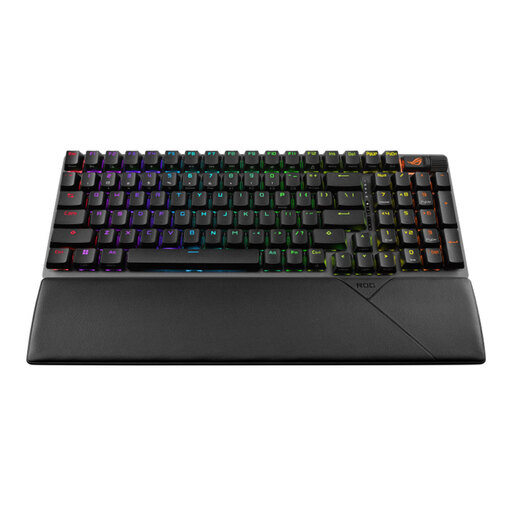
ASUS ROG Strix Scope II 96 Wireless Keyboard, black, UK layout
Consider this 96 model if you want to assess a UK-layout option for numeric and function-key work without deciding on desk fit from the layout name alone. Check its actual width, supplied switch variant and any remapping support you need.
View on Joybuy
 No image available
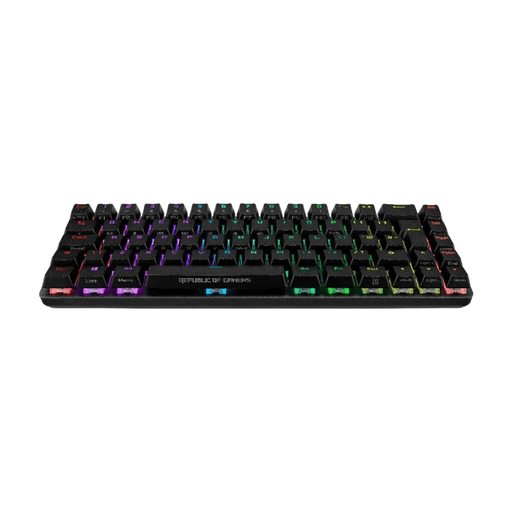
ASUS ROG Falchion Ace HFX 65 Analog Keyboard, UK layout
Consider this 65 model when a narrower keyboard position is important for mouse reach. Check that its exact key layout retains what your mapping workflow needs, including any numpad access, and confirm shortcut compatibility before relying on remapping.
View on Joybuy
Frequently asked questions
Do two monitors mean I need a multi-device keyboard?
No. Two monitors connected to one computer remain a single host; multi-device switching matters when you also use separate computers or tablets.
Can I set my own terrain-mapping shortcuts?
You can customise supported shortcuts in QGIS and ArcGIS Pro, according to their documentation, but ArcGIS Pro does not allow shortcuts for every command. Test the actions you need in your installed version before choosing a keyboard for its macro controls.
Should I check for UK-ISO or US-QWERTY?
Yes, if the physical key arrangement matters to your typing or shortcuts. Check the exact variant: Keychron lists UK-ISO Q6 Max variants, while Joybuy labels its ochama J104 and AULA F75 listings as US-QWERTY.
How should I position a keyboard at a two-screen desk?
Arrange the screens, keyboard and mouse together before settling on a keyboard width. The Health and Safety Executive advises keeping the screen and keyboard central, placing the keyboard just below elbow height and keeping the mouse in line with the elbow.


