Bright-window terrain mappers
You inspect contours, labels and shaded relief near a window, so reflected light and screen readability affect where you can work.


For terrain mapping beside a bright window, check the exact laptop’s screen finish and stated brightness before treating its gaming display as suitable: HP lists an anti-glare, 500-nit option for the OMEN 16, while Lenovo lists a glossy, 500-nit panel for the Legion Pro 7i. If your work includes substantial ArcGIS Pro projects or 3D scenes, check memory, graphics and storage against your software version and datasets; Esri’s ArcGIS Pro 3.4 guidance listed 32 GB RAM as recommended, but that historical figure is not a guarantee for every project.
You inspect contours, labels and shaded relief near a window, so reflected light and screen readability affect where you can work.
You build 3D scenes or work with substantial map datasets locally. Memory, graphics and storage need attention alongside the display; Esri’s ArcGIS Pro guidance identifies different memory tiers for its workloads.
You move between workspaces and want one laptop for terrain projects and gaming, making the size and carrying burden part of the decision.
Start with the screen at your usual desk position, then match the laptop’s configuration to your mapping workload and how often you carry it.
| Concern | What to check | Who this matters to |
|---|---|---|
| Window reflections | Check the exact panel’s finish and stated brightness, then consider whether you can position it away from direct reflections. A brightness figure alone does not establish readability in your room. | When daylight falls across my workspace, I need to see fine contours and labels without reflections obscuring them. Around 46% of consumers put window-side readability first. |
| Local GIS workload | Check RAM, the GPU model and storage against your software version and dataset sizes. Esri’s ArcGIS Pro 3.4 guidance listed 32 GB RAM as recommended and 64 GB or more as optimal; check the requirements for the version you use. | If I build 3D scenes or process large datasets locally, I need a configuration that fits those projects rather than relying on a gaming label. For around 36% of consumers, local mapping performance is the primary concern. |
| Portability | Compare the exact laptop’s size and weight, and check whether its screen and configuration still meet your desk-based needs. | When I move between work areas, carrying the laptop matters, but I still need to inspect maps and run my projects. Portability comes first for around 18% of consumers. |
Lenovo lists the checked Legion Pro 7i’s 500-nit OLED panel as glossy, whereas HP lists anti-glare for an OMEN 16 display option. Neither the display label nor stated brightness alone tells you how reflections will look at your desk.
Check panel finish and brightness for the exact configuration, and consider the window’s position relative to the screen before deciding.
A gaming GPU does not establish that the rest of the configuration fits a substantial GIS project. Esri’s ArcGIS Pro 3.4 guidance listed 32 GB RAM as recommended and 64 GB or more as optimal for that version.
Compare RAM, GPU details and storage with the requirements for your software version and the datasets you expect to use.
HP presents some OMEN 16 components and display features as options or line-level maximums. A particular unit may have a different panel or component combination.
Before ordering, confirm the full model or part number and the listed screen finish, brightness, memory, graphics and storage for that unit.
The OMEN 16 2025 AMD/NVIDIA line is worth checking if screen reflections are your main concern beside a window.
The Zephyrus G16 2025 line is relevant if you want a 16-inch laptop that you will also carry between workspaces.
The checked Legion Pro 7i Gen 10 configuration is a reference point for buyers assessing local graphics and memory needs.
These two gaming laptops offer different starting points for terrain work: the 15.6-inch Lenovo LOQ Essential has 16 GB RAM, while the 14-inch ASUS ROG Zephyrus G14 has 32 GB. Check the exact screen specifications against your bright-window workspace before choosing either one.
 Image unavailable
Consider this configuration if you want a 15.6-inch gaming laptop for terrain work, but check whether its 16 GB RAM meets the requirements of your GIS projects.
The listed display is Full HD at 144 Hz. For use beside a bright window, confirm the exact panel finish and brightness before ordering.
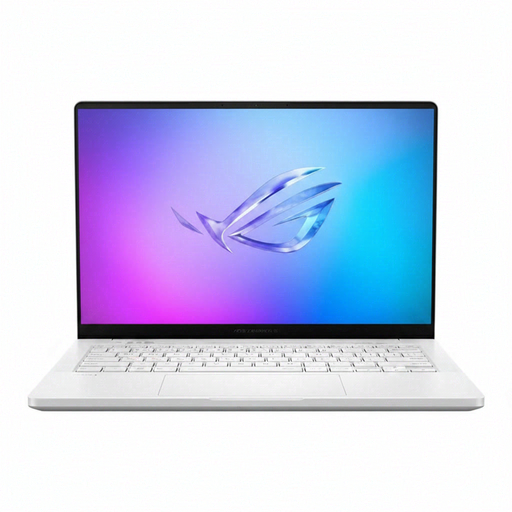 Image unavailable
Consider the 14-inch format if you move between work areas and want 32 GB RAM for local terrain projects; decide whether the smaller screen suits detailed map inspection.
The listed configuration has a Ryzen AI 9 HX 370 and WQXGA+ display. Confirm the exact panel finish and brightness for your window-side desk.
If ArcGIS Pro is your intended software, check the operating system before buying. Esri’s ArcGIS Pro 3.6 system requirements list 64-bit Windows 11 Home, Pro and Enterprise editions; check the requirements for the version you will install.
A 500-nit rating alone cannot establish readability at your desk. HP lists an anti-glare, 500-nit OMEN 16 display option, while Lenovo lists a glossy, 500-nit panel for the checked Legion Pro 7i configuration; check the exact panel finish and where reflections will fall.
Match RAM to your ArcGIS Pro version and projects rather than choosing from the gaming label alone. Esri’s ArcGIS Pro 3.4 guidance listed 8 GB as minimum, 32 GB as recommended and 64 GB or more as optimal; check current requirements and the demands of your own datasets and applications.
Confirm the exact model or part number, panel finish, stated brightness, memory, graphics and storage shown for the unit you are ordering. Keep the product description and order records so you can identify a difference if the delivered configuration does not match what was advertised.