Detail-focused tide-table plotters
If you move between tide data, spreadsheets and charts, controllable scrolling and a mouse that fits your working hand may matter more to you than a high maximum sensitivity setting.


For routine tide-table plotting, start with a conventional wireless mouse that fits your hand and lets you scroll through detailed rows with control. Bluetooth can preserve a laptop port, while a receiver is an option if your laptop lacks suitable Bluetooth; consider quiet clicks for late work in a shared room, or a vertical shape if comfort during long desk sessions is your priority. Check the connection, hand fit and scrolling method before choosing by the maximum DPI figure.
If you move between tide data, spreadsheets and charts, controllable scrolling and a mouse that fits your working hand may matter more to you than a high maximum sensitivity setting.
If you plot or study near someone else, a mouse specified for quiet clicks is worth considering alongside the connection method your laptop can use.
If plotting is part of extended desk work, check hand fit and whether you can keep the mouse close to the keyboard. A vertical shape is an option to try, not a universal comfort fix.
For tide-table work, decide how much control you need over pointer movement and scrolling, then check noise, hand fit and laptop connectivity against your room and desk setup.
| Concern | What to check | Who this matters to |
|---|---|---|
| Plotting control | Check pointer sensitivity settings and whether the wheel offers controlled scrolling through detailed rows. | If I move repeatedly between chart points and long tide tables, I want the pointer and scrolling to feel manageable. Around 33% of consumers put plotting control first. |
| Quiet use | Look for an explicit quiet-click specification; check wheel noise separately if you scroll often. | Working late near a roommate makes repeated clicks a concern for me. Quiet operation comes first for around 25% of consumers. |
| Long-session comfort | Match the shape, size and handed variant to your hand, and check that the mouse can sit close to the keyboard. | When plotting continues into other desk work, I care most about a shape and position I can use comfortably. Around 25% of consumers prioritise long-session comfort. |
| Laptop and space fit | Check Bluetooth compatibility or the required receiver port, and whether a compact body suits your hand. | With limited ports and desk space, I need a connection and mouse size that work with my laptop setup. For around 17% of consumers, that is the primary concern. |
A high sensitivity ceiling does not replace a comfortable shape, usable pointer settings or controlled scrolling through tables and charts.
Choose a sensitivity you can control, then assess the wheel and hand fit rather than comparing maximum DPI figures alone.
Logitech specifies Lift for small-to-medium hands, while CHERRY offers separate right- and left-handed MW 4500 variants. An upright grip can also feel unfamiliar at first.
Check the exact size and handed variant; if compactness or a familiar grip matters more, consider a conventional shape instead.
A USB receiver occupies a compatible port, and receiver compatibility does not mean the receiver comes in the box.
Confirm the connection you intend to use, any receiver inclusion and your laptop’s available ports or Bluetooth support.
The Health and Safety Executive’s display-screen guidance recommends positioning the mouse in line with the elbow. Reaching across a cramped desk still matters whichever mouse you choose.
Keep the mouse near the keyboard and review your screen position for longer laptop sessions.
Its documented mouse range offers conventional, compact and vertical shapes relevant to different student-room priorities.
The MW 4500 range is relevant if you want to consider a vertical mouse, including a separate left-handed variant.
The M660 Silent is a model to consider when quiet clicks and a choice of wireless connection matter.
Surface Arc Mouse is a travel-oriented Bluetooth option for someone carrying a mouse with a compatible device.
These mice cover quiet shared-room use, conventional wireless connections, an upright-grip option and gesture-based scrolling. Match each one to your laptop and the way you navigate tide tables.
 No image available
Consider this model if quiet clicks matter in a shared room and you want a choice of wireless connection. Its title specifies adjustable DPI and one AA battery; check that its scrolling behaviour suits detailed tables and that your laptop supports your chosen connection.
 No image available
Consider its upright grip if that shape is your priority for longer desk sessions, but check hand fit before ordering. The title specifies Bluetooth and 2.4 GHz connection options, six buttons and adjustable sensitivity up to 1600 DPI; check click noise and scrolling if you work late or navigate detailed rows.
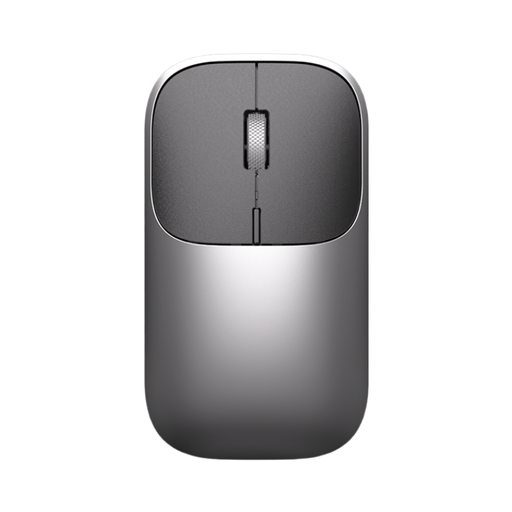 No image available
This is an option if you want to choose between Bluetooth 5.0 and 2.4 GHz wireless for your laptop. The title specifies adjustable DPI; check operating-system compatibility, click noise and scrolling behaviour against your setup.
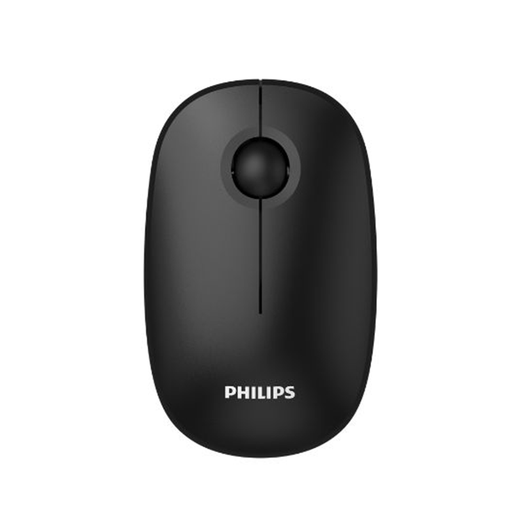 No image available
Consider this mouse for a shared room if you can spare a compatible USB port for its receiver. The title specifies 2.4 GHz wireless, quiet clicks and 1600 DPI; check its scrolling behaviour if precise movement through table rows is important.
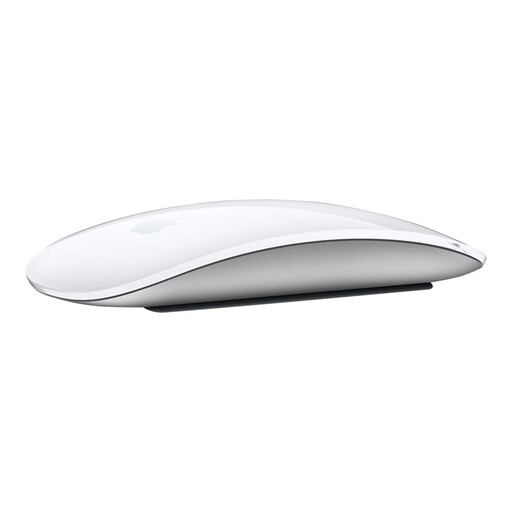 No image available
Consider this model if you use a compatible Mac or iPad and prefer gesture-based scrolling to a conventional wheel. Check the operating-system requirements and whether its scrolling method and shape suit detailed plotting sessions; do not assume its click noise meets a shared-room need.
No: a higher maximum DPI is not, by itself, proof of more accurate plotting. Choose a pointer setting you can control and a scrolling method that suits both detailed rows and longer pages; the mouse’s fit matters too.
Choose Bluetooth if preserving a USB port matters and your laptop supports the mouse’s required connection. A receiver is another option if you have a compatible port; check whether the exact mouse includes one. Logitech specifies Bluetooth for MX Anywhere 3S, but its compatible Logi Bolt receiver is not included.
Do not rely on a vertical mouse as a remedy for pain. If you want to try an upright grip, check the model’s hand-size and handedness guidance and allow for a different feel; also review your desk position. The Health and Safety Executive recommends keeping the mouse in line with the elbow.
Set pointer sensitivity and scrolling so you can select chart points and move through tide-table rows comfortably. Then position the mouse near the keyboard, without reaching across the desk; for a longer laptop session, review the screen and keyboard position as well.