Choose the laptop setup after deciding whether you need two screens in total or two external monitors alongside the laptop display. For two external monitors, look for documented support for the exact display arrangement and monitor modes; the number of USB-C ports alone does not establish that support. A dock can simplify a desk connection, but its display capability still depends on the laptop and the full connection chain.
Who needs which screen arrangement?
Users who need two external monitors
If tide tables, maps and reference windows must occupy two separate external monitors, check documented simultaneous-display support before choosing cables or a dock. Lenovo publishes an independent-display limit for the ThinkPad T14 Gen 5 (Intel) family, but the exact configuration and planned monitor modes still matter.
Portable users who dock at a desk
If you work away from the desk but want to reconnect displays and peripherals through one dock connection, check the laptop and dock as a pair. Dell publishes display modes for its SD25TB4 dock; those modes remain subject to host-laptop compatibility.
Users who mean two screens in total
If you need the laptop display and one external monitor, you are planning a different arrangement from two external monitors plus the laptop panel. Confirm the video connection you will use, then arrange the displays for your working layout in Windows.
What should you check before buying?
Set out the number of screens that will be active at once before comparing laptops. Then check the connection plan, the workspace you need for tide tables and the requirements of any charting or mapping software you use.
| Concern |
What to check |
Who this matters to |
| Display arrangement |
Confirm whether the laptop panel stays active alongside two external monitors, and check the exact model’s supported display count, resolutions and refresh rates. |
If I need tide tables and maps on separate external monitors, I want documented support for both before choosing a laptop. Around 36% of consumers put confirmed external-display support first. |
| Portable docking |
Check host-port and dock compatibility, including the required display modes and whether the dock’s power delivery suits the laptop. |
When I move between locations, I want to reconnect my desk screens and peripherals without rebuilding the setup each time. Portable docking is the main concern for roughly 29% of consumers. |
| Viewing layout |
Assess readable monitor size and scaling, then test display arrangement and window placement after reconnecting. |
For repeated tide-table and chart checks, I need windows positioned so I can compare information comfortably. About 21% of consumers place the viewing layout ahead of other concerns. |
| Software and storage |
Compare the chosen CPU, memory and SSD configuration with the requirements of your tide-table, charting or mapping software. |
If my work is mainly plotting, browser tabs and saved reference material, I want a configuration that suits those tasks. For around 14% of consumers, that everyday workload is the primary concern. |
Common two-screen setup mistakes
-
Treating port count as proof of two-monitor support
USB-C and Thunderbolt ports are connection options, not a complete statement of how many monitors can run simultaneously at your intended resolution and refresh rate. Lenovo states an independent-display maximum for the ThinkPad T14 Gen 5 (Intel) family, whereas ASUS lists ports for the Zenbook 14 OLED UX3405 without establishing the same limit for every configuration.
Check the exact laptop configuration against your planned external monitors, cables and connection method before ordering.
-
Choosing the laptop before defining what counts as two screens
A laptop panel plus one external monitor is not the same arrangement as two external monitors with the laptop panel still on. That difference changes which display-support statement you need to confirm.
Sketch the screens you intend to keep active and note their inputs, resolutions and refresh rates before comparing models.
Choosing a dock before settling that layout can leave you with docking hardware you do not need.
-
Assuming a dock overrides the laptop’s display limits
Dell lists dual 4K at 60 Hz among the SD25TB4 dock’s modes, but the working arrangement also depends on the host laptop, cables and connected monitors.
Check both the laptop’s display support and the dock’s compatibility guidance for the complete setup you plan to use.
-
Leaving the Windows layout untested
Connected displays may still need identifying and arranging before tide tables and reference windows sit where you expect them.
Microsoft’s Windows display guidance explains how to identify and arrange monitors. Test your preferred extended layout again after disconnecting and reconnecting.
Relevant laptop and dock brands
Lenovo
The ThinkPad T14 Gen 5 (Intel) family is relevant when published support for multiple external displays is a deciding factor.
- Lenovo’s product specifications list two Thunderbolt 4 ports, HDMI and up to four independent displays: the native panel plus three external monitors.
- Check the exact configuration, monitor modes and connection chain rather than treating the family maximum as confirmation of every planned setup.
ASUS
The Zenbook 14 OLED UX3405 is a compact-laptop option to consider when planning direct and docked connections.
- ASUS lists two Thunderbolt 4 USB-C ports and HDMI 2.1 (TMDS) for the UX3405.
- Confirm simultaneous two-external-monitor support for the exact configuration; the listed ports do not establish that limit on their own.
Dell
Latitude laptops and Dell Thunderbolt docks are relevant to a desk setup built around a compatible dock.
- Dell lists dual 4K at 60 Hz among the SD25TB4 dock’s display modes.
- Dock modes depend on the host setup. Check the chosen Latitude configuration and its supported external-display arrangement separately.
Joybuy laptop with two built-in screens
This laptop offers a two-screen workspace within the device itself. If your plan instead requires two external monitors, confirm support for those additional displays and their intended modes before buying.
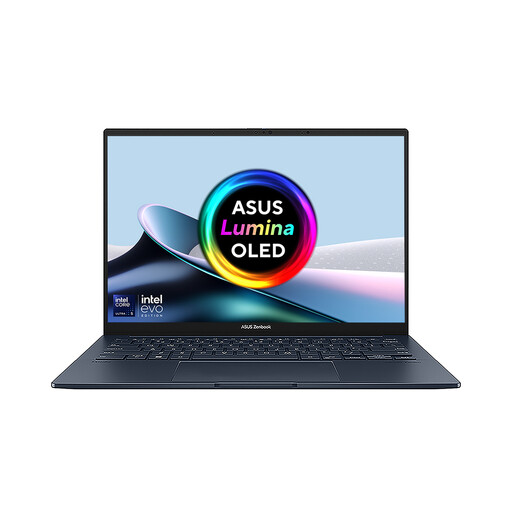 Image unavailable
ASUS Zenbook DUO UX8406CA-QL135W dual OLED touch laptop
Consider the two built-in screens if your tide-table workspace needs two screens in total without relying on an external monitor.
The listed configuration has 14-inch dual OLED touchscreens, an Intel Core Ultra 7 255H processor, 16 GB LPDDR5X memory and a 1 TB SSD.
Confirm the supplied panel resolution, as the listing gives conflicting resolution descriptions. If you also need two external monitors, check the exact model’s supported display arrangement and monitor modes.
Joybuy
Questions about two-screen setups
Will two USB-C ports run two external monitors?
Not necessarily: the port count does not establish the number or modes of displays the laptop can run at once. Check the exact model’s simultaneous-display specification against your monitors and any adapters or dock.
Can I arrange connected monitors in Windows?
Yes. Microsoft explains how to identify and arrange connected displays in Windows settings; you can position them to match your desk and check the layout again after reconnecting.
What if an online laptop purchase does not suit my screen setup?
GOV.UK says UK customers who order online can cancel within a limited period even when an item is not faulty. Check the applicable cancellation instructions and conditions promptly; an item that is faulty or misdescribed is a separate issue from changing your mind about a suitable product.
What should I do with a laptop when replacing it?
Check an available electrical-equipment recycling or take-back route rather than treating the laptop as ordinary waste. GOV.UK describes the UK WEEE framework as a way to reduce waste from electrical and electronic equipment.


