
24/7 Customer Support

Free returns

Same-day & Next-day Delivery

Quality Guaranteed

Unlock Your Welcome Offers: FREE Delivery | Up to 80% OFF | Free 30-day JoyPlus trial
Download the APP
Touchscreen laptops and stylus pens can make note-taking, sketching and multitasking feel more natural, but the wrong combination can quickly become an expensive inconvenience. A laptop may advertise touch control without supporting an active stylus, while a “universal” tablet pen may work only as a basic capacitive pointer.
Before buying, focus on compatibility, display quality and how you will use the device. The following guide highlights common purchasing traps and matches practical options to different UK user profiles.
A touchscreen laptop, iPad or Android tablet may accept finger input but still lack the hardware needed for pressure sensitivity, palm rejection or tilt recognition. A universal tablet stylus can be suitable for tapping, scrolling and simple handwriting, but it may not offer the same control as a device-specific active stylus pen.
Check the exact compatibility list, operating system and connection method before ordering. For Windows laptops, also look for clear references to stylus support, Microsoft Pen Protocol or an included compatible pen.
A high resolution does not automatically mean a comfortable screen for long study or design sessions. Check the panel technology, brightness, colour coverage and refresh rate together.
An OLED touchscreen laptop can provide strong contrast and rich colours, while an IPS panel may be a practical choice for general office use and longer viewing. For creative work, specifications such as 100% DCI-P3 or 100% sRGB are more useful than vague claims about vivid visuals. A 120Hz display can make scrolling and pen movement appear smoother than a 60Hz panel, although it may affect battery consumption.
A 2-in-1 touchscreen laptop may weigh more than a standard notebook because of its hinge, touch layer and larger battery. A dual-screen laptop can expand your workspace but may require more room, careful positioning and a separate keyboard setup.
Also check the charger, ports and battery capacity. A compact USB-C charger is convenient for commuting, but demanding creative applications and dedicated graphics hardware can increase power use. If you regularly work away from a socket in a university library, train or café, portability should include battery expectations—not just the laptop’s listed weight.
For handwriting and drawing, distinguish between:
For iPad users, compare Apple Pencil, Apple Pencil Pro and Apple Pencil USB-C compatibility by iPad model and operating system. An Android tablet pen may not work across Samsung, Huawei and other Android devices in the same way. A universal tablet stylus is more flexible, but its features should be checked carefully.
For documents, browsing and handwritten notes, 16GB RAM provides useful headroom for multitasking. Students and office users may find a 512GB SSD sufficient, while photographers, video editors and designers may benefit from 1TB or more.
An AI laptop with a dedicated NPU can accelerate compatible functions, but the software must support those features. Do not choose a device solely because it carries an AI label. For 3D work, video production and GPU-accelerated applications, check the dedicated graphics card and its memory separately from the processor.
A 13- or 14-inch model is easier to carry, while a 16-inch display gives more room for timelines, spreadsheets and drawing interfaces. A portable touchscreen monitor can add workspace without replacing your existing laptop. Confirm whether your computer supports USB-C video output, as not every USB-C port carries a display signal.
For UK home-office setups, useful connections may include HDMI, USB-A, USB-C with DisplayPort and a memory card reader. Also review the stand, cable requirements and whether the monitor receives enough power through a single cable.
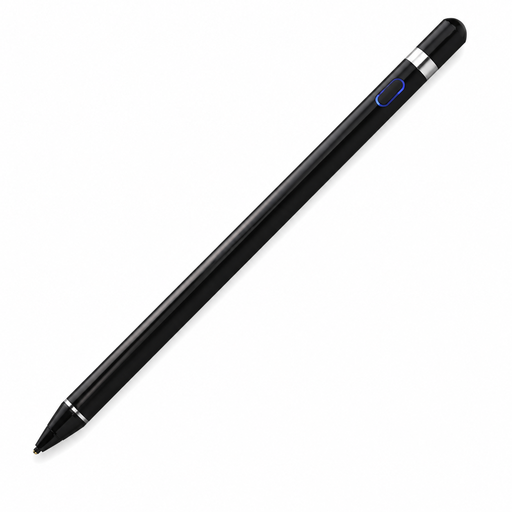
Why This Fits Their Persona: A lightweight option for casual notes, navigation and basic drawing on compatible capacitive iOS, iPad, Android and computer screens.
Its stated capacitive-screen requirement makes compatibility clearer; buyers should still confirm their exact device before purchase.
140mAh built-in battery, 59.4g weight and support for writing, drawing and precise navigation.
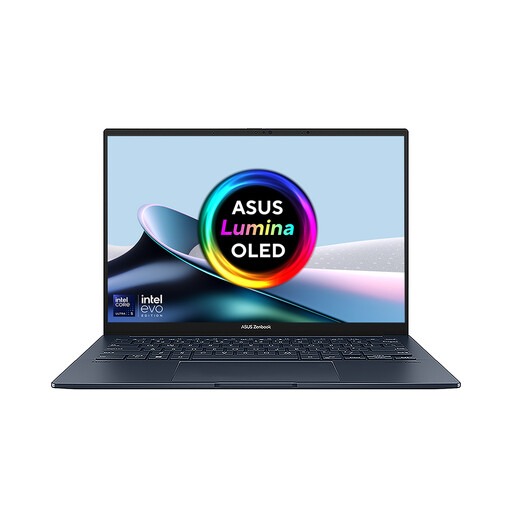
Why This Fits Their Persona: Suits professionals who want two touch displays for research, writing, coding or visual workflows while retaining a portable format.
The integrated kickstand, detachable keyboard and included ASUS Pen provide a defined multi-screen setup rather than relying on vague touch claims.
Dual 14-inch OLED touchscreens, 16GB RAM, 1TB SSD, Wi-Fi 7 and Intel Core Ultra 7 processing.
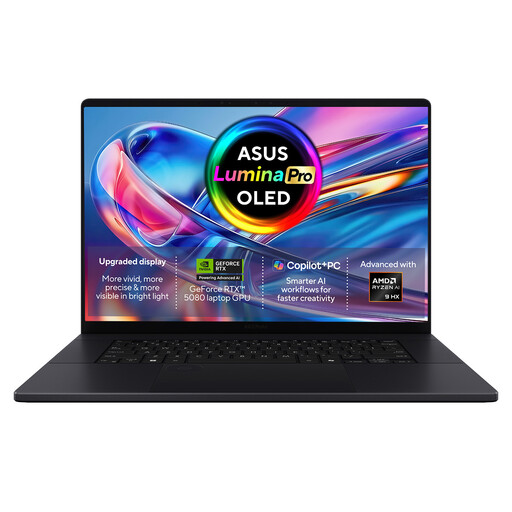
Why This Fits Their Persona: Designed for demanding creative professionals handling photo editing, video production, 3D work and large project files.
Its dedicated GPU, 64GB memory and 2TB SSD make the hardware specification clearer than relying on an AI label alone.
16-inch 3840×2400 OLED touchscreen, 120Hz refresh rate, RTX 5080 Laptop GPU and 90Wh battery.
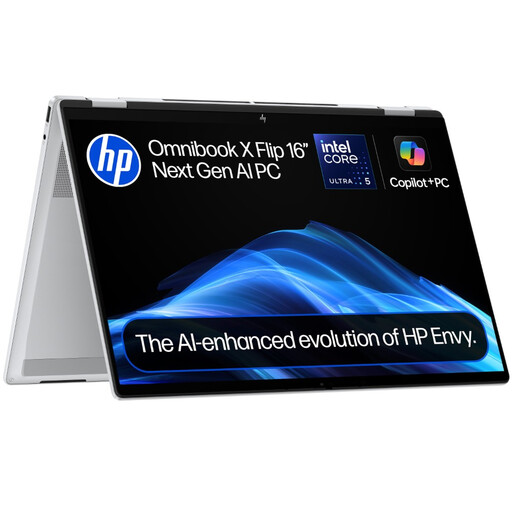
Why This Fits Their Persona: A large convertible format for home working, streaming, study and switching between laptop, tent, stand and tablet modes.
The 360-degree hinge has defined usage modes, while the 16GB RAM and 512GB SSD provide more practical information than a generic “AI laptop” description.
16-inch 2K IPS touchscreen, Intel Core Ultra 5 processor, Intel Arc graphics and Wi-Fi 7.
We have compiled a complete, real-time list of products that fully satisfy these strict selection criteria and UK safety regulations.
No. Basic capacitive pens may operate on many touchscreens, but advanced functions require compatible digitiser hardware and software. Check the laptop manufacturer’s pen support, included accessories and operating system requirements before buying.
It can be, particularly if you value contrast and colour quality. However, compare brightness, reflections, battery capacity and viewing comfort. For long documents and spreadsheets, screen size and ergonomic positioning may matter as much as panel technology.
No. The laptop must support a suitable video connection, often USB-C with DisplayPort Alt Mode or HDMI. Some monitors also need separate power. Confirm the required cable, operating-system support and touch-driver requirements before purchase.