What to check before choosing
Decide how much freedom you need to position the screen, then check display space and the requirements of your marking platform before choosing a desktop configuration.
Tower and separate monitor
Consider it when: You need to angle or replace the display independently of the computer as daylight changes.
Trade-off: Allow desk space for separate components and check what comes with the tower; Lenovo lists a ThinkCentre Neo 50t Gen 5 configuration without a keyboard or mouse.
Windows all-in-one
Consider it when: You prefer to buy the computer and primary display together and the built-in screen suits the window position.
Trade-off: The integrated screen gives you less freedom to change the primary display without adding a separate monitor.
macOS all-in-one
Consider it when: Your institution confirms that its marking platform, authentication and required tools work on macOS.
Trade-off: An iMac has an integrated primary display rather than a separately positionable monitor.
| Concern |
What to check |
Who this matters to |
| Window glare and screen position |
Check the exact screen’s surface and stand adjustment, and whether the desk position lets you avoid window reflections. |
When daylight reflects across a submission, I need to change my viewing position without losing readable text. Around 36% of consumers put glare control first. |
| Document workspace |
Compare screen size and pixel resolution together; check that your marking applications remain readable at your preferred scaling. |
I want room to refer to a submission, rubric and feedback form without constant window switching. For around 29% of consumers, document workspace is the primary concern. |
| Compact setup |
Check the built-in display and included peripherals on an all-in-one, alongside the desk space needed for each setup. |
If my marking station has limited space, I would rather have fewer separate components, provided the fixed screen works there. A compact setup comes first for around 21% of consumers. |
| Marking-platform compatibility |
Confirm operating system, browser, authentication, file-format and accessibility requirements with your institution or platform provider. |
I cannot use the desktop for marking if a required platform or tool will not run on it. Compatibility is the leading concern for around 14% of consumers. |
Joybuy desktop choices
These choices cover two ways to build a marking station: an all-in-one with a built-in screen, or a tower for pairing with a monitor you select separately. Check the display and institutional workflow requirements before deciding between them.
 No image available
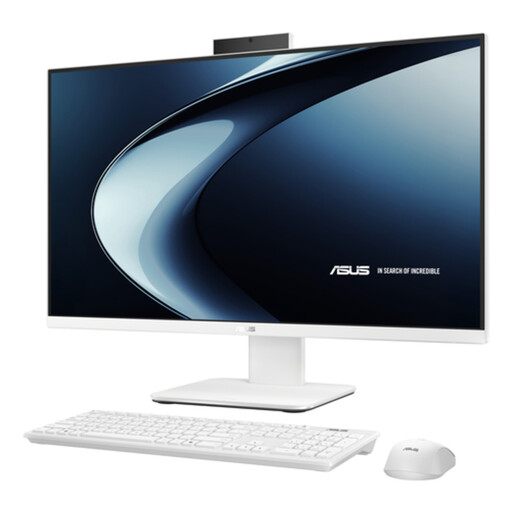
ASUS V400 AiO V470VAK-WPE032W 27-inch all-in-one
Consider this integrated desktop if you want the computer and primary display together. The named configuration has a 27-inch Full HD screen, Intel Core i7-13620H, 16GB DDR5 RAM, a 512GB SSD and Windows 11 Home. Check whether its screen position and 1920 × 1080 resolution suit your desk and documents, and confirm your marking platform’s requirements.
View on Joybuy
 No image available
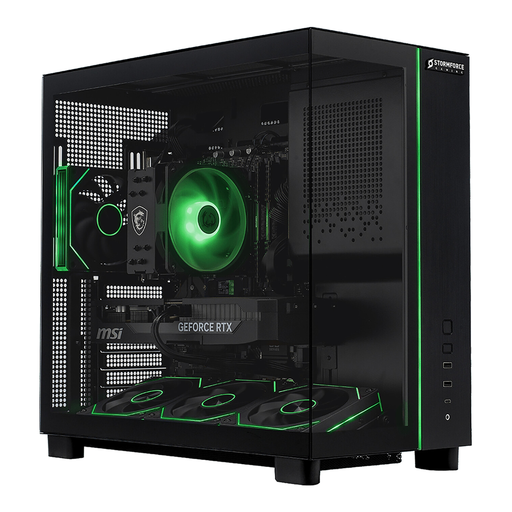
Stormforce Defiance AMD Ryzen 7, 32GB RAM, 2TB SSD
Consider this tower if you want to choose and position the marking display separately. Its name specifies an AMD Ryzen 7 processor, 32GB RAM, a 2TB SSD and Windows 11. Select a suitable monitor and confirm which peripherals are included. Check the graphics variant before ordering: the product title identifies RTX 5070Ti, while its description identifies RTX 5070.
View on Joybuy
Frequently asked questions
Will an anti-glare or brighter screen solve reflections from the window?
No display specification alone can settle a reflection problem. The Health and Safety Executive advises arranging the screen and lighting to avoid glare, so check where the display can sit and how you can angle it before relying on its surface or brightness rating.
When should I choose a tower rather than an all-in-one?
Choose a tower and separate monitor when independently positioning or changing the display is important. An all-in-one suits a simpler integrated station if its built-in screen works in your room; check the exact resolution and adjustment options before committing.
Is meeting Windows 11 minimum requirements enough for digital marking?
No. Microsoft’s minimum requirements establish Windows 11 eligibility, not suitability for your institution’s marking workload. Confirm the required browser, authentication, accessibility tools and document workflow with the institution or platform provider.
Do workplace display-screen assessments apply to regular marking?
They may apply when marking is part of employment. The UK Health and Safety Executive says employers must assess workstations for workers who use display screen equipment daily as part of normal work, continuously for an hour or more; whether that describes your work depends on your use pattern.
What should I confirm before ordering a complete marking station?
Confirm the exact desktop configuration, display and included keyboard and mouse, plus how warranty and repairs are handled for the components you choose. Do not assume a tower includes peripherals: Lenovo lists a ThinkCentre Neo 50t Gen 5 configuration without a keyboard or mouse.


