What matters when choosing
For limited sockets, decide whether the trainer laptop needs its own charger plugged in. Treat a second screen and integrated conferencing equipment as separate decisions: neither, on its own, removes the need to plan power for the monitors.
USB-C monitor with Power Delivery
Choose when: One compatible trainer laptop needs video and charging through the monitor, freeing the socket used by its separate charger.
Check: The laptop must support the connection and accept the monitor’s available charging power; the monitor still needs its own power arrangement.
Daisy-chain-capable displays
Choose when: The trainer needs two connected screens and the computer and displays support the required chain.
Check: HP’s daisy-chain guidance calls for compatible DisplayPort v1.2 or Thunderbolt equipment; plan each display’s power separately.
Standard monitor
Choose when: The laptop can use its separate charger and the venue has suitable sockets for both laptop and monitor.
Allow for: The laptop charger occupies a socket that a compatible USB-C charging setup might otherwise free.
| Concern | What to check | Who this matters to |
|---|
| Laptop charging |
Check the laptop’s USB-C video and charging support, then compare its charging requirement with the monitor’s stated Power Delivery. |
I want to display my session material without plugging in a separate laptop charger. Around 50% of consumers would make that their primary concern. |
| Two-screen connection |
Check the computer and displays for compatible DisplayPort or Thunderbolt chaining, including the intended resolution and refresh rate. |
With presentation material on one screen and notes on another, I need a workable connection between both displays; roughly 30% of consumers would prioritise that arrangement. |
| Hybrid-session equipment |
Check whether the camera, microphone and speakers suit the room and work with the planned conferencing application. |
If remote participants are joining, I would rather assess integrated equipment than arrange separate desk peripherals. That would be the main concern for around 20% of consumers. |
Joybuy monitor choices
These USB-C monitor choices are relevant to a trainer workstation where laptop connection and socket planning matter. Check the exact laptop charging requirement and each monitor’s power arrangement before relying on one cable for the session.
 No image available
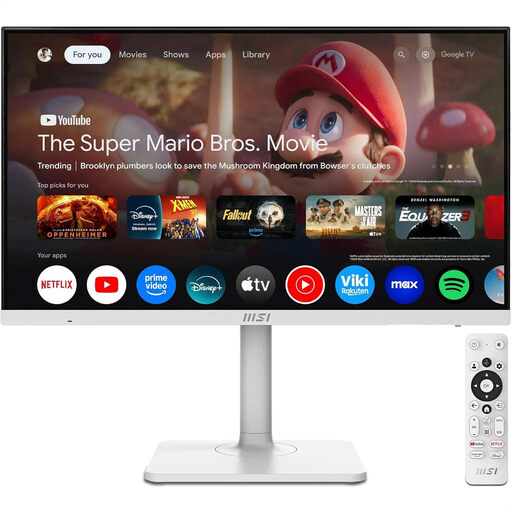
MSI MD272UPSW 27-inch 4K UHD Smart Monitor with Google TV
Consider this model if the trainer wants a USB-C display connection and the laptop can use its stated 65W Power Delivery.
The product name specifies a 27-inch 4K UHD IPS display. Confirm the laptop’s USB-C video support and plan power for the monitor separately.
View on Joybuy
 No image available
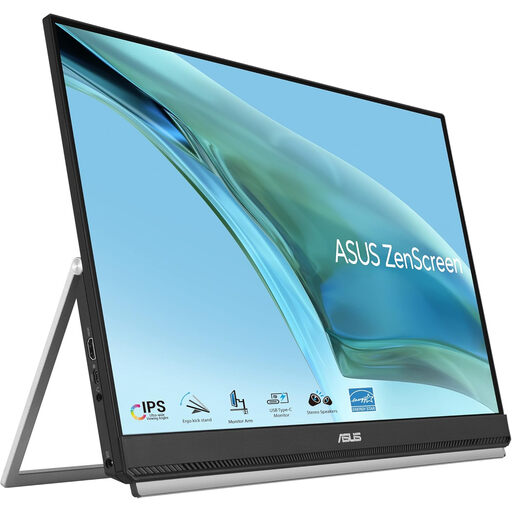
ASUS ZenScreen MB249C IPS USB-C Monitor
For a trainer setting up in a shared space, this USB-C model is worth considering if its connections suit the laptop.
Check the required USB-C video and charging functions, the available Power Delivery and the supplied power arrangement before allocating sockets.
View on Joybuy
 No image available
ASUS ProArt PA278CV IPS WQHD Monitor
This model is a candidate for a trainer workstation where a USB-C laptop connection is useful.
Its name specifies an IPS WQHD display. Confirm the exact Power Delivery rating and the laptop’s USB-C video and charging support before planning to leave its charger unplugged.
View on Joybuy
 No image available
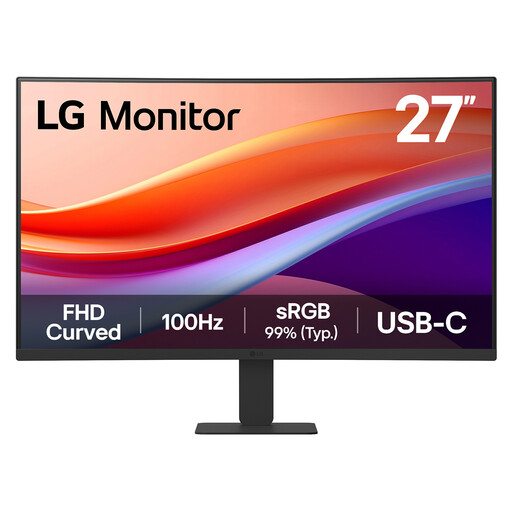
LG 27U421A 27-inch Curved FHD VA Monitor
Consider this display for a trainer setup where its USB-C connection can meet the laptop’s video and charging needs.
The product name specifies a 100Hz display, USB-C and HDMI. Check the exact USB-C charging output against the laptop’s requirement, and allow for the monitor’s own power connection.
View on Joybuy
Questions before buying
Will a USB-C monitor remove the need for every power socket?
No. Charging a compatible trainer laptop through the monitor could free the socket used by its separate charger, but the monitor’s own power must still be included in the room plan. Count the power feeds for each display before arranging the workstation.
Can I daisy-chain two monitors through any USB-C or HDMI port?
No. HP’s daisy-chain guidance calls for compatible DisplayPort v1.2 or Thunderbolt equipment rather than HDMI or an ordinary USB-C connection alone. Check the computer, each monitor’s input and output ports, cables and supported resolution and refresh rate for the intended chain.
What should I check before relying on USB-C laptop charging?
Confirm that the laptop supports both video output and charging through the intended USB-C port, then compare its charging requirement with the monitor’s Power Delivery rating. A monitor rating such as 90W or 100W does not establish compatibility with every laptop.
What should I confirm before ordering for a one-off session?
Check the exact model, included cables, supplied power arrangement, delivery timing and the seller’s warranty and returns terms before the event. This gives you time to confirm the planned laptop connection and room setup rather than relying on a similarly named monitor.


