Command-heavy simulation players
If you repeatedly use vehicle, camera and interface commands, a thumb-button panel could put more of them on the mouse. Check whether you can reach its positions without changing your grip.


Choose the control layout around the commands you actually use: a 12-button thumb panel suits frequent mappings if you can reach it comfortably, while a mouse with several programmable controls and a versatile wheel may suit a mix of simulation and everyday PC use. If you prefer a lighter conventional layout, check button reach rather than assuming that more controls will help. For any route, consider hand fit, connection method and desk setup before deciding.
If you repeatedly use vehicle, camera and interface commands, a thumb-button panel could put more of them on the mouse. Check whether you can reach its positions without changing your grip.
If the same mouse handles simulations and everyday PC tasks, several remappable controls and a flexible scroll wheel may be more useful to you than a dense side-button grid.
If fit matters most during longer sessions, assess the mouse shape, weight and button reach alongside your desk arrangement. The Health and Safety Executive advises keeping a mouse in line with the elbow as part of workstation positioning.
Decide which commands need a mouse button, then assess whether the layout fits your hand and whether its connection and wheel behaviour suit your desk use.
| Concern | What to check | Who this matters to |
|---|---|---|
| Command access | Count the commands you would map, then check button placement and the remapping software. | If vehicle controls and camera views keep sending me back to the keyboard, reachable mouse buttons become my priority; around 46% of consumers would put command access first. |
| Comfort and fit | Check handedness, shape, weight and thumb reach; consider the mouse alongside your workstation position. | For a longer desk session, I need a grip and button layout I can use without awkward reaching. Around 36% of consumers would make fit their primary concern. |
| Connection and wheel | Check wired or wireless modes, charging needs, wheel tilt and available scrolling modes. | If I switch between maps, menus and other PC tasks, wheel behaviour or cable-free use may decide the choice; for around 18% of consumers, that flexibility would come first. |
A 12-button thumb panel offers positions for more mappings, but awkward reaches or accidental presses can undermine its usefulness.
List your recurring simulation commands and, if possible, assess the panel position against your grip before choosing a dense layout.
For this choice, a sensor figure alone does not tell you whether commands, wheel controls and buttons will be accessible during play.
Choose the layout first, then check PC compatibility and whether the mouse software supports your intended remaps.
Mouse fit is only part of a desk setup. The Health and Safety Executive's display-screen guidance also addresses posture and workstation positioning.
Keep the mouse in line with your elbow and review your chair, screen and keyboard positions rather than judging the mouse in isolation.
Connection options vary by model. CORSAIR states that the SCIMITAR ELITE WIRELESS can be used over USB while charging, but that should not be assumed of every wireless mouse.
Check the model's charging method, connection modes and whether wired use during charging matters to you.
You may also need desk space for a receiver or charging cable.
The wired G502 X is a conventional multi-control option for players who want a configurable DPI-shift button and a dual-mode tilt wheel.
The Basilisk V3 offers a right-handed layout for players who want several controls and flexible scrolling without a 12-button thumb grid.
The SCIMITAR ELITE WIRELESS is an MMO-style option for players considering a dense, adjustable thumb-button panel.
These gaming mice offer different starting points for mapping simulation commands and choosing a wired or wireless desk setup. Compare their controls and fit against your own command list rather than treating button count alone as the answer.
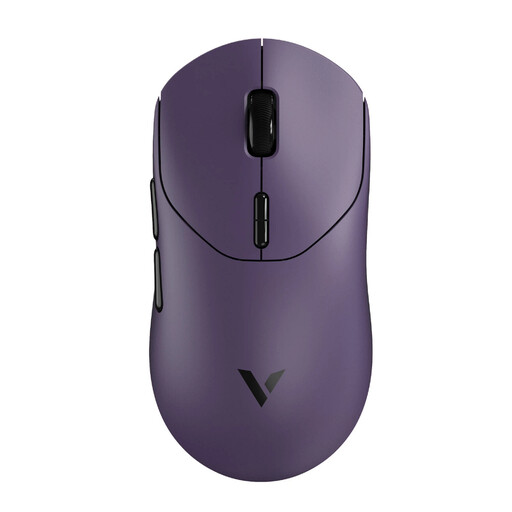 No image available
Consider this model if you want to assign several recurring simulation actions to mouse controls. Its title lists 10 programmable buttons, macro support and a 53 g weight; check whether the button positions suit your thumb reach.
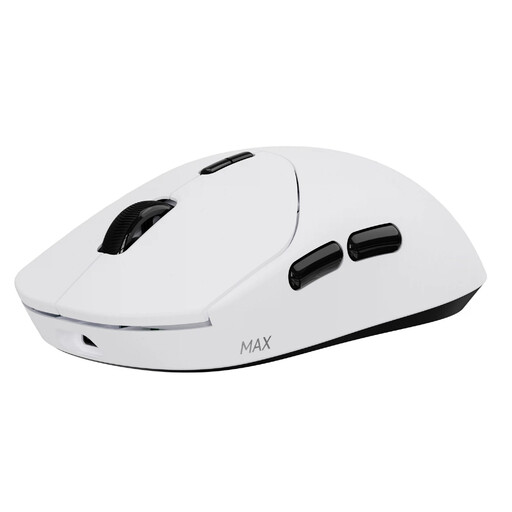 No image available
For several mapped commands without choosing a 12-button thumb grid, this variant lists 10 programmable buttons and macro support. The title also gives a 53 g weight; assess the button arrangement against your grip.
 No image available
Consider this model if connection options and a charging dock matter to your desk setup. Its title lists Bluetooth, 2.4G and USB-C modes; check that its available controls cover your planned simulation mappings. Weight figures for this variant conflict, so confirm its actual weight if that affects your choice.
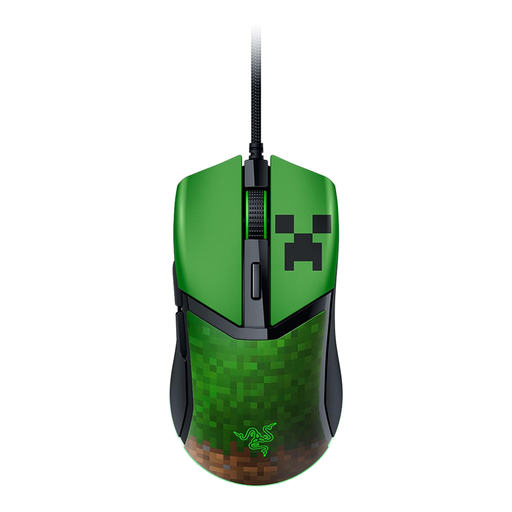 No image available
This wired option may suit a desk where charging is not wanted. If you need several commands on the mouse, check the programmable-button count and placement against your intended mappings before choosing it.
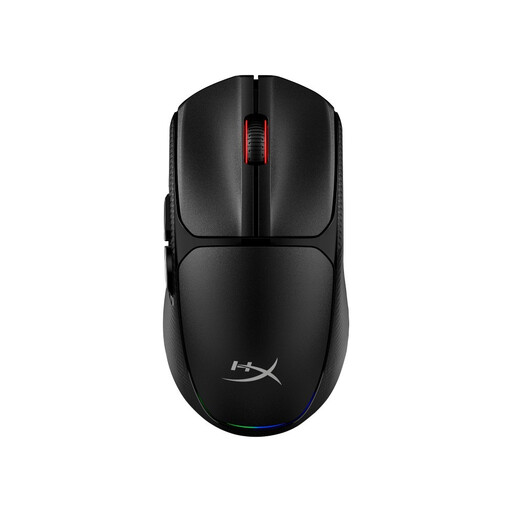 No image available
Consider this wireless model if cable-free desk use is a priority. Check how many controls you can remap, whether their positions suit your grip and how its charging arrangement fits your sessions.
Choose enough reachable buttons for the commands you use repeatedly, rather than aiming for the highest count. CORSAIR lists 16 programmable controls for the SCIMITAR ELITE WIRELESS, including a 12-button side panel, while Razer lists 11 for the Basilisk V3; assess the layout as well as the number.
It can be useful if you regularly navigate menus, maps, long lists or horizontal interface elements, but it is not essential to every setup. Razer lists a four-way wheel with notched and free-spinning modes on the Basilisk V3; Logitech G lists tilt controls and ratcheted and free-spin modes on the wired G502 X.
Consider the mouse as part of the whole workstation, not a standalone answer to discomfort. The Health and Safety Executive advises keeping the mouse in line with your elbow and avoiding awkward shoulder or torso positions.