Carry-on travel-journal editors
If you write, organise photos and make light edits between trips, a compact laptop and a charging arrangement you can use while travelling may matter more than a larger screen.


Choose a laptop that runs your writing and photo-editing tools, then balance travel portability against screen space, memory and storage. For prolonged standing-desk sessions, the Health and Safety Executive recommends raising the laptop screen and using a separate keyboard and mouse. If Lightroom Classic is central to your journal, Adobe recommends 16 GB or more RAM for the version covered by its guidance; check the requirements for the version you use.
If you write, organise photos and make light edits between trips, a compact laptop and a charging arrangement you can use while travelling may matter more than a larger screen.
If selecting images, adjusting colour and exporting photos are regular tasks, pay closer attention to the exact display, memory, storage and compatibility with your editor.
For sustained sessions, plan how you will raise the screen while keeping a separate keyboard and mouse at a comfortable height. The Health and Safety Executive recommends separating these input devices when a laptop is elevated.
For a travel journal edited both away from home and at a standing desk, identify the requirement that would most affect your choice, then check the exact laptop configuration against it.
| Concern | What to check | Who this matters to |
|---|---|---|
| Travel portability | Compare the listed weight, charging requirements and ports; check whether importing camera cards needs a reader. | If I carry the laptop between stops, I want it to fit my travel routine without complicating photo imports. Around 27% of consumers put portability first. |
| Photo-editing setup | Check the exact screen, memory and SSD configuration against your editor and local photo library. | When editing photos is a regular part of my journal, I need room to work with images and enough capacity for my files; around 27% of consumers make this their primary concern. |
| Standing-desk setup | Plan for a riser or raised display and separate input devices; confirm any display connection you intend to use. | For sustained standing-desk sessions, I need to position the screen without raising the keyboard with it. This setup comes first for around 33% of consumers. |
| Demanding edits and compatibility | Check your editor, plug-ins, camera utilities and peripherals; compare demanding tasks with the software's current hardware requirements. | If my journal includes larger editing jobs or specialised tools, I cannot choose on portability alone; around 13% of consumers prioritise that capability and compatibility. |
Raising a laptop screen also raises its attached keyboard. For prolonged use, the Health and Safety Executive recommends a separate keyboard and mouse so the screen can sit on a riser or similar support.
Before choosing a laptop, check that the desk has room for the setup and that the model can connect to any raised external display you plan to use.
Adobe lists 8 GB as the minimum for the Lightroom Classic version covered by its guidance, but recommends 16 GB or more. The minimum is therefore a poor substitute for checking a regular editing workflow.
If Lightroom Classic will be central to the journal, compare 16 GB configurations and check whether memory can be upgraded later.
Microsoft says Windows 11 on Arm can run unmodified x86 and x64 applications through emulation, while native Arm applications offer the strongest performance and battery-life experience on that platform.
Check your exact editor, plug-ins, camera-import utility and peripheral drivers before choosing an Arm-based laptop.
A manufacturer's stated 100% DCI-P3 coverage does not establish the colour accuracy of an individual screen or how it will match a print workflow.
Check glare and brightness for your workspace. If colour-critical print work is required, also check your calibration and colour-management options.
Colour-critical work may call for calibration equipment or an external display.
These specific laptop lines illustrate different approaches to portability, displays and software compatibility; check the configuration rather than assuming every model in a range has the same features.
The 13-inch and 15-inch MacBook Air range offers a macOS route with 16 GB starting unified memory, a P3 Liquid Retina display and Thunderbolt 4 connectivity, according to Apple.
The Intel-based Zenbook S 14 UX5406 is a 14-inch Windows option with a 16:10 OLED display; ASUS lists a 1.2 kg weight for the line.
Lenovo's UK configurations of the 14-inch Yoga Slim 7i Aura Edition Gen 10 provide an Intel-based Windows route with 16 GB memory and 512 GB or 1 TB SSD options.
The Arm-based Surface Laptop 8th Edition offers a Windows route with a taller 3:2 touchscreen; Microsoft lists the 13-inch model at 1,225 g.
These laptops offer different ways to combine travel-journal editing with a standing-desk setup. Compare each listed configuration with your software and photo library, and plan separately for a raised screen and input devices during prolonged desk sessions.
 No image available
Consider this model if you want to work with writing and images on its dual screens. The listed configuration has an Intel Core Ultra 7 255H, 16 GB LPDDR5X memory and a 1 TB SSD.
Confirm the exact screen resolution for this configuration before buying, and check your editing software and camera tools.
 No image available
Consider the convertible format if it suits how you write and review journal images. The listed configuration has 16 GB RAM, a 1 TB SSD and Windows 11 Home.
If graphics capability affects your editing work, confirm the exact graphics configuration before buying. Check your required applications and camera utilities as well.
 No image available
Consider the larger screen if desk-based editing matters more to you than a compact travel setup. The listed configuration has an AMD Ryzen 7 170, 16 GB RAM, a 1 TB SSD, GeForce RTX 5050 graphics and a 144 Hz FHD display.
Check the size and carrying weight against your travel plans, and confirm compatibility with your editing tools.
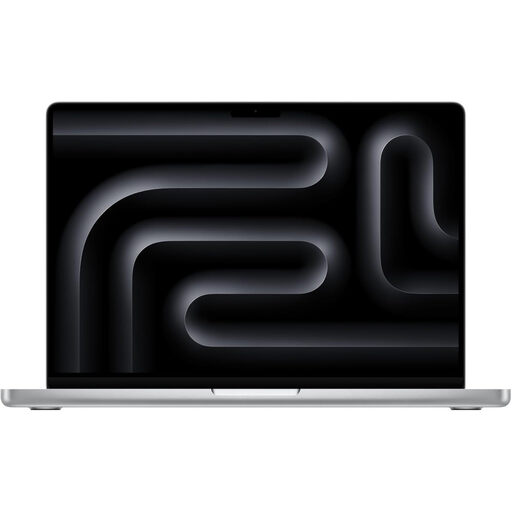 No image available
Consider this configuration if your journal involves a larger local image library and you use compatible macOS software. Its title specifies a 15-core CPU, 16-core GPU, 24 GB unified memory and 2 TB storage.
Check its carrying weight and how the screen looks in your desk lighting before choosing it for travel and standing-desk use.
 No image available
Consider the 13-inch format if you regularly carry your travel journal between locations and use Mac-compatible tools. The listed configuration has an M5 chip with a 10-core CPU and 10-core GPU, 24 GB unified memory and a 1 TB SSD.
Apple specifies external-display support for the M5 MacBook Air range. Check connections for your intended desk display and camera accessories, along with compatibility with your exact applications.
For prolonged laptop use, the Health and Safety Executive recommends a separate keyboard and mouse so you can elevate the screen on a riser or similar support. Plan the desk space and any display connections before settling on a laptop.
Adobe recommends 16 GB or more RAM for the Lightroom Classic version covered by its guidance, making it a useful starting point if that application is part of your workflow. Check the current requirements for your exact editor and tasks, particularly if you also process demanding images or video.
Windows 11 on Arm can run unmodified x86 and x64 applications through emulation, according to Microsoft, but that does not establish how your complete editing setup will work. Check the exact editor, plug-ins, camera software and peripheral drivers; Microsoft says native Arm applications offer the strongest performance and battery-life experience on the platform.