What should you check before choosing?
Start with the applications and input method your journal needs, then decide how much typing you will do at a desk and how you will store your travel photos. A larger screen is useful only if its workspace matters more to you than the extra device you must carry.
| Concern |
What to check |
Who this matters to |
| Pen input |
Confirm the exact compatible pen and whether it comes with the tablet. Choose a screen size you will be comfortable holding for annotations. |
If I mainly sketch routes and write beside my photos, I need a pen setup I can use without relying on a desk; around 33% of consumers would put pen-led creation first. |
| Desk typing |
Check keyboard compatibility, viewing-angle adjustment and whether a trackpad suits your workflow. For extended work sessions, plan how you will vary your posture and activity. |
Long entries are harder for me to manage on a handheld screen, so a workable shared-desk setup takes priority; around 27% of consumers would chiefly prioritise comfortable typing. |
| Photos and storage |
Check local capacity, image import and backup options, and the features of your chosen editing app. Compare screen dimensions with the weight of the exact model. |
When my journal draws on a growing collection of travel images, I care most about reviewing, arranging and keeping those files; around 27% of consumers would make the photo workflow their primary concern. |
| Desktop software |
List the required apps, plugins and file formats, then confirm they work on the particular Windows configuration you are considering. |
If my journal relies on a specific desktop application or several working windows, operating-system compatibility decides the purchase; around 13% of consumers would put that requirement first. |
Touch-first tablets on Joybuy
These touch-first tablets relate to handwritten notes, image review or journal editing while travelling. For regular writing at a shared desk, check the keyboard and stand arrangement for the exact model rather than assuming the tablet alone provides it.
 No image available
Apple 11-inch iPad Air (2026, M4), Wi-Fi, 128GB, Starlight
Consider this 11-inch configuration if you want a touch-first travel journal with the option to add a pen for annotations or a keyboard for longer desk entries.
Apple lists compatible Apple Pencil options for iPad Air; the Pencil and Magic Keyboard are selected separately. Check the precise accessory match and whether 128GB suits the images you plan to keep locally.
View on Joybuy
 No image available
Apple iPad Pro 11-inch (M5), Wi-Fi, 256GB, standard glass, Silver
This 11-inch iPad is a touch-first option for organising and reviewing journal images, with 256GB identified in the product name.
If pen annotation or substantial desk typing is central to your journal, confirm the exact compatible Pencil, keyboard and viewing setup for this M5 model before selecting accessories.
View on Joybuy
 No image available
TECLAST ArtPad Pro (2025), 12.7-inch 2K, 256GB, T-Pen included
Consider this larger-screen Android tablet if handwritten reflections or sketching are central to your journal and you expect to work with the listed T-Pen.
The product name specifies Android 15, 8GB RAM plus 12GB virtual RAM and 256GB storage. For longer shared-desk typing, check a suitable keyboard and adjustable support for this exact model.
View on Joybuy
 No image available
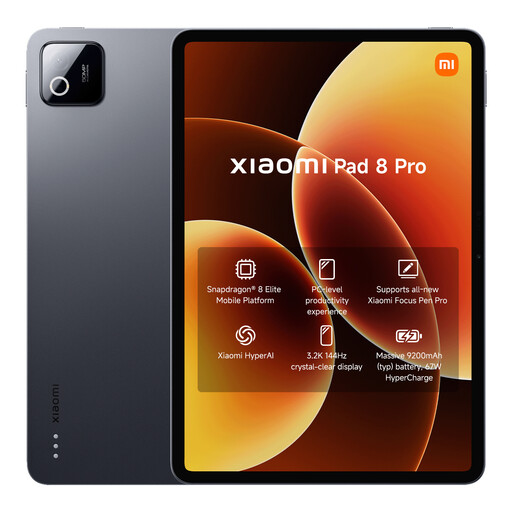
Xiaomi Pad 8 Pro, Grey, 12GB RAM, 512GB storage
The listed 512GB storage may suit a journal workflow in which keeping travel images locally is a priority; check how your chosen app imports and backs them up.
If you intend to handwrite or type longer entries, confirm the exact compatible Focus Pen and a suitable keyboard or stand for this Pad 8 Pro variant. The pen is not listed as included.
View on Joybuy
 No image available
Xiaomi Pad 7, Grey, 8GB RAM, 128GB, Focus Pen listed
This Pad 7 configuration is a tablet option for reviewing journal images and planning handwritten notes, provided its pen arrangement meets your needs.
The product name lists 128GB storage and says a Focus Pen is included; confirm both the package contents and exact pen compatibility before relying on that bundle. Check whether 128GB and the available desk accessories suit your photo and typing workflow.
View on Joybuy
Questions about travel-journal tablets
Should I choose an 11-inch or a 13-inch tablet for my journal?
Choose an 11-inch-class tablet if you will often hold and carry it; consider a 13-inch-class screen if arranging images and pages at a desk matters more. For a concrete weight comparison within one line, Apple lists the 11-inch Wi-Fi iPad Air at 464g and the 13-inch Wi-Fi iPad Air at 616g, before accessories.
Do I need a keyboard case to edit a travel journal?
A keyboard is more relevant for repeated long entries than for occasional notes or pen annotations. Check the exact tablet match: Apple specifies compatible iPad Air models and iPadOS 18.3 or later for the checked 11-inch Magic Keyboard, while Samsung’s checked Book Cover Keyboard Slim is specific to Galaxy Tab S10 FE+.
Are the pen, keyboard and charger included?
Contents depend on the exact tablet and accessory selection. Samsung lists an S Pen and data cable with the Galaxy Tab S10 FE series, but no travel adaptor; its keyboard is separate. Apple presents Apple Pencil and Magic Keyboard as separate selections for iPad Air, so check the contents of the configuration you intend to order.
What changes if I use the tablet for work at a shared desk for long periods?
Plan a workable viewing and typing position rather than using the tablet flat for every extended session. The UK Health and Safety Executive says the Display Screen Equipment Regulations apply to workers using display-screen equipment daily for continuous periods of an hour or more; employers must assess applicable workstations and reduce risks, including through breaks or changes of activity.
What security-update information should I check for a connected tablet?
Look for the manufacturer’s stated minimum period for important security updates and its security-issue contact point. The UK National Cyber Security Centre explains that rules applying from 29 April 2024 require this information for covered consumer smart devices, including cellular tablets. Use a strong, unique password and enable two-step verification where offered.


