Choose a gaming-focused TV for sofa-based play if you want to use high-frame-rate modes supported by your console and games, but check the exact model and HDMI input. A general TV can suit mixed household viewing when those modes are not a priority; for close desk play, a monitor may fit the space better. Resolution, refresh rate and gaming features work together only when the console, game, cable and display support the chosen mode.
Who is choosing a console display?
Players seeking high-frame-rate modes
If you use a PS5 or Xbox Series X, check the modes your games support as well as the TV input and cable. PlayStation and Xbox Support describe 4K at 120Hz as a supported console capability under the appropriate display conditions, not a feature that every TV or game will use.
Shared-room players
For sofa-based or multi-person play, screen placement and everyday TV use matter alongside gaming features. Which? discusses TV selection for both gaming and broader viewing, so start with how the screen will serve the room.
Desk-based players
If you sit close to the screen, compare a monitor with a TV before committing to either format. BenQ UK distinguishes desk gaming from couch gaming; the available space and how you will handle sound are practical parts of that choice.
What matters when choosing?
Decide where you will play, then identify the console output modes you actually want to use. A gaming label alone does not establish which modes work on a particular HDMI input.
Gaming-focused TV
Consider it when: You play from a sofa and want supported high-frame-rate or variable-refresh-rate modes.
Check carefully: Features can differ by screen size and HDMI input, so a range-level claim is not enough.
General TV
Consider it when: The screen also serves household viewing and your console use does not depend on 4K at 120Hz.
Check carefully: A 4K label does not establish support for 120Hz output, VRR or automatic game-mode switching.
Gaming monitor
Consider it when: You play at a desk and a closer viewing position makes a smaller display more practical.
Check carefully: Plan for console-compatible inputs and sound; a monitor may be less convenient for shared sofa viewing.
| Concern |
What to check |
Who this matters to |
| Console features |
Check the intended HDMI input for the resolution and refresh rate you want, then inspect the console’s detected display capabilities. |
If I want to play supported games at a higher frame rate, I need the console and screen to accept the same output mode. About 42% of consumers put console-feature compatibility first. |
| Shared-room fit |
Measure the screen position and viewing distance; consider whether other devices will share the TV’s inputs. |
When the screen serves a sofa and the wider household, I need it to fit the room as well as my gaming plans. Room fit and shared use come first for about 33% of consumers. |
| Close-range desk fit |
Compare screen size with desk depth, and check the monitor’s console input modes and audio provision. |
At a desk, I need a screen that works at my sitting distance without overlooking sound or connections. That desk-focused need leads the choice for about 25% of consumers. |
Checks that are easy to miss
-
A 4K label does not mean 4K at 120Hz
Xbox Support distinguishes ordinary 4K capability from 4K gaming at 120Hz on Xbox Series X. The latter needs an appropriate HDMI 2.1-capable TV and connection.
Check the refresh rate at the resolution you intend to use, the specification of that HDMI input and the console’s detected capabilities after connection.
-
Not every gaming feature is necessary for every game
VRR, automatic low-latency switching and HDR serve different purposes. Their availability depends on the console, content and display rather than on a TV’s gaming label alone.
Start with the games and output modes you use, then check which features your console and proposed screen can use together.
-
A range-level specification may not cover your screen size
Samsung UK identifies size-dependent gaming support on a specific TV range, while Panasonic UK describes features that apply to selected series. A related model’s specification cannot stand in for the variant you are buying.
Use the full model number and chosen screen size to check the supported modes on the HDMI port you plan to connect.
-
A desk monitor is not a direct swap for every TV setup
A screen suited to close viewing may be inconvenient for people sharing a sofa. The sound and connection arrangements also need to suit the console setup.
Measure the desk or seating position, check the required inputs and decide how you will hear game audio.
Depending on the monitor, using it may also require separate speakers, headphones or different mounting equipment.
Brands to consider
These brands have relevant TV ranges, but gaming support must be checked on the exact model and screen size rather than assumed across a brand.
LG
LG UK describes gaming features on applicable OLED TVs, including smaller 48-inch options.
- LG UK documents HDMI 2.1 and gaming-mode features on selected OLED models.
- Check the chosen model’s refresh rate and HDMI inputs; features vary by model and generation.
Samsung
Samsung UK describes gaming features across selected OLED, QLED and Mini LED televisions.
- Applicable Samsung UK models list features such as HDMI 2.1, VRR and automatic low-latency mode.
- Samsung UK notes that 4K at 120Hz support can depend on the model and screen size; check the specific inputs too.
Sony
Sony UK provides BRAVIA gaming guidance aimed in part at PS5 owners.
- Sony UK explains automatic game-mode switching on compatible TVs and the requirements for PS5 4K at 120Hz output.
- Confirm the BRAVIA model, input and PS5 settings; Sony UK says 4K at 120Hz will not display unless the required conditions are met.
Panasonic
Panasonic UK describes Game Mode, HDMI 2.1 and VRR on selected OLED, QLED and other TV lines.
- Panasonic UK publishes model-specific gaming features and refresh-rate information for selected televisions.
- Supported rates and connections vary by series; check the feature table for the exact model.
Gaming-focused TVs on Joybuy
These televisions are options for sofa-based or shared-room console setups. Compare their screen sizes with your space, and check the exact console-compatible modes before choosing; the TV-versus-monitor decision still starts with where you play.
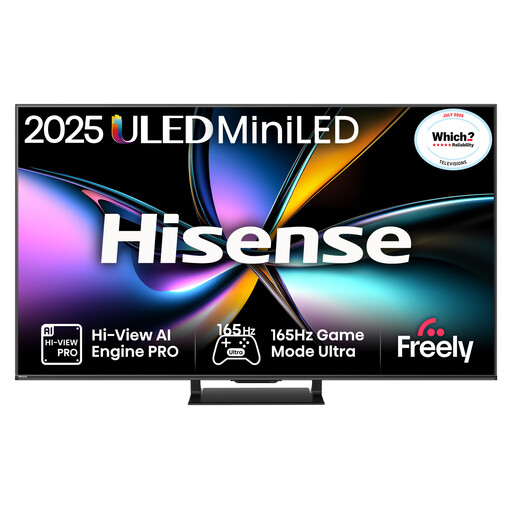 Image unavailable
Hisense TV-55U7QTUK Pro 55-inch Mini LED 4K TV
Consider this for a shared-room console setup if a 55-inch screen fits your seating position. The product name specifies Mini LED, 4K HDR and VIDAA OS; confirm that the intended HDMI input and your console support the gaming mode you want to use.
Joybuy
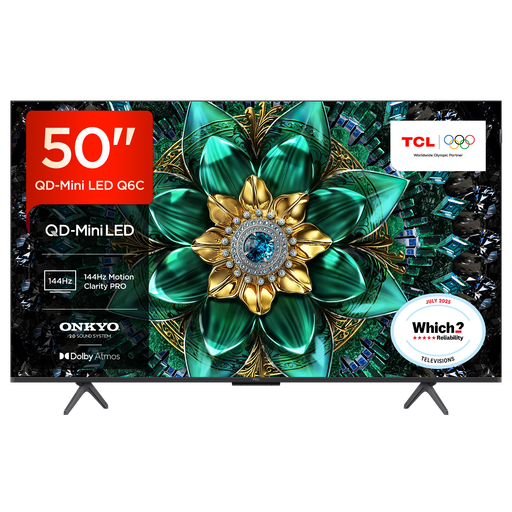 Image unavailable
TCL TV-50Q6C-UK 50-inch QD-Mini LED 4K TV
The 50-inch size is worth considering if you want a TV format but need to assess a smaller screen for the room. Its name specifies QD-Mini LED, 4K HDR and Google TV. Check which refresh rates work at 4K on the HDMI input you intend to use; the stated refresh-rate modes need closer examination for console play.
Joybuy
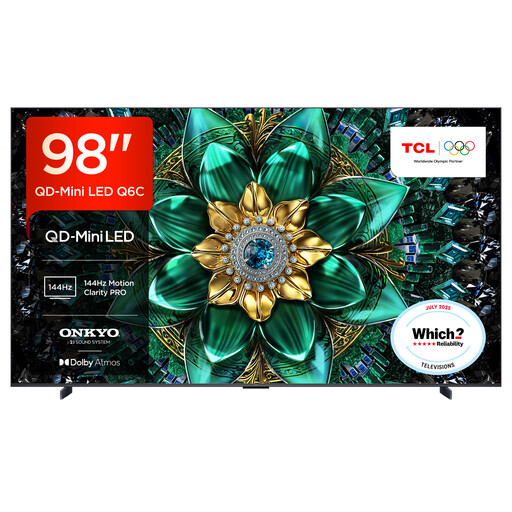 Image unavailable
TCL TV-98Q6C-UK 98-inch QD-Mini LED 4K TV
This 98-inch QD-Mini LED 4K TV calls for a careful check of viewing distance, access and installation space. Before choosing it for high-frame-rate console play, confirm the supported refresh rate at 4K on the intended HDMI input; the product information gives differing refresh-rate figures.
Joybuy
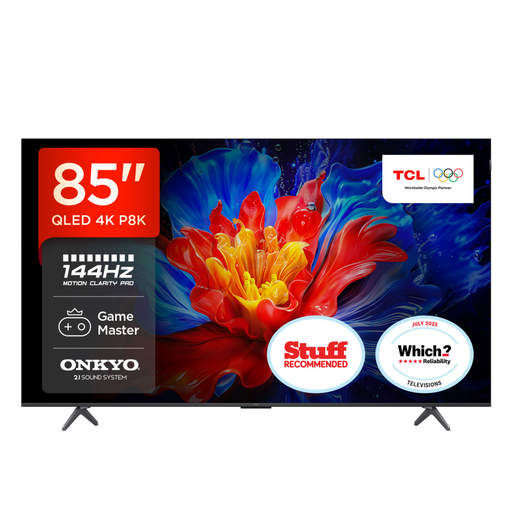 Image unavailable
TCL TV-85P8K-UK 85-inch QLED 4K TV
For a shared room where an 85-inch screen is under consideration, check the available wall or stand space and viewing position first. The name identifies a QLED 4K HDR PRO TV. Confirm the refresh rate available at 4K through your chosen HDMI input rather than treating a stated higher refresh rate as a confirmed console output mode.
Joybuy
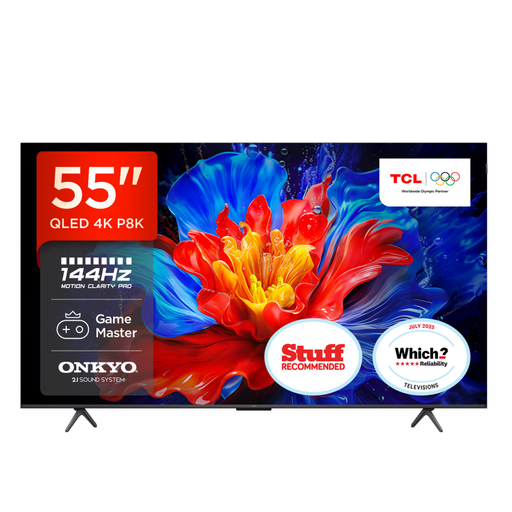 Image unavailable
TCL TV-55P8K-UK 55-inch QLED 4K TV
This 55-inch QLED 4K HDR PRO TV is an option to assess for a room used for both console play and ordinary viewing. Its Game Accelerator name does not establish the resolution or HDMI conditions for a console output mode. Check those details for the mode you plan to use, as well as the screen’s fit in the room.
Joybuy
Console display questions
Do I need a 120Hz TV for PS5 or Xbox?
No, unless you want to use a game and console output mode that support 120Hz. PlayStation says PS5 supports 4K at 120Hz output, while Xbox Support describes 4K gaming at 120Hz on Series X with an appropriate HDMI 2.1-capable TV; the display and connection must support the selected mode too.
How can I check what my Xbox and TV support together?
Open Profile & system, then Settings, General, TV & display options and 4K TV details on the Xbox. Xbox Support says this screen gives more specific information about supported display features when the TV and console support 4K.
Can I use a gaming monitor instead of a TV?
Yes, particularly for close desk-based console play. Check the monitor’s supported console resolutions and refresh rates, HDMI features and audio arrangements; a desk-sized monitor is not automatically as convenient for shared sofa viewing.
What cable should I use for Xbox Series X at 4K and 120Hz?
Xbox Support says Series X includes a 2-metre Ultra High Speed HDMI cable that supports HDMI 2.1 features, including 4K gaming at 120Hz. If you need a longer cable, Xbox advises choosing a certified Ultra High Speed HDMI cable; the TV input and game must also support the mode.


