Viewers who rely on subtitles
Check that subtitles are available and easy to switch on for the broadcasts and individual apps you use. Google TV Help cautions that device caption preferences might not apply in some apps.


Choose around the programmes and services you use: check that the programme has the access service you need and that your particular TV, receiver or streaming app lets you enable it. Keep an otherwise suitable TV and consider a compatible streamer when the app interface is the barrier; replace the screen if it needs replacing or broadcast controls are the main issue, and add a remote or listening accessory only after checking its commands or audio outputs. Channel 4 lists Roku and tvOS among its platforms for streaming audio description, but support still depends on the service and programme.
Check that subtitles are available and easy to switch on for the broadcasts and individual apps you use. Google TV Help cautions that device caption preferences might not apply in some apps.
Look for programmes with an audio-description track and a practical way to enable it. Spoken menu guidance helps with navigation, but it is separate from description of a programme.
If the current controls are difficult to use, test the commands needed to find and switch on access services. For personal listening, check whether the TV can send sound to headphones while others use its speakers; RiDC's interviews for Ofcom found that participants wanted access services to be easier to find and switch on.
Start with the programme and service you need, then identify whether the obstacle is access-service availability, the current interface, a remote-control command or the TV's audio output. RiDC's interviews for Ofcom found that participants wanted access services to be easier to find and switch on.
| Concern | What to check when buying | Who this matters to |
|---|---|---|
| Subtitles across services | Test a broadcast and an on-demand title in each essential app; check both device and playback settings. | On the broadcasts and apps I use, I need subtitles for the actual programme and a control I can reach; around 40% of consumers prioritise subtitle access. |
| Finding audio description | Find a described title on each essential service, start it and check the audio track and its playback control. | Finding a described programme and enabling its track matters more to me than spoken menu prompts; around 30% of consumers prioritise usable audio description. |
| Controls and navigation | Try the full sequence from switching on to reaching the subtitle or audio-description control, using the intended remote and app. | If I cannot reliably reach programme settings with the current remote, I need a replacement to reproduce those commands; around 20% of consumers prioritise manageable controls. |
| Personal listening | Check the TV's actual audio outputs and whether headphones and TV speakers can play together with the intended connection. | For private listening, I need sound from my TV without preventing others from using its speakers; around 10% of consumers prioritise a compatible personal listening route. |
A device-level caption preference does not establish that subtitles are available or enabled in every app, programme or viewing mode.
Test the actual UK service and title, including the playback controls, before choosing a screen or streamer.
A screen reader or voice guide speaks interface items; it does not provide narration for a programme without an audio-description track.
Check menu speech and the audio-description track separately, using a programme that offers the track.
Whether headphones and the TV speakers can play at the same time depends on the television and its settings.
Check the exact TV's outputs and test both listening paths together using the connection you intend to use.
Depending on the television, a different connection or additional audio equipment may be needed.
Large or learnable buttons do not guarantee that a replacement can reproduce a particular app or receiver command.
List the commands needed to reach and switch on the feature, then demonstrate them with the proposed remote.
A smart-TV option to consider when replacing a screen or checking built-in accessibility controls.
Apple TV 4K is a streamer option for an existing HDMI television when its navigation and playback controls suit the viewer.
A streaming-device route to check when Roku support for a particular app and access service matters.
The URC 6810 TV Zapper is a replacement-remote option for viewers who want large, learnable buttons.
The HT41866 headphone-and-transmitter set is a personal-listening option to assess against the TV's connections.
These options cover replacing a TV screen or adding a Roku streamer to an existing HDMI television. Check programme and app support for either route before choosing.
 No image available
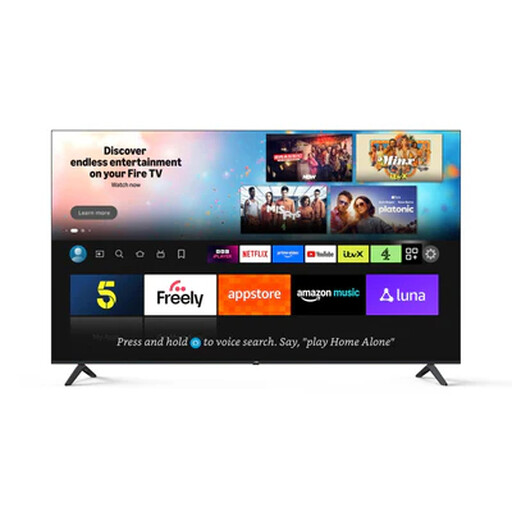
For replacing a screen while keeping live and catch-up viewing in the set-up, the product description lists Freely over Wi-Fi and a voice-search and playback remote.
Streaming requires internet access, and channel and app availability may change.
 No image available
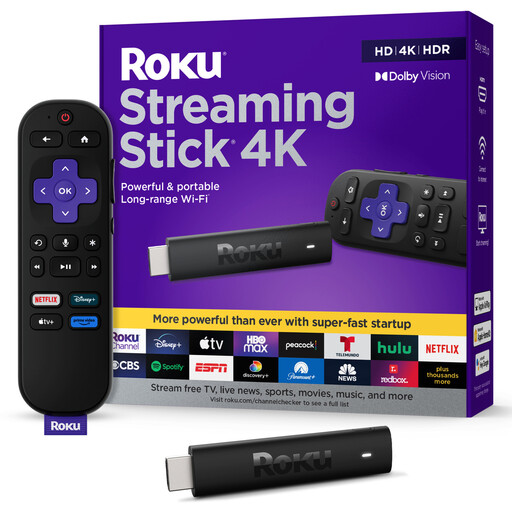
For adding streaming to an HDMI television, the product description specifies an HDMI connection and voice remote. Channel 4 lists Roku among its streaming audio-description platforms.
Roku says captions display only when the programme supports them; check the app and title you use.
 No image available
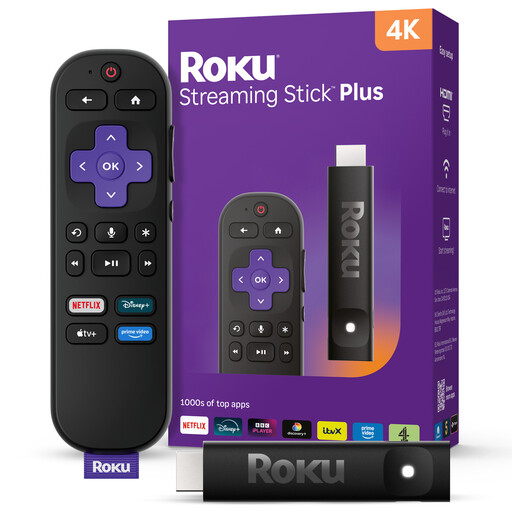
For adding streaming to a television, the product description identifies a Roku streaming device and private headphone listening through its remote. Channel 4 lists Roku among its streaming audio-description platforms.
Roku says captions display only when the programme supports them; check the app and title you use.
No: a device setting does not ensure that every app or programme provides the feature. Google TV Help says caption preferences might not apply in some apps, and Channel 4 lists platform support for its services separately. Test the title and playback controls you plan to use.
No. A voice guide or screen reader speaks interface items, while programme audio description is an audio track that describes visual action. Check that the programme has an audio-description track and that you can select it, as well as testing any spoken navigation you need.
Try a programme that carries the feature, then use the SUB or AD button if the remote has one, or check the receiver's menu. Freeview describes these as routes to subtitles or audio description when available. Before buying a replacement remote, confirm that it can reproduce the commands you used.
They may be able to, but the result depends on the TV and its settings. Check the TV's audio outputs and test simultaneous playback using the connection you intend to use; a headphone feature alone does not confirm that the TV speakers will remain on.