What matters when choosing
Plan the drawing workspace and its two-screen connection path together. Colour controls and physical adjustment then help distinguish monitors that otherwise meet the same size and resolution brief.
| Concern |
What to check |
Who this matters to |
| Readable drawing workspace |
Compare two screens' 3840 × 2160 resolution, panel sizes and physical layout. Check the display scaling you would use for drawing text. |
When I compare plans with elevations or mark-ups, I want similarly sized drawing areas that keep both documents in view. Around 31% of consumers put readable workspace first. |
| Reliable two-screen connection |
Check the computer and dock's supported external-display count, resolution and refresh rate, alongside the intended ports and cables. |
If my laptop must run both monitors, I need the entire connection path to work before hub features save me any effort. Roughly 31% of consumers make connection reliability their primary concern. |
| Colour and CAD viewing controls |
Compare each exact model's stated colour modes and calibration claims; check whether both screens can use suitable matching settings. |
For colour-coded drawings and presentation renders, I need to know how colour will be handled across the pair. About 23% of consumers put colour or CAD viewing controls first. |
| Long-session desk fit |
Measure desk space and review stand or mounting adjustment. Assess the complete workstation, not the monitor stands alone. |
During long drawing sessions, I need room to position both screens, my documents and my keyboard comfortably. Around 15% of consumers prioritise workstation fit above the other factors. |
Joybuy monitors to consider
These 31.5–32-inch 4K monitors offer different starting points for a two-screen drawing desk: a creator-focused IPS model, a USB-C IPS model and a curved OLED model. Check the connection plan and the display characteristics that matter to your work before choosing two units.
 No image available
ASUS ProArt Display PA32UCG-K 32-inch 4K HDR monitor
Consider this model if you want a large drawing display and also need to assess HDR presentation work.
Its listed configuration includes an IPS Mini LED panel, 120 Hz refresh rate and Thunderbolt 3. Confirm the exact variant's colour and calibration specifications, and check that your computer or dock can drive two 4K screens.
View on Joybuy
 No image available
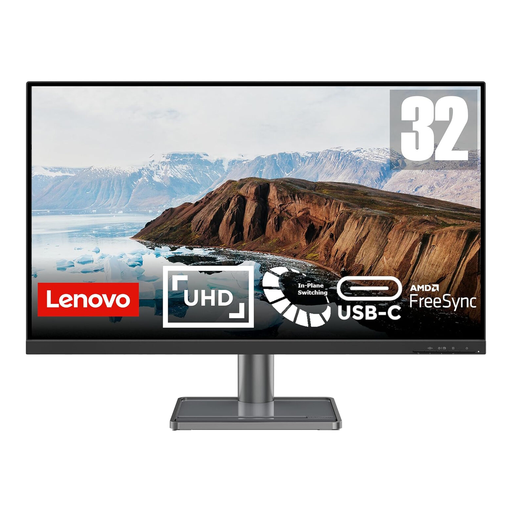
Lenovo L32p-30 31.5-inch 4K UHD monitor
Consider this model for a similarly sized pair of IPS screens when you are planning a desk-based drawing workspace.
The listed configuration has USB-C. Check the screen finish if reflections matter, and confirm the laptop's charging needs and the connection plan for both displays.
View on Joybuy
 No image available
Dahua 32-inch 4K 165 Hz curved OLED monitor
Consider the curved screen shape alongside your intended drawing layout before choosing this model for a two-monitor desk.
The title lists a 165 Hz refresh rate and Type-C with 65 W power delivery. Check the screen finish and any CAD viewing features you require, as well as whether your computer can drive the proposed pair.
View on Joybuy
Common questions
Can any laptop run two 4K monitors for architectural drawings?
No: check the exact laptop or graphics adapter, dock, ports and cables for simultaneous output to both displays. HP specifies a graphics adapter capable of 3840 × 2160 at 60 Hz for its Z32k G3, while Autodesk lists UltraHigh (4K) monitor support for Revit 2026; neither statement establishes dual-4K output for every computer.
Should both drawing monitors be the same model?
Matching models are a practical starting point when you want similar screen size, finish, controls and stand geometry across a drawing workspace. If you mix models, compare their native resolution, physical dimensions, colour settings and adjustment ranges before ordering.
Will Thunderbolt daisy chaining connect both monitors?
It can on a compatible connection path, but the monitors alone do not establish that the arrangement will work. BenQ lists Thunderbolt daisy chaining for the PD3225U; check the exact host, operating system and cables against your intended two-display setup.
Does a height-adjustable monitor settle the ergonomic setup?
No. Height adjustment helps position a screen, while HSE guidance addresses the whole display-screen-equipment workstation, including furniture, work conditions and individual requirements. Reassess screen placement, desk space and lighting after installing the pair.
Does a UK employer need to assess a changed two-monitor workstation?
For workers who use display screen equipment daily as part of normal work for continuous periods of an hour or more, HSE says employers must assess the workstation. Its guidance also calls for reassessment when a workstation is set up or its use changes; adding a second monitor should therefore be considered as part of the complete setup.


