What matters when choosing a pair?
Start with the artwork’s working colour space and the computer’s ability to drive two displays. Then work out whether the pair fits your desk and which connections you need.
| Concern |
What to check |
Who this matters to |
| Artwork colour |
Match the model’s stated gamut to sRGB/Rec.709 or the Adobe RGB/DCI-P3 space your work uses. Check its calibration and profiling provisions. |
If I approve artwork against a colour reference, I need both screens to handle my working space predictably. Around 34% of consumers put colour-space fit and repeatability first. |
| Two-screen compatibility |
Check the exact computer’s external-display limit at 4K and whether the planned ports, cables or dock support two extended displays. |
I do not want to order a pair only to find my computer cannot run both screens as intended. Roughly 33% of consumers make dual-4K compatibility their primary concern. |
| Desk layout |
Allow space for both screens and check stand adjustment or mounting compatibility if their viewing positions need to match. |
With artwork on one display and tools on the other, I need a pair I can position comfortably on my desk. About 20% of consumers prioritise the physical two-screen layout. |
| Laptop connections |
Compare the monitor’s video inputs and charging provision with the laptop’s ports and the intended wiring arrangement. |
I want charging and peripherals connected without making the desk harder to use, but still need two independent displays. Around 13% of consumers put connection convenience first. |
Joybuy monitor choices
These 4K choices include 27-inch displays and a larger 32-inch model for a reference-and-tools desk. Match each model to your artwork’s colour space and confirm the computer can run the intended pair before ordering two.
 No image available
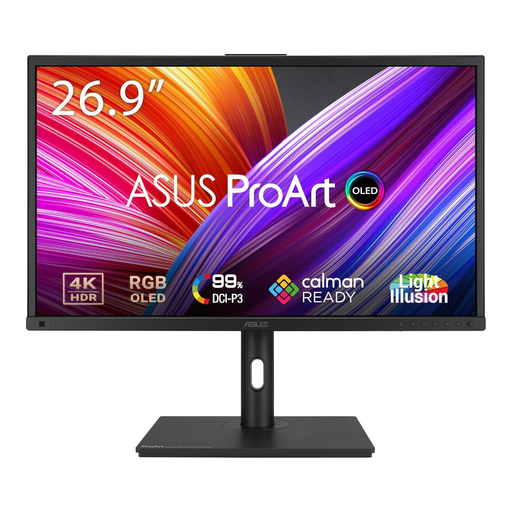
ASUS ProArt PA27DCE-K 4K OLED
For artwork using a wider working colour space, check this model’s stated gamut and calibration options before planning a matched pair.
Confirm that your computer and connections support both external 4K displays.
View on Joybuy
 No image available
ASUS ProArt PA32UCG-K 32-inch 4K HDR IPS Mini LED
For colour-critical reference work where you want a larger screen, check that two 32-inch displays fit your desk and that the calibration method suits your workflow.
Its title specifies a 120Hz refresh rate and Thunderbolt 3; neither establishes that your computer can drive two 4K screens.
View on Joybuy
 No image available
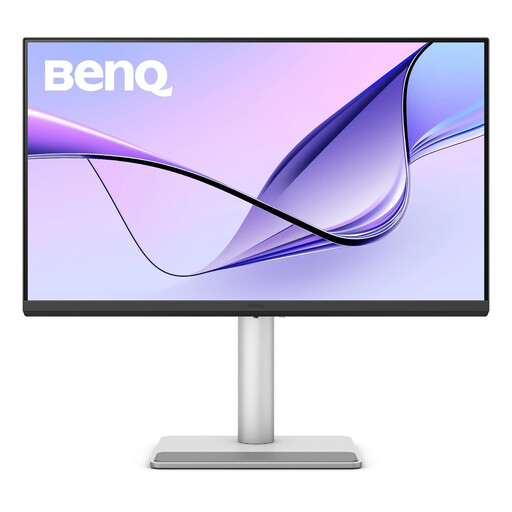
BenQ MA270UP 27-inch 4K Nano Glossy IPS USB-C
For web-first reference artwork, check its colour modes and profiling options against your sRGB workflow.
Consider room reflections when positioning the Nano Glossy screen; check the laptop’s video and charging compatibility if USB-C is part of the setup.
View on Joybuy
 No image available
iiyama ProLite XUB2792UHSU-B6 27-inch 4K
For a matched pair showing web-oriented artwork, check each display’s colour mode and profiling options before relying on a close visual match.
Confirm the connections and any laptop-charging requirements for the desk you intend to build.
View on Joybuy
 No image available
LG UltraGear G8 27G850A 27-inch 4K Nano IPS
If your reference artwork uses DCI-P3, check this gaming model’s stated gamut and calibration options against that workflow before choosing a pair.
Its high-refresh features do not establish how consistently two units will show artwork; confirm computer support for both 4K connections separately.
View on Joybuy
Frequently asked questions
Do I need a wide-gamut monitor for reference artwork?
Not for every workflow: an sRGB-focused display can suit web artwork, while Adobe RGB or DCI-P3 coverage matters when your colour-managed work uses those spaces. Choose for the artwork’s intended colour space rather than assuming a wider gamut is automatically more accurate.
Will any USB-C laptop run two external 4K monitors?
No. Check the exact computer’s external-display specification and the planned dock or connection method before buying a pair. Apple Support says a Mac’s capacity depends on its model and the displays’ resolution and refresh rate; Windows display-arrangement controls cannot overcome a hardware or connection limit.
How can I make two screens show artwork more consistently?
Use matching models where possible, choose the intended colour mode for each and calibrate and profile the displays individually. The International Color Consortium explains that calibration sets display behaviour, while a profile communicates that behaviour to other devices and applications.
Does factory calibration remove the need to profile a monitor later?
No: a model’s factory-calibration claim does not replace the profiling needed for your own colour-managed setup. Check the delivered unit’s settings and profile each screen when dependable matching is required, particularly after changing display settings or the viewing environment.


