Start by checking your exact laptop model’s supported external-display count and video-capable ports, then match both monitors and any dock to those capabilities. Direct connections suit a laptop that can drive both screens; a compatible USB-C or Thunderbolt dock can bring connections together, while USB graphics may help when native video is limited if the required software is permitted. Microsoft Support explains that an HDMI splitter duplicates a signal rather than creating a second independent display.
Who might need two external monitors on a laptop?
Older-laptop desk builder
If your laptop has USB-A and perhaps one HDMI output, check how it can provide two independent external screens while keeping desk peripherals connected. A MoneySavingExpert Forum question illustrates this kind of compatibility need.
Video-capable laptop owner
If you want two monitors and a simpler desk connection, confirm whether your laptop’s specific USB-C or Thunderbolt port supports the video mode and display count required by the dock.
Managed-laptop worker
If you use an employer-managed laptop, check whether IT permits the required USB graphics software before choosing a dock that depends on it.
What should you check before buying?
Check the laptop’s display limit and video outputs first; the number of sockets on a dock alone does not show whether it can run two independent screens.
| Concern |
What to check when buying |
Who this matters to |
| A second display path on an older laptop |
Check the full laptop model’s simultaneous-display limit and confirm that any USB graphics device supports its operating system and explicitly adds a display. |
If my older laptop has USB-A and only one video output, I need a supported way to add a second independent screen. Around 36% of consumers put that missing display path first. |
| Matching the laptop, dock and monitors |
Verify the laptop’s USB-C video mode or Thunderbolt support, display count and charging arrangement against the dock’s requirements and both monitors’ inputs. |
I want both screens at the resolutions I use and need the dock to work with my laptop’s actual video capabilities. Around 29% of consumers prioritise this match. |
| Software permission and operating-system behaviour |
Check the exact dock’s software requirements with IT. For DisplayLink on macOS, check the required Screen Recording permission and whether your intended apps are suitable. |
On a managed laptop, I need approval for the required driver before choosing USB graphics. Around 21% of consumers put software permission first. |
| Moving the complete screen setup |
Plan how each external screen connects, including any portable monitor’s USB connection, driver and power requirements. |
If I move between desks, I need a portable screen that still works as part of a pair of independently supported displays. Around 14% of consumers prioritise a transportable setup. |
Buying pitfalls to avoid
-
Assuming a two-output dock raises the laptop’s display limit
A dock or daisy chain does not automatically increase the number of displays the host can support natively.
Check the complete laptop model’s display limit and the dock’s video technology before comparing its monitor sockets.
-
Treating a splitter or ordinary USB hub as another graphics output
Microsoft Support explains that a splitter duplicates the signal rather than creating two independent extended displays. A plain hub or connector converter does not, by itself, establish a separate video path.
Look for documentation confirming that the device provides independent video output supported by your laptop.
-
Expecting a USB-A dock to charge the laptop
Synaptics says USB Standard A-B docking stations are not designed to charge the computer.
Plan for the laptop’s separate charging arrangement and an available mains socket.
-
Choosing driver-based video without checking software and app behaviour
USB graphics depends on software support and permission. Synaptics also describes protected-video playback limitations with DisplayLink screens connected on macOS.
Check the intended operating system, applications and any IT restrictions before choosing this route.
Relevant brands to consider
StarTech.com
StarTech.com lists USB3DOCKHDPC, a USB-A DisplayLink dock, and DK31C2DHSPDUE, a native-video USB-C MST dock for suitably specified Windows or ChromeOS laptops.
- StarTech.com’s USB-A model documents HDMI and DisplayPort monitor connections for a legacy-port setup.
- The dual 4K at 60 Hz claim for DK31C2DHSPDUE applies only with its stated DP 1.4 Alt Mode, HBR3 and DSC host prerequisites; do not apply it to USB-A laptops or other hosts.
Belkin
Belkin’s INC028kqBK is a USB-C DisplayLink dock intended for a two-monitor desk with additional peripheral connections.
- Belkin specifies dual displays up to 4K at 60 Hz and power delivery for compatible USB-C hosts.
- Check that the laptop permits the required DisplayLink software and supports the intended charging arrangement; an included USB-A adapter does not establish USB-A laptop charging.
Dell
Dell’s P2425 is a desk monitor to consider when choosing a pair for a laptop with two supported video paths.
- Dell specifies HDMI and DisplayPort inputs, an adjustable stand and a USB hub with a separate upstream connection.
- Buying two monitors does not provide a second video path from the laptop.
ASUS
ASUS’s ZenScreen MB16ACV is a portable-display option for a setup that moves between desks.
- ASUS specifies a 15.6-inch-viewable Full HD screen and driver-enabled USB Type-A compatibility.
- It is one monitor, not a two-screen dock; check how it connects alongside the other external display.
Joybuy product choices for a two-screen laptop setup
These Joybuy choices include USB-C hubs and docks, a foldable portable dual-panel display, and individual monitors for building a two-screen setup. Check your laptop’s display limit, video outputs and operating-system requirements before choosing.
 No image available
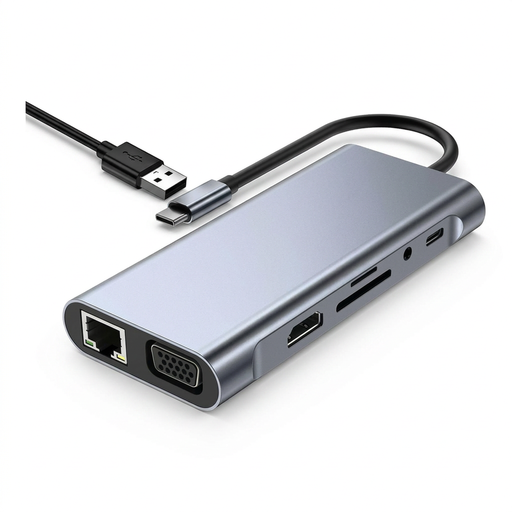
USB C Hub Docking Station TW11A, 11-in-1
This USB-C hub may suit a compatible laptop needing HDMI and VGA connections alongside desk peripherals; check that the host and hub support the two-display arrangement you intend to use.
The product name lists HDMI, VGA, USB 3.0, USB-C PD, Ethernet, SD and TF card readers, and 3.5 mm audio.
View on Joybuy
 No image available
Targus USB-C Universal Dual HDMI 4K Docking Station, 100W Power Delivery Pass-Through
This dock may suit a USB-C laptop that supports the video mode needed for its two HDMI outputs; confirm the host’s display configuration before relying on a dual-screen setup.
The product name specifies USB-C Alt Mode, dual HDMI and 100 W power delivery pass-through.
View on Joybuy
 No image available
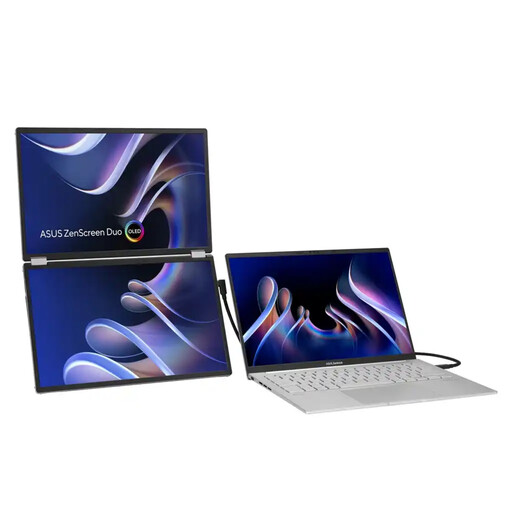
ASUS ZenScreen Duo OLED MQ149CD 360°
This foldable dual-panel display may suit a workspace that moves between desks; check that your laptop can support the intended screen arrangement through the listed connections.
The product name specifies two 14-inch 16:10 OLED panels at 1920 × 1200, with dual USB Type-C and mini-HDMI connections.
View on Joybuy
 No image available
ASUS ProArt PA278CV IPS WQHD
This is one monitor to consider as part of a directly connected pair; the laptop needs another supported display path for the second external screen.
The product name identifies an IPS WQHD display. Check its inputs against your laptop’s available video outputs.
View on Joybuy
 No image available
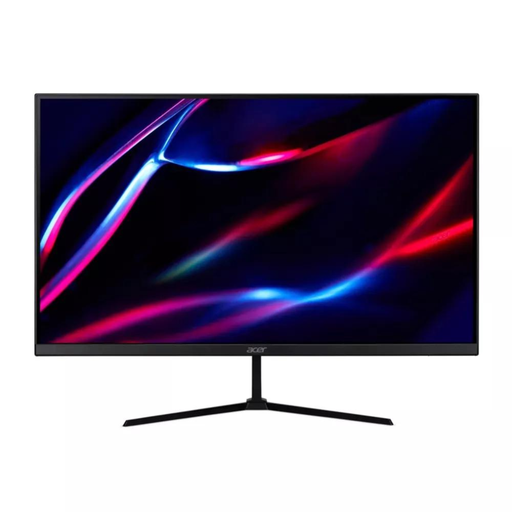
27-inch QHD IPS display, 180 Hz
This display may be considered as one screen in a two-monitor setup; check that your laptop has a separate supported path for the other external display.
The product name lists QHD IPS, 180 Hz, two HDMI connections and DisplayPort.
View on Joybuy
Frequently asked questions
How can I check whether my laptop can run two external monitors natively?
Check the full laptop model’s manufacturer specifications for simultaneous external displays, supported ports, resolution and refresh rate. Also check the graphics adapter’s limit; the built-in screen is not one of the two external displays.
Will an HDMI splitter give me two different desktops?
No. Microsoft Support explains that a display splitter duplicates the signal rather than creating two independent extended displays.
Will a USB-A DisplayLink dock charge my laptop?
Do not assume it will. Synaptics says USB Standard A-B docking stations are not designed to charge the computer, so retain the laptop’s own charging arrangement unless the exact product and host documentation establishes another method.
Can I install a USB graphics dock on an employer-managed laptop?
Ask IT whether it approves the exact device and its required DisplayLink software. Corporate deployment methods exist, but that does not establish permission on your employer’s laptop.
What should I check before using DisplayLink on macOS?
Check that DisplayLink Manager is supported for your setup and that you can grant the required Screen Recording permission. Synaptics also warns that some protected video may not play while DisplayLink screens are connected.


