What to check before buying
Decide whether you need the displays alone or the displays and USB peripherals to switch together, then check each laptop’s video and power requirements.
USB-C or Thunderbolt dock
Choose when: You connect one laptop at a time and its documented port and video output meet the dock’s requirements.
Trade-off: A single-host dock does not, by itself, switch between two connected laptops.
USB-A/USB-C hybrid dock
Choose when: An older laptop has a supported USB data port but lacks a suitable native video connection, and the required USB-graphics software can be installed.
Trade-off: This is a specific dock-and-driver video route, not a way to turn USB-A into native USB-C video with a plug adapter.
Two-computer KVM or KVM dock
Choose when: You want connected laptops to share screens and USB peripherals when you switch computers.
Trade-off: Each laptop still needs to supply the video and USB signals required by that particular KVM.
Existing monitor inputs
Choose when: Both laptops can connect to suitable inputs on the monitors you already own, and you can change sources separately.
Trade-off: Multiple video inputs alone do not switch a keyboard, mouse or webcam; a monitor’s built-in KVM is model-specific.
Direct display and peripheral cables
Choose when: Each laptop’s existing output supports the intended display and you are comfortable changing connections or inputs manually.
Trade-off: Check the cable’s direction and supported video mode, and account for charging separately.
| Concern |
What to check when buying |
Who this matters to |
| Switching screens and peripherals |
Count the displays and USB devices, then match both laptops’ host connections to the KVM’s inputs and supported display modes. |
If I want my screens, keyboard and mouse to move between laptops together, I would check for a KVM with the right inputs; around 33% of consumers put whole-desk switching first. |
| Display output from an older laptop |
Check the exact laptop’s video-capable ports and display limits; for a USB-graphics dock, confirm software and operating-system requirements. |
When my older laptop lacks a suitable native video connection, I need a supported way to drive its displays rather than relying on an adapter; around 27% of consumers prioritise older-port display compatibility. |
| One-cable connection and charging |
Match the dock’s display modes and host-side power delivery to the laptop, port and supplied cable. |
If I mainly dock one laptop, I want fewer desk connections without overlooking its charging needs; around 20% of consumers put one-cable connection and power first. |
| Using existing monitors |
Check each monitor’s inputs against both laptops’ outputs, and confirm separately how USB peripherals will switch. |
When my existing screens have suitable inputs, I would rather check those before adding another device; around 20% of consumers prioritise making existing monitor connections work. |
Joybuy product choices
These choices relate to monitor-based desk connections and compatible USB-C display or peripheral connections; check whether you also need a separate way to switch between laptops.
 No image available
MSI 27" 4K UHD MD272UPSW Smart Monitor
Relevant to a monitor-based desk setup with two devices; the listing describes Multi-Control for two devices, but does not establish that multiple external monitors switch together.
27" 4K UHD IPS display; USB-C 65W power delivery; HDMI; Multi-Control.
Joybuy
 No image available
Targus USB-C Universal Dual HDMI 4K Docking Station, 100W PD Pass-Through
For a compatible USB-C laptop that needs a dock with dual HDMI outputs; check whether you also need a separate switch to change between laptops.
Dual HDMI 4K outputs; 100W Power Delivery pass-through. Video requires a compatible USB-C Alt Mode host.
Joybuy
 No image available
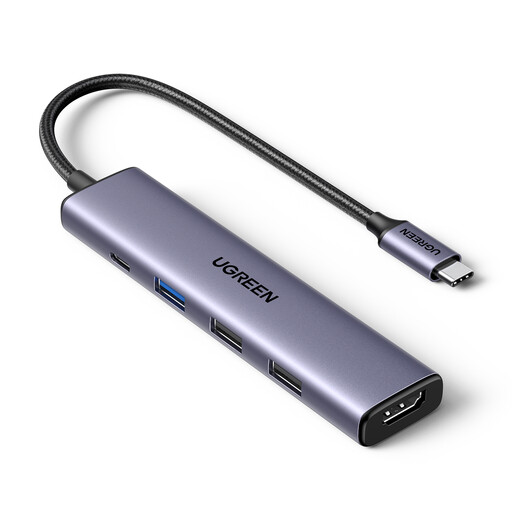
UGREEN Revodok 5-in-1 USB-C Hub
A hub option for a compatible USB-C laptop needing a display connection and USB-A data ports; check separately how you will switch between computers.
100W PD pass-through; 4K HDMI; three USB-A data ports.
Joybuy
 No image available
AJAZZ AKP01E 8-in-1 Visualization Hub
A USB-C expansion option for a desk setup where a display and card-reader connections are useful; check that the laptop supports the required video output.
4K HDMI; SD and TF card slots, which the listing says cannot be used simultaneously.
Joybuy
Frequently asked questions
Can a USB-C-to-USB-A adapter make my video-capable USB-C dock drive an older laptop’s monitors?
Do not assume it can. A native Alt Mode video dock needs a supported host video path, port and cable; changing the plug does not establish those capabilities. A dock explicitly designed for USB-A video through DisplayLink is a different option with software requirements.
Is a dock enough to switch between two laptops?
Not necessarily: a dock’s connection to one host does not by itself establish two-computer switching. If you want both laptops connected and to switch screens and USB peripherals, check that the specific KVM has the required host inputs, display connections and switched USB ports.
What should I connect when setting up a monitor’s built-in KVM?
Follow the instructions for the exact monitor model. BenQ’s guidance for the PD2730S and PD3226G says to connect at least two video sources and, for a DisplayPort/HDMI computer, a USB upstream connection; the required setup is model-specific.
Will a USB-A-compatible display dock charge an older laptop?
Check the exact model and host connection rather than assuming that display support includes host charging. Plugable says its UD-6950H does not charge the host, so a separate laptop charger is needed with that model.
What UK return rights apply if a dock is faulty or not as described?
GOV.UK says a seller must offer a full refund if goods are faulty, not as described or do not do what they are supposed to. It also says distance-selling customers can generally cancel by notifying the seller within 14 days of receipt; a compatibility mistake is not automatically the same as a product fault.


