Frequent laptop switchers
If you move between a work laptop and a personal laptop throughout the day, assess a two-host KVM that can switch your monitor and input devices together. Check the connections on both laptops against the chosen model.


Choose a two-host KVM if you want one control to switch the monitor, keyboard and mouse between compatible laptops. A monitor with separate inputs plus a USB switch can work if you accept two switching actions; choose a dock when a laptop needs more connections or charging, but do not assume it can switch between two computers.
If you move between a work laptop and a personal laptop throughout the day, assess a two-host KVM that can switch your monitor and input devices together. Check the connections on both laptops against the chosen model.
If your monitor has usable inputs for both laptops, a separate USB switch may let you share the keyboard and mouse without changing the display. You would select the monitor input separately.
If one laptop also needs charging, network access or extra ports, assess a compatible dock. Plan separately for switching to the second laptop, whether by a switch or by moving the host connection.
Choose it when: You want the shared display and input devices to follow the selected laptop together.
Check carefully: The host and monitor connections, video mode and power arrangement must suit the complete setup.
Choose it when: Both laptops can connect directly to separate monitor inputs and you mainly need to share USB devices.
Trade-off: Changing laptops can mean selecting both a monitor input and a USB-switch position.
Choose it when: A compatible laptop needs additional display, USB, network or charging connections.
Trade-off: A single-host dock does not itself provide two-laptop switching.
| Concern | What to check | Who this matters to |
|---|---|---|
| Switching the shared devices | Check that both host connections, the monitor output and the required USB peripherals are supported; consider where the switch control will sit. | If I change laptops often, I want the screen, keyboard and mouse to move together rather than reconnecting each cable. About 42% of consumers would put integrated switching first. |
| Video and charging compatibility | Check each laptop's required video-output capability and display limits against the device and monitor; compare any power-delivery arrangement with the laptop's needs. | Before choosing a USB-C dock or KVM, I need to know that my laptop can provide the intended display output and, if needed, charge through the connection. Compatibility would be the primary concern for about 33% of consumers. |
| Desk space and cable layout | Check space for the devices, adapters and cable bends, and whether separate monitor and USB controls are convenient to reach. | On a crowded desk, I would rather use the monitor inputs I have than add equipment that makes switching awkward. A manageable, lower-clutter layout would come first for about 25% of consumers. |
A USB-C-shaped port alone does not establish the video capability required by a particular dock or KVM. Microsoft describes DisplayPort Alt Mode as a way to carry display output over USB-C, while Apple advises checking a Mac model's ports and display support.
Check the specification for the exact laptop port you intend to use, then match it to the accessory's host requirements.
A dock can simplify connections for its attached laptop without providing a way to select between two hosts. You may still have to move its host cable.
Decide whether switching or expansion is the main need. If you need both, assess a compatible KVM-and-dock arrangement or a separate switch.
The usable video mode depends on the laptop, cable, accessory and monitor together. ATEN specifies compatible Thunderbolt 4 or USB4/DP 1.4 equipment for high video modes on its US3311 and notes a USB-bandwidth limitation at higher modes.
Match the intended resolution and refresh rate across the full connection chain, including any conditions attached to the accessory's specification.
Adding a dock or switch can add power equipment to the desk. The Health and Safety Executive advises using electrical equipment suitable for its supply and keeping it in good condition.
Check the supplied adapter and plug before use. For equipment you replace, use an appropriate electrical-equipment recycling or take-back route rather than general waste.
ATEN has two-host KVM models for sharing a display and USB peripherals between compatible computers.
Kensington's SD4843P is relevant when a compatible laptop needs desk connections and display expansion.
Dell's U3824DW illustrates a multi-input USB-C hub monitor that could form part of a modular desk setup.
These USB-C hub and dock options provide connections for a laptop at a shared desk. Plan a separate method if you need to switch the monitor and peripherals between two laptops.
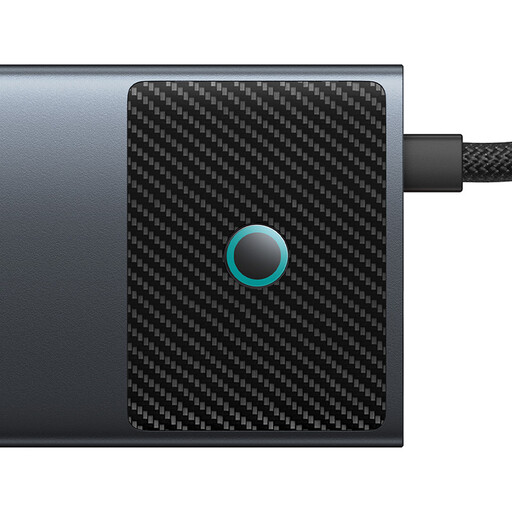 Image unavailable
Consider this hub if one laptop needs display and peripheral connections at the desk; arrange two-host switching separately. Its listed connections include HDMI outputs specified as 4K at 120 Hz and 4K at 60 Hz, USB-A and USB-C ports, RJ45, SD/TF and a USB-C power-delivery input. Check the laptop's video-output capability and the conditions for the display modes before choosing it.
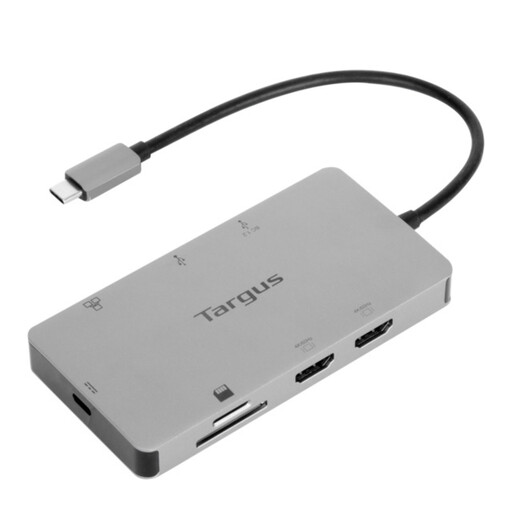 Image unavailable
Consider this dock for display connections on a compatible laptop, while using another method to switch between laptops. Its title specifies dual HDMI 4K and 100W power-delivery pass-through. Check the laptop's USB-C video support, the intended display configuration and the external adapter needed for pass-through charging.
No. Check whether the particular port supports the video connection required by the device, such as DisplayPort Alt Mode, Thunderbolt or USB4. Also check the laptop model's external-display limits rather than relying on the connector shape.
They can share a display, keyboard and mouse when each laptop has a suitable connection to a separate monitor input and the USB switch supports the peripherals. You may need to change the monitor input and USB-switch position separately; check the monitor's USB upstream arrangement too.
Do not assume it will. A conventional single-host dock expands connections for the laptop attached to it; two-host switching calls for a separate switching method or a dock explicitly specified to provide that function.
Check that its power equipment is suitable for the electrical supply and is in good condition, as the Health and Safety Executive advises. Confirm that the supplied adapter and plug suit your setup and that any power-delivery conditions match your laptop.