For two laptops sharing a desk, choose a single-host dock when you connect one laptop at a time and its documented ports support your planned displays; choose a compatible KVM when you want two connected laptops’ screens and USB peripherals to switch together. If your monitors accept both laptops, input switching or direct cables may be enough, but selecting a video input does not necessarily switch USB devices. Check each laptop’s video output, display limits, charging requirements and work-device rules before buying: a USB-C socket alone does not confirm video support.
Who this setup suits
People sharing a desk between two laptops
If you alternate between work and personal laptops, decide whether you want to switch just the monitor input or switch screens and peripherals together. MoneySavingExpert Forum discussions illustrate these shared-desk connection questions.
People with an older laptop
If one laptop lacks a suitable USB-C video connection, check whether a driver-based USB-A display dock fits its ports and operating system; a connector adapter alone does not establish video support. MoneySavingExpert Forum discussions illustrate this type of compatibility concern.
People using a managed work laptop
If your employer manages the work laptop, confirm whether drivers and shared USB peripherals are permitted before settling on a connection method. The Information Commissioner’s Office and the National Cyber Security Centre provide guidance on approved technology and device security.
What to check before buying
For consumers sharing a desk between work and personal laptops, start with the connection that must work and the way the two computers need to share screens and peripherals.
| Concern |
What to check when buying |
Who this matters to |
| Display compatibility |
Check each laptop’s video mode, supported display configuration and operating system against the exact dock and monitor connections. |
I need both exact laptops to drive the screens I plan to use; around 31% of consumers put display compatibility first. |
| Switching between laptops |
List the screens and USB devices to share, then check the KVM inputs or the monitor’s built-in KVM and USB-upstream connections. |
When I move between two connected laptops, I want the screens and USB peripherals to switch together; roughly 25% of consumers prioritise whole-desk switching. |
| Older laptop connections |
Check the laptop’s USB port, operating system and driver permissions against the specific USB-display dock; do not assume an adapter adds video capability. |
If my older laptop lacks suitable USB-C video, I need a connection route that fits its documented capabilities; about 19% of consumers put this issue first. |
| Charging and cables |
Compare each laptop’s charging requirements with the exact dock’s stated host power output and charging arrangement. |
I want fewer charger and desk-cable changes once the display setup is settled; around 13% of consumers prioritise reducing cables and charging changes. |
| Work-device approval |
Ask your employer’s IT team about permitted docks, USB peripherals and any DisplayLink software before relying on a driver-dependent setup. |
On a managed work laptop, I need approval for drivers and shared peripherals before choosing hardware; roughly 12% of consumers put work-device approval first. |
Buying pitfalls to avoid
-
Assuming a USB-A-to-USB-C adapter makes an older laptop work with a native-video dock
An adapter changes the connector, but it does not establish that the laptop supplies the video capability the dock needs.
Check the laptop’s documented outputs first. If native USB-C video is unavailable, compare a specific USB-A DisplayLink dock and its software requirements instead.
-
Expecting a single-host dock to switch between two laptops
A dock connects a host to desk equipment; it does not necessarily select between two computers. A monitor’s video-input selector may also leave USB peripherals connected to the other laptop.
If you switch frequently, map the video and USB connections from both laptops to a compatible KVM. If you switch less often, check your monitor’s inputs and peripheral connections first.
-
Treating a display or charging figure as a guarantee for both laptops
Dock output claims do not override a laptop’s display limits, and charging arrangements vary by model. For example, Dell lists different host power outputs for the WD25 with Dell and non-Dell systems, while Plugable says the UD-3900Z does not charge a laptop.
Check each laptop, the intended display configuration and the exact dock’s stated power output as a set.
-
Installing a driver-dependent dock before checking work-laptop permissions
DisplayLink software and shared USB peripherals may be affected by a managed device’s rules.
Ask your employer’s IT team about the specific dock, drivers and peripherals before relying on that setup.
Relevant brands for reference
Dell
Dell’s WD25 represents a single-host USB-C docking route, while built-in monitor KVM is a separate option available on selected monitors.
- Dell lists WD25 host charging at 100 W for Dell systems and 96 W for non-Dell systems.
- Those model-specific outputs do not guarantee that a particular laptop will charge or support a chosen display configuration. Dell’s monitor guidance says built-in KVM is available only on selected monitors.
Lenovo
The ThinkPad Universal USB-C Dock 40AY0090UK is a single-host dock to consider when the laptop supports its required USB-C video connection.
- Lenovo provides model-specific display and charging information for checking a proposed laptop and screen arrangement.
- Lenovo notes that some ThinkPad-oriented management features may not be available with non-Lenovo laptops; check the compatibility and display configuration for the exact system.
Plugable
The UD-3900Z illustrates a USB-A or USB-C DisplayLink dock for a host needing display and peripheral connections.
- Plugable specifies two HDMI outputs up to 1920 × 1200 and includes both USB-A and USB-C host cables.
- Plugable says the dock does not charge laptops, requires DisplayLink installation on macOS and does not support DisplayPort monitors. It is not recommended by Plugable for gaming or full-screen video playback.
StarTech.com
The 129UE-USBC-KVM-DOCK combines a two-USB-C-laptop KVM with dual DisplayPort outputs and shared USB peripherals.
- StarTech.com specifies switching by button and charging outputs of 90 W for the active host and 45 W for the standby host.
- StarTech.com specifies driver installation on Windows and macOS, so this is not a driver-free option for every managed work laptop.
TESmart
The HKS202-E23 illustrates a dual-monitor HDMI KVM arrangement for computers with separately available video and USB connections.
- TESmart specifies two HDMI video connections and one USB connection per computer for its two-screen arrangement.
- The KVM does not make a laptop with only one supported video output capable of driving two screens. Check the required connections and the product variant before choosing it.
Joybuy products for laptop display connections
These Joybuy listings are USB-C hubs and docks with display connections for a compatible laptop. Check the laptop’s video support and whether your desk also needs a separate two-host switching function.
 No image available
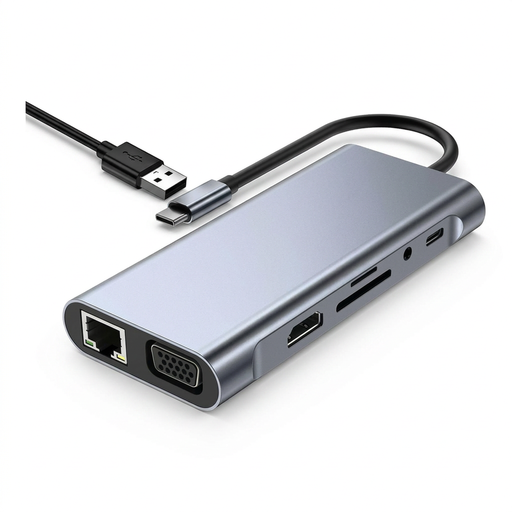
TW11A 11-in-1 USB-C Hub Docking Station
For a laptop with compatible USB-C video support, its listed HDMI and VGA outputs provide display connections.
The product name also lists USB 3.0, USB 2.0, RJ45 Ethernet, SD and TF card readers, and a 3.5 mm AUX connection. The description advises powering the hub through its Type-C PD port when using displays.
View on Joybuy
 No image available
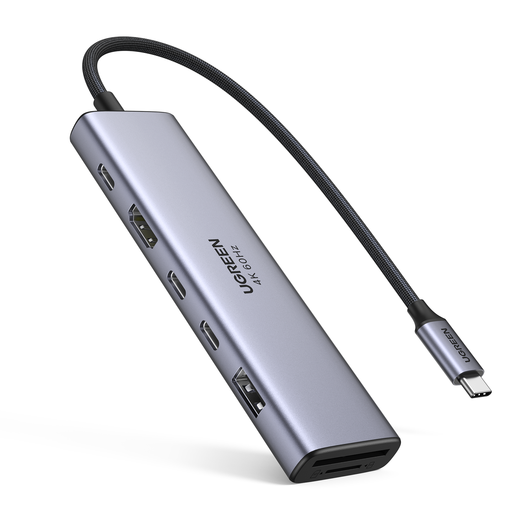
UGREEN 7-in-1 USB-C Multi-Function Docking Station
For a compatible USB-C host, the listed HDMI output and USB ports provide screen and peripheral connections.
The product name lists two USB-C 3.2 ports, one USB-A 3.2 port, SD and TF card readers, and a 100 W Power Delivery pass-through port.
View on Joybuy
 No image available
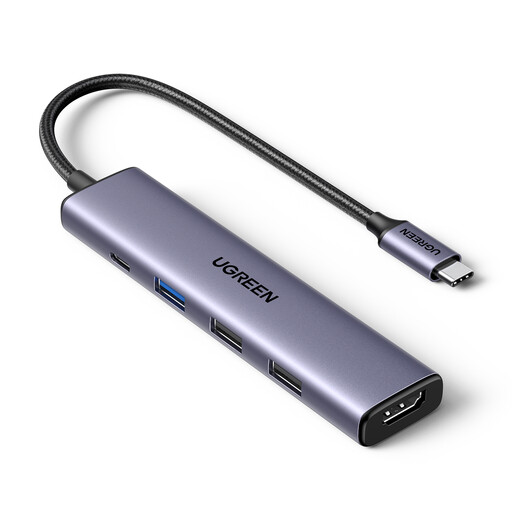
UGREEN Revodok 5-in-1 USB-C Multiport Adapter
For a compatible USB-C host, this adapter lists an HDMI display connection and three USB-A data ports for peripherals.
The description specifies HDMI output at 4K and 30 Hz, plus a 100 W Power Delivery pass-through port.
View on Joybuy
 No image available
Targus USB-C Universal Dual HDMI 4K Docking Station
For a laptop that supports USB-C Alt Mode and the intended display setup, the description lists two HDMI outputs and USB-A ports for peripherals.
The description also specifies 100 W Power Delivery pass-through charging. Check the laptop’s supported video configuration rather than assuming that a USB-C connector is sufficient.
View on Joybuy
Frequently asked questions
What should I check on each laptop before choosing a dock?
Write down each laptop’s exact model, operating system, video-capable host ports, supported external displays and charging requirements. Then compare those details with the specific dock or KVM and check whether drivers are allowed; matching connector shapes alone is not enough.
Will changing a monitor’s input also switch my keyboard, mouse and webcam?
Not through video-input selection alone. If your monitor has a built-in KVM, check its instructions for the required USB connections from each computer; otherwise, assess a separate USB switch or KVM arrangement.
What should I plan for when using a DisplayLink dock?
Check the particular dock’s operating-system and software requirements before relying on it. If the laptop is managed by your employer, get IT approval for the driver and proposed peripherals first.
What UK return rules matter if a dock does not suit my laptop?
GOV.UK guidance says that, for qualifying online purchases, consumers can notify the seller of cancellation within 14 days of receiving an item and then have another 14 days to return it. A compatibility mismatch is not, by itself, proof that an item is faulty or misdescribed, so check which rights apply to your purchase.


