What to check before buying
Start with the space needed for editing and previewing, then check the computer connections and whether both displays can be positioned comfortably. A 27-inch QHD pair is a reference configuration, not a minimum requirement for every desk.
| Concern |
What to check |
Who this matters to |
| Editing and preview space |
Check each screen’s size, native resolution and inputs. For a matching pair, compare the exact models rather than size alone. |
If I regularly edit a page while checking its live preview, I want both windows visible without constantly replacing one with the other. Around 33% of consumers put this workspace need first. |
| Laptop connectivity |
Confirm the laptop’s supported external-display count, video outputs and the monitor connection required for charging or daisy-chaining. |
When I move my laptop between locations, I want to reconnect my two-screen desk without rebuilding its cable arrangement. For around 27% of consumers, laptop connectivity is the primary concern. |
| Desk fit and positioning |
Measure desk width and depth, stand footprints and adjustment ranges; check mounting compatibility if you plan to use an arm. |
If I spend long sessions updating the site, I need room to place the main screen centrally and keep the second screen close. Desk fit and positioning come first for around 27% of consumers. |
| Consistent viewing |
Compare native resolution, panel characteristics and physical adjustment, especially if the two monitors differ. |
When I check text and page layouts across both displays, I want to avoid a distracting change in scale or appearance as I move between them. Around 13% of consumers prioritise consistent viewing. |
Joybuy monitor choices
These individual monitors offer different ways to build part of a club-website workspace, from a 27-inch QHD screen to a more flexible second display. Choose the screen arrangement first: a single ultrawide monitor is not the same as two physical screens, and any pair still needs suitable computer connections.
 Image unavailable
BenQ MA270UP Nano Glossy 27-inch 4K Mac Monitor
Consider this as one screen in an editing-and-preview setup if a 27-inch 4K display fits your preferred arrangement.
The product name specifies USB-C, a height-adjustable stand, HDR and P3. Check your computer’s support for the complete two-display setup; this product is one monitor, not a pair.
View on Joybuy
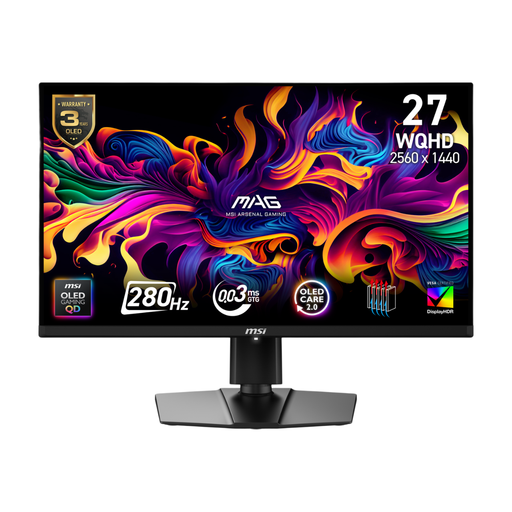 Image unavailable
MSI MAG 271QP QD-OLED X28 27-inch QHD Monitor
This is an individual QHD display to consider if its connections and screen characteristics suit one side of your workspace.
The product name specifies a QD-OLED panel and 280 Hz refresh rate. Do not rely on USB-C video for a laptop setup without confirming the connection on the exact model.
View on Joybuy
 Image unavailable
ASUS ProArt PA278CFRV IPS QHD 100Hz Monitor
This QHD model is a candidate for one screen in a matched two-monitor editing setup.
The product name specifies IPS, QHD and 100 Hz. Confirm the exact SKU’s ports before planning a USB-C connection, and allow for a second display and suitable computer outputs.
View on Joybuy
 Image unavailable
ASUS ZenScreen MB249C IPS USB-C Monitor
Consider this as a separate screen if a flexible second-display arrangement matters more than matching a 27-inch QHD pair.
The product name specifies IPS and USB-C. Check the exact connection and mounting arrangement against your laptop and desk before purchase.
View on Joybuy
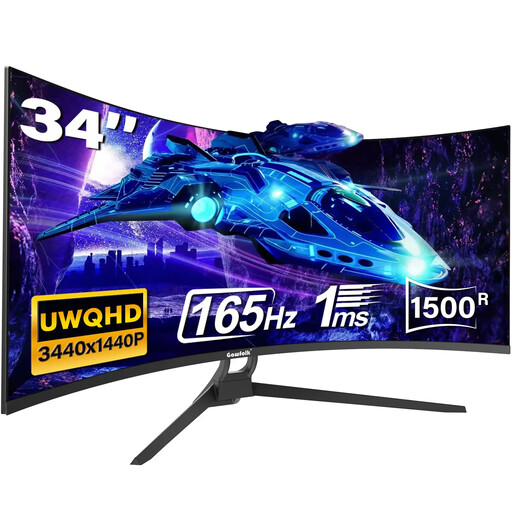 Image unavailable
Gawfolk 34-inch UWQHD Curved Ultrawide Monitor
Choose this format only if arranging website-work windows on one wide display meets your needs; it does not provide two physical screens.
The product name specifies a 21:9 format, 165 Hz, HDMI 2.1 and DisplayPort 1.4. Confirm that the 34-inch screen fits your desk and check Type-C availability and function before relying on that connection.
View on Joybuy
Frequently asked questions
Will one USB-C cable run two monitors and charge my laptop?
Not necessarily: a USB-C connector alone does not establish support for two external displays and charging through the same monitor. Dell and BenQ list these capabilities for particular models, but you must check your laptop’s display outputs and charging requirements alongside the monitor’s connection and daisy-chain conditions.
How should I position two monitors for website editing?
Place the screen you use most centrally, with the other close beside it where your desk permits. The Health and Safety Executive advises keeping the screen and keyboard central, the screen top around eye level and the display about an arm’s length away; adjust the arrangement to the person and task.
Should I use monitor arms or the supplied stands?
Either can work if both screens can be positioned comfortably at your desk. Before choosing an arm, check monitor mounting compatibility and the desk’s edge clearance and suitability; the Health and Safety Executive’s posture guidance concerns the finished workstation rather than requiring one mounting method.
Does a club have display-screen-equipment duties for website work?
A club acting as an employer may have duties where a worker regularly uses display-screen equipment as a significant part of normal work. The Health and Safety Executive’s guidance describes workstation assessment and other duties for covered users; whether a particular club role qualifies depends on its working arrangements, and volunteering alone does not establish coverage.


