What to check before choosing
Decide what needs to remain visible on both screens, then choose the resolution and desk arrangement. Check the computer’s two-display capability before relying on a particular cable or docking layout.
| Concern |
What to check |
Who this matters to |
| Visible planning workspace |
Check that the computer supports two external displays at the intended resolution, and match its outputs to the monitors’ inputs. |
If I need a schedule open while answering volunteer messages or joining a call, neither task should have to replace the other on screen. Keeping both visible would be the primary concern for around 36% of consumers. |
| Detail in plans and artwork |
Compare native resolution and screen size; for colour-sensitive files, check the exact model’s stated colour specifications. |
When I review venue layouts or poster artwork, I need to see fine details rather than choose resolution for email alone. Around 29% of consumers would put detailed visual work first. |
| Comfort at the desk |
Check stand adjustment, usable desk depth and where lighting will reflect on each screen. |
For long planning sessions, I need to position the main display comfortably without crowding the desk. Screen placement would come first for around 21% of consumers. |
| A simple two-screen setup |
Compare the inputs, stand movement and cables needed for both screens, not just their resolution. |
At a shared desk used only occasionally, I would rather have two screens that connect to the available computer than pay for docking features I will not use. Around 14% of consumers would make simplicity their primary concern. |
Monitors for the planning desk
These Joybuy options cover QHD and 4K screens for schedules, documents and detailed event materials, including a larger-format QHD option. Choose the computer connection and desk layout for a pair before deciding which monitor features are useful.
 Image unavailable
ASUS ProArt PA278CV IPS WQHD monitor
Consider this WQHD model when schedules and communications need separate screens. Its title identifies an IPS panel; check the exact laptop connections and charging requirements before planning a pair.
View on Joybuy
 Image unavailable
BenQ MA270UP 27-inch Nano Glossy IPS 4K USB-C monitor
Consider the 4K resolution when detailed plans or artwork are a regular part of event planning. The title also identifies an IPS panel, USB-C and a height-adjustable stand; confirm the intended MacBook’s external-display support before buying two.
View on Joybuy
 Image unavailable
LG 27UP650K 27-inch 4K IPS monitor
Its 4K resolution is worth considering for detailed plans and creative files. The title lists a 60 Hz display, HDMI and DisplayPort; confirm the exact input configuration and how the computer will connect to both screens.
View on Joybuy
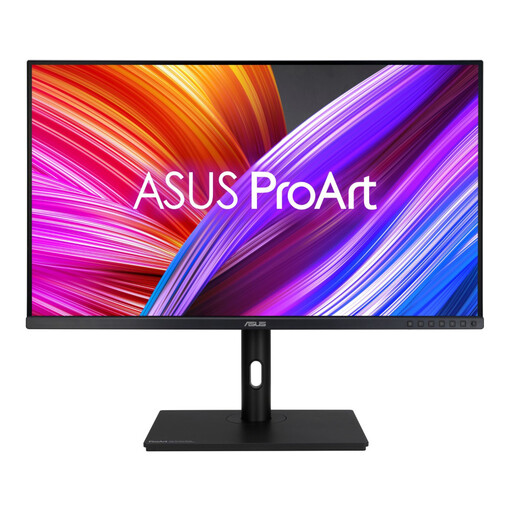 Image unavailable
ASUS ProArt PA328QV IPS WQHD monitor
This WQHD model is an option for a planning desk where a larger screen is being considered. Check available desk width and viewing distance, along with the computer inputs needed for a second display.
View on Joybuy
 Image unavailable
MSI MD272UPSW 27-inch 4K UHD smart monitor
Consider its 4K display for detailed event materials rather than for its smart-TV functions. The title specifies an IPS panel, Google TV and USB-C with 65 W power delivery; check the laptop’s display outputs and power needs for a two-screen setup.
View on Joybuy
Questions about two-monitor setups
Can any laptop run two external monitors?
No: check the exact laptop’s external-display limits and ports before choosing two monitors. USB-C alone does not establish support for two displays, and Dell says daisy-chaining on its relevant monitors requires Thunderbolt.
Do both monitors need to be the same model?
No, but matching models can simplify aligning their size, resolution and height at a planning desk. If you mix models, compare their native resolutions, stand adjustments and inputs before ordering.
How should I position two screens for regular planning work?
Place the screen used for your main task directly in front of you where practical, then position the second for reference work. The Health and Safety Executive advises keeping a screen about an arm’s length away with its top around eye level, and arranging lighting to avoid reflections.
Can a USB-C monitor replace all my laptop cables?
A compatible USB-C monitor may carry video, data and charging through one cable, but that does not settle how a second display will connect. LG specifies up to 90 W USB-C charging for the 27UP85ZK-W and BenQ specifies 65 W for the GW2790QT; check the exact laptop, cable and monitor arrangement you intend to use.


