Readers annotating in two windows
Keep the original-language article visible on one screen while writing translations, notes or citations on the other. Readable text space and the ability to position each display matter more than screen size alone.


Keep the source article and your annotations readable on separate screens without assuming that two identical monitors are necessary. Two adjustable 27-inch 4K displays are one option if your desk and computer can accommodate them; a 3:2 main screen puts more emphasis on vertical document space, while a USB-C or Thunderbolt hub may simplify a compatible laptop connection. Check that your computer can drive the intended two-screen arrangement before buying.
Keep the original-language article visible on one screen while writing translations, notes or citations on the other. Readable text space and the ability to position each display matter more than screen size alone.
If you connect a laptop at a regular desk, a monitor with suitable video, charging and peripheral connections may reduce cabling. Check the laptop’s own external-display support before planning around a hub or dock.
Positioning, reflections, lighting and breaks matter when you spend extended periods reading and annotating. The Health and Safety Executive’s display-screen guidance addresses the whole workstation and work routine, not just monitor features.
Decide what each screen will show, then check whether your computer can connect both at the resolutions you intend to use. After that, compare screen shape, adjustability and any extra work you need the displays to handle.
| Concern | What to check | Who this matters to |
|---|---|---|
| Text workspace | Compare screen size with resolution and aspect ratio; consider pivot adjustment if one display will hold notes in portrait. | If the article must stay open while I write notes, I need enough usable space on both screens without constant window switching. Around 36% of consumers put source-and-notes workspace first. |
| Two-screen connections | Check the exact computer’s external-display limit and the video capability of each proposed port, cable or dock. | I want both screens to extend my desktop, not discover that a convenient-looking USB-C connection cannot run my planned arrangement. For around 29% of consumers, connection certainty is the primary concern. |
| Long-session positioning | Check stand or mount adjustment and where reflections will fall in your room. | When I read for hours, I need to arrange the screens around my posture, documents and lighting rather than rely on an eye-comfort label. Long-session comfort comes first for around 21% of consumers. |
| Colour-sensitive work | If annotation shares a desk with image or layout work, check the exact model’s stated colour coverage and calibration information. | I also prepare images or teaching materials, so the displays must serve that work as well as text. Around 14% of consumers make that combined use their main priority. |
A monitor’s connector or charging specification does not establish what a particular computer can output. Display count, resolution and the connection path depend on the devices involved.
Check the exact computer model’s external-display specifications, then trace the proposed ports, cables and dock through to both monitors.
The arrangement may also call for a compatible dock, cable or adapter.
Even adjustable monitors need room for the keyboard, documents and comfortable viewing positions. The Health and Safety Executive advises assessing the workstation as a whole for display-screen work.
Measure desk width and depth, and check each stand’s adjustment or the compatibility of any mount you plan to use.
A monitor arm or a change to the desk layout may be needed.
Coatings and display settings do not replace suitable positioning, lighting and work routines. The Health and Safety Executive identifies breaks or changes of activity as part of managing display-screen work.
Consider comfort features alongside the room’s reflections and your screen positions, and plan breaks during long annotation sessions.
Wide-gamut or calibration specifications address different work from keeping an article and notes legible. ASUS and LG list colour-oriented features for particular models, but those features alone do not resolve two-display connectivity or layout.
Give colour specifications greater weight if you also work on images, layouts or colour-sensitive teaching materials.
Dell’s P2425H and U2725QE illustrate different roles: an adjustable 23.8-inch Full HD companion screen and a 27-inch 4K Thunderbolt hub display, respectively.
BenQ’s RD280UA is a 28.2-inch, 3840 × 2560 display with a 3:2 shape for readers considering a taller main document screen.
The VG2719U-4K is a 27-inch 4K USB-C option for a main screen in a laptop-based annotation desk.
The ProArt PA279CRV is a 27-inch 4K IPS model to consider when annotation shares a desk with colour-sensitive creative work.
LG lists the 27UP85ZK-W as a 27-inch 4K IPS USB-C monitor with height, pivot and tilt adjustment.
These choices include 27-inch displays for an article or notes screen and a smaller Dell model for a companion-screen role. Choose the layout first: a monitor’s own features cannot confirm that your computer will run the complete two-screen setup.
 No image available
Consider this as a main article screen if a 27-inch 4K display suits your desk. The product name specifies a Nano Glossy IPS panel and USB-C; check the connection and charging requirements of your laptop and second screen.
 No image available
This 27-inch 4K IPS model could fill one side of an article-and-notes desk. Its product name states USB-C 65W power delivery; check that its connections and your computer support the second display you intend to add.
 No image available
Consider this 27-inch 4K display for either the article or notes side of a conventional two-screen layout. Its product name specifies a 16:9 format; if USB-C video or laptop charging matters, check the exact connections before choosing a cable arrangement.
 No image available
This 27-inch 4K IPS model could serve as an article or companion screen. The product name lists HDMI and DisplayPort connections; check how your computer will connect both displays, particularly if you want a USB-C laptop dock.
 No image available
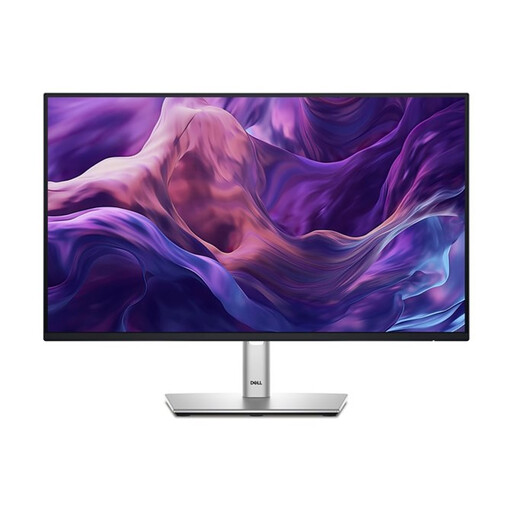
Use this as a companion for notes or references if a smaller screen fits your layout. Dell specifies a 23.8-inch, 1920 × 1080 IPS panel with pivot adjustment; its downstream USB-C port is for data rather than laptop charging.
Not necessarily: a USB-C connection on the monitor does not establish the laptop’s external-display limit. Check your exact computer’s specifications, the port’s video capability, the intended resolution and the full cable or dock arrangement.
Only if the computer, first monitor and connections support the required daisy-chaining arrangement. ASUS describes DisplayPort daisy chaining, but that description does not establish support for every USB-C laptop or monitor; check all devices in your proposed chain.
It can: the Health and Safety Executive says display-screen-equipment rules can apply to permanent or long-term home workers. It also says employers must assess the workstation where employees use display screens daily as part of normal work for continuous periods of an hour or more.
No. The Health and Safety Executive says employers must plan breaks or changes of activity for employees who are display-screen-equipment users. Monitor settings and coatings are supplementary to a suitable layout, lighting and work routine.