What to check before buying
Start with the laptop’s documented display limit and video connections, then decide whether fewer desk cables justify a dock. Apple Support and Plugable guidance show why the host and the dock’s video method matter, including how macOS handles MST.
| Concern |
What to check |
Who this matters to |
| Two independent screens |
Check the exact laptop’s external-display limit and whether the dock uses MST. |
If I need two separate extended desktops, I would check the laptop and dock method before choosing by socket count. Around 33% of consumers put independent-screen support first. |
| Fewer desk connections |
Compare the laptop’s power needs with the dock’s power delivery, and check its required peripheral ports. |
If I reconnect screens and desk peripherals often, I would look for a compatible one-cable setup and check whether it can charge my laptop. Around 27% of consumers prioritise this convenience. |
| Limited ports or software restrictions |
Check operating-system support, installation permissions and the dock’s simultaneous two-screen modes. |
If my laptop has limited native video connections, I would check whether its operating system and administrator allow the dock’s software. Around 27% of consumers prioritise finding a workable route from limited ports. |
| Using existing outputs |
Confirm the laptop supports both displays and identify the required monitor inputs and cables. |
If my laptop already supports both screens, I would rather use suitable existing outputs than add a dock unless I need its other connections. Around 13% of consumers prioritise avoiding unnecessary hardware. |
Joybuy products
The products below relate to expanding a laptop desk display setup, from docks to dual-panel portable displays and single monitors. Check whether each choice and your laptop can provide the number of independent screens you need.
 No image available
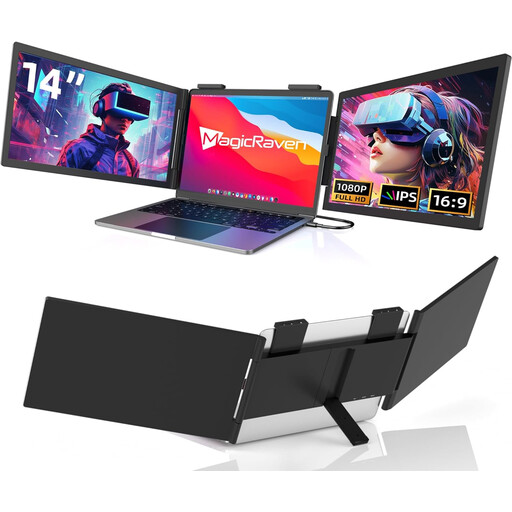
14-inch Dual-Screen Portable Monitor, FHD 1080p 60Hz
This portable extender is described for laptops in the stated 14–16-inch compatibility range. Its title lists USB-C connectivity and FHD 1080p at 60Hz; check your laptop’s video support and display limit before relying on it for two independent screens.
View on Joybuy
 No image available
Targus USB-C Universal Dual HDMI 4K Docking Station
This dock may suit a desk setup that needs display and peripheral connections through a dock. The description lists two HDMI outputs, 100W Power Delivery pass-through, USB-A, Gigabit Ethernet and SD and Micro SD readers. It requires a USB-C Alt Mode host and an external 100W+ adapter; check the laptop’s display support and the dock’s simultaneous screen modes.
View on Joybuy
 No image available
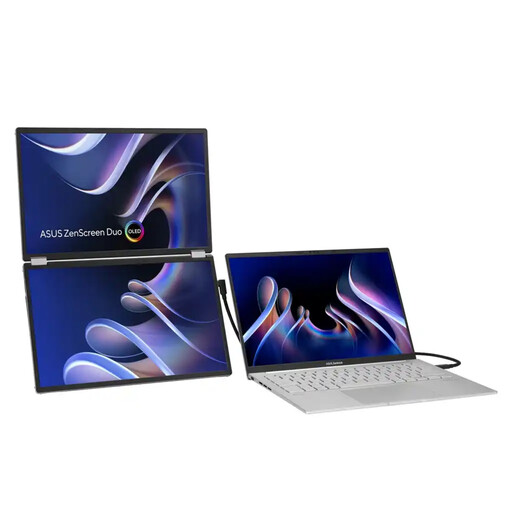
ASUS ZenScreen Duo OLED MQ149CD 360°
This foldable portable display has two 14-inch OLED panels, with 1920 × 1200 resolution stated in the product name. The listed connections are dual USB-C and mini-HDMI; confirm your laptop can drive the screens as intended.
View on Joybuy
 No image available
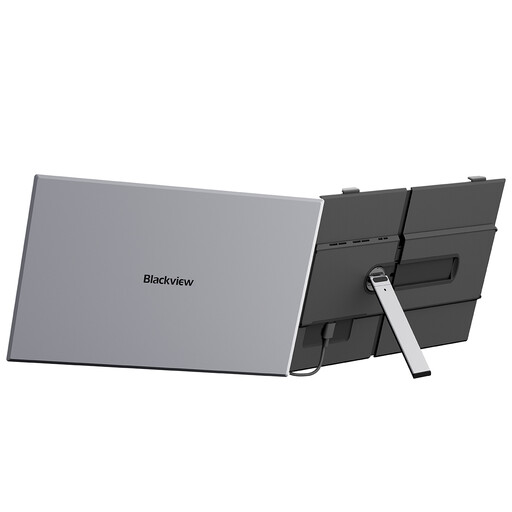
Blackview SCM8 15.3-inch FHD IPS Laptop Screen Extender
This is a single portable monitor, so it does not provide two additional screens by itself. The product name states 15.3-inch FHD IPS and 100W reverse charge; check the connection requirements for your laptop and intended setup.
View on Joybuy
 No image available
BenQ MA270UP 27-inch 4K USB-C Monitor
This is a single monitor option, not a complete dual-screen setup on its own. The product description lists 4K resolution, 90W USB-C Power Delivery, HDMI and USB-A; check that your laptop supports the required display connection and charging arrangement.
View on Joybuy
Frequently asked questions
Why does a USB-C dock connect my keyboard but not a monitor?
The laptop’s USB-C port may carry data without the native video mode the dock requires. Check the exact laptop’s DisplayPort Alt Mode or Thunderbolt specification against the dock’s host requirements before changing monitors.
Will a dual-output USB-C MST adapter give my Mac two extended screens?
Not through MST alone: Plugable’s technical guidance says macOS mirrors MST outputs rather than extending two independent screens. Check your Mac’s display limit and whether a compatible Thunderbolt or supported DisplayLink route suits your setup.
How do I set up two separate screens in Windows?
After connecting displays that your laptop supports, open Windows display settings to identify and arrange them, then select Extend rather than Duplicate. Microsoft Support also recommends checking the connection and display mode if a screen is missing.
Can a USB-A DisplayLink dock work when my laptop has limited video ports?
It may provide a route if the dock and operating system support your setup and you can install the required software. DisplayLink Manager requires Screen Recording permission on macOS, and some protected video may not play while DisplayLink screens are connected.
Do I need a dock to connect two monitors to a laptop?
No, not if the laptop already supports both displays through suitable video outputs and you are content with separate connections. Check the laptop’s documented display limit and match the monitor inputs with the required cables or adapters before buying additional hardware.


