What to check before buying
The right connection depends on whether your laptop can drive two independent displays natively, and whether you also want the dock to consolidate peripherals or provide laptop charging.
Native USB-C or Thunderbolt dock
Choose when: your exact laptop supports the dock’s video method, two screens at your intended settings and any charging you need.
Trade-off: a USB-C-shaped port does not guarantee video, and an MST dock may mirror displays rather than extend them on macOS.
USB-A DisplayLink dock
Choose when: your laptop has a compatible USB-A data port but not enough native video output, and its operating system allows the required DisplayLink software.
Trade-off: video depends on software support; a standard USB-A host connection does not charge the laptop.
Direct HDMI or DisplayPort
Choose when: the laptop can drive both screens through its available video outputs and you do not need a dock to gather desk peripherals.
Trade-off: separate display, peripheral and charging connections may leave more cables to manage.
| Concern |
What to check when buying |
Who this matters to |
| Two independent displays |
Check the exact laptop’s simultaneous-display limit, operating system, dock method and combined resolution and refresh rate. |
I need two separate workspaces, not mirrored screens. Around 33% of consumers prioritise independent-display compatibility. |
| A route when native video is limited |
Confirm the dock’s USB-A host connection, operating-system driver support, display count and any relevant software permissions. |
My laptop lacks enough native video output, so I need to check whether driver-based video is suitable. Around 27% of consumers prioritise a workaround for limited ports. |
| Fewer cables and laptop charging |
Check the dock’s power delivery, required power supply and cables against the laptop’s charging requirements. |
I want desk devices to connect with less cable handling, but also need to know whether the laptop will charge through the dock. Around 20% of consumers prioritise one-connection desk use. |
| Monitor and cable fit |
Match each monitor’s inputs and intended settings to the complete laptop-to-monitor signal path, including any adapter. |
I want to use or select monitors that fit the connection route, rather than discover that a cable or input does not match. Around 20% of consumers prioritise monitor-and-cable fit. |
Joybuy products for this setup
This selection includes a USB-C dual-HDMI dock and individual monitors for building out a two-screen laptop setup. Check your laptop’s display support and monitor connections; each listed monitor is one screen, not a pair.
 No image available
Targus USB-C Universal Dual HDMI 4K Docking Station with 100W Power Delivery Pass-Thru
Consider this dock if your laptop supports its USB-C video method and you want two HDMI outputs alongside desk peripherals.
The listing specifies two HDMI 2.0 ports and up to 100 W Power Delivery pass-through. Laptop charging requires an external 100 W or higher adapter connected to the dock.
Joybuy
 No image available
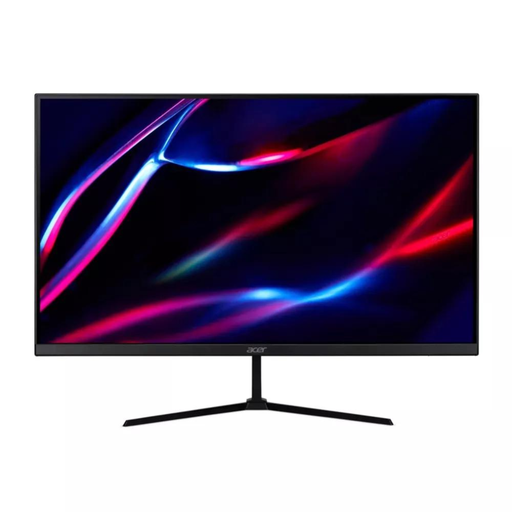
27-inch QHD IPS 180Hz Monitor
This is one monitor to consider for a two-screen setup; check that its inputs match the laptop or dock’s available outputs.
The product name specifies a 27-inch QHD IPS screen, 180 Hz refresh rate, HDMI and DisplayPort connections.
Joybuy
 No image available
AOC Q32V4 31.5-inch QHD IPS Monitor
This is one monitor for a two-screen desk; confirm that its inputs and the laptop’s simultaneous-display support fit your planned connection.
The listing describes a 31.5-inch QHD IPS display with HDMI and DisplayPort inputs.
Joybuy
 No image available
MSI MD272UPSW 27-inch 4K UHD Smart Monitor with Google TV
This single monitor can form part of a two-screen setup; check how its connections fit the complete laptop-to-display arrangement.
The product name specifies an IPS 4K UHD display, HDMI, USB-C 65 W and Dolby Audio.
Joybuy
 No image available
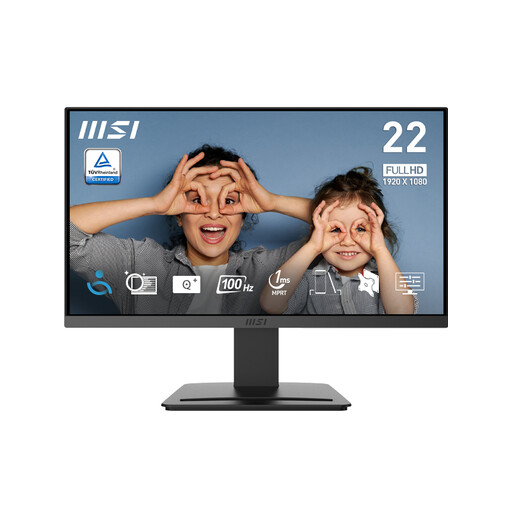
MSI PRO MP223 E2 21.45-inch Full HD Monitor
This is one monitor to consider for a dual-screen desk; check the laptop’s display limit and match the cable to the monitor input.
The listing specifies a 21.45-inch Full HD screen, 100 Hz refresh rate, HDMI 1.4b and DisplayPort 1.2a.
Joybuy
Frequently asked questions
How do I check whether my laptop can extend to two external screens?
Check the exact laptop model’s published external-display limit and video-port specifications, then confirm the proposed dock’s host and operating-system requirements. In Windows, Display settings can identify, detect and arrange connected screens; two physical outputs alone do not confirm a supported simultaneous layout.
Will any USB-C dock give a Mac two separate external displays?
No; check the exact Mac model’s display limit and the dock’s video technology. Plugable Technologies explains that macOS does not use MST to extend the two outputs of an MST hub, while DisplayLink is a separate software-dependent approach. Anker says its A210B mirrors external displays on macOS.
Will a USB-A DisplayLink dock charge my laptop?
A standard USB-A host connection does not charge the laptop. Synaptics DisplayLink advises connecting the laptop’s own power supply when using a USB-A dock; USB-C DisplayLink models have different, model-specific charging capabilities.
How should I set up or troubleshoot the screen arrangement in Windows?
Connect both screens using compatible cables, then select an extended rather than duplicated desktop if you want separate workspaces. Microsoft documents Identify, Detect and screen arrangement controls in Windows Display settings; check the laptop and dock guidance if a screen remains unavailable.
What UK rights may apply if an online-bought dock is unsuitable?
For an applicable UK distance sale, GOV.UK says a customer can tell the seller within 14 days of delivery that they wish to cancel without giving a reason, then has another 14 days to return the item. Faulty-goods remedies are separate; check the circumstances and seller’s terms rather than assuming a manufacturer warranty replaces statutory rights.


