Start by checking the exact laptop’s native video outputs, operating system and the resolution required on each screen. If its documented outputs can drive both monitors, use them with a separate USB hub; otherwise, a compatible DisplayLink USB-A dock can combine displays and peripherals, or a DisplayLink adapter can add a screen alongside a working native output. Check driver-install permissions, simultaneous-display limits and separate laptop charging before buying.
Who this setup suits
Older-laptop, dual-screen users
If your laptop has USB-A but no USB-C, check its exact model and whether its native video outputs—or a suitable USB-graphics connection—can run two separate screens. Dell documentation and DisplayLink Support explain why the specific host configuration matters.
People reducing desk cable clutter
If you want monitors, a keyboard, a mouse and other USB devices connected at the desk, check the dock’s downstream port count and placement as well as its video support. This reflects the setup need described in MoneySavingExpert Forum.
Users with restricted driver access
If you cannot install software on the laptop, check whether its native video outputs can run both screens before choosing a DisplayLink device. DisplayLink Support documents software and host-system requirements.
What to check before buying
USB-A DisplayLink dock
Choose when: you want one dock to connect two displays and several peripherals, and can install supported software.
Trade-off: performance depends on the host computer, and a USB-A dock does not ordinarily charge the laptop; DisplayLink Support describes both considerations.
Native video plus a USB hub
Choose when: documentation for your exact laptop confirms that its available video outputs can run both screens at the resolutions you need.
Trade-off: the video cables and hub remain separate connections at the laptop.
DisplayLink adapter plus native video
Choose when: a working native output can drive one external screen and a compatible USB-A DisplayLink adapter can add the other.
Trade-off: the adapter adds one display; it is not a two-monitor dock or a USB-peripheral hub, and it requires supported software.
| Concern |
What to check when buying |
Who this matters to |
| Two-screen compatibility |
Check the laptop’s exact model and supported simultaneous outputs; compare the required resolution and refresh rate with the dock’s two-screen configuration. |
If I need two separate workspaces, I want confirmation for the laptop and the intended screen combination—not just two video sockets. Around 36% of consumers put dual-display compatibility first. |
| Connected peripherals |
Count the devices that must stay connected, then check the hub’s downstream port count, placement and stated interface. |
If I want my keyboard, mouse and other USB devices to stay at the desk, I check whether the available ports suit that setup. Around 29% of consumers prioritise keeping peripherals connected. |
| Software and workload |
Confirm the device uses DisplayLink, supports the laptop’s operating system and allows driver installation; check any limits for your applications. |
If I cannot install drivers or need the laptop for demanding applications, I check those constraints before choosing USB graphics. Around 21% of consumers put software access and workload suitability first. |
| Laptop power |
Plan the laptop’s own power connection separately. DisplayLink Support notes that USB Standard A–B docks are not designed to charge the host computer. |
If I am trying to reduce cables, I still need to account for the laptop’s own power supply when using a USB-A dock. Around 14% of consumers prioritise the charging arrangement. |
Buying pitfalls
-
Assuming a USB-A-to-USB-C adapter adds video capability
A simple plug adapter does not provide USB-C DisplayPort Alt Mode. That video mode requires support at the host USB-C connection.
Choose a dock explicitly documented for USB-A DisplayLink, or check that the laptop’s own video outputs can run the screens.
-
Using a single-screen maximum to judge dual-screen output
Manufacturers can specify different limits for one screen and for particular combinations of connected screens. Kensington’s SD3650 and Dell’s D3100 documentation list configuration-specific limits.
Check the precise output combination, resolution and refresh rate for both screens together before choosing a model.
-
Expecting a USB-A dock to power the laptop
A dock’s own power or a charging port for accessories does not establish that it can charge the laptop connected through USB-A.
Plan to keep the laptop’s appropriate power supply connected unless the specific host connection is documented to support laptop charging.
-
Assuming DisplayLink suits every application
DisplayLink Support says performance depends on the computer’s processing power. Plugable describes its UD-3900 as unsuitable for gaming and HDCP-protected content; DisplayLink Support also documents protected-content playback issues on macOS with DisplayLink screens connected.
Check the actual dock’s restrictions, your operating system and the applications you intend to use.
Relevant brands to consider
StarTech.com
Its USB-A DisplayLink models include options for older monitor connectors and a hybrid USB-A/USB-C dock.
- StarTech.com specifies three downstream USB-A ports and HDMI, DVI or VGA connections for the USB3SDOCKHDV.
- StarTech.com describes the DK30A2DH as supporting dual 4K displays and six downstream USB-A ports.
- The DK30A2DH does not provide USB-C Power Delivery to charge the laptop; its dual-display specifications should not be attributed to the USB3SDOCKHDV.
Kensington
The SD3650 is a USB-A DisplayLink dock with HDMI and DisplayPort outputs and multiple USB ports.
- Kensington specifies six USB ports and two external screen outputs, with a dual-screen maximum of 2048 × 1152 at 60Hz.
- The stated single-screen maximum of 2560 × 1600 at 60Hz is not its dual-screen maximum. The dock requires a DisplayLink driver, and its VESA mounting plate is sold separately.
Plugable
The UD-3900 is a USB-A-compatible DisplayLink dock with two HDMI outputs and six downstream USB ports.
- Plugable describes this model as intended for web and productivity software.
- Plugable excludes gaming and HDCP-protected content for the UD-3900, and says it does not charge the host laptop.
Dell
The D3100 is an older USB 3.0 dock whose documented display limits can help when assessing that exact model.
- Dell’s June 2017 manual lists two HDMI outputs, one DisplayPort output and separate limits for different screen configurations.
- The manual describes that model’s specifications; it does not establish current software support or suitability for every Dell laptop.
Joybuy products
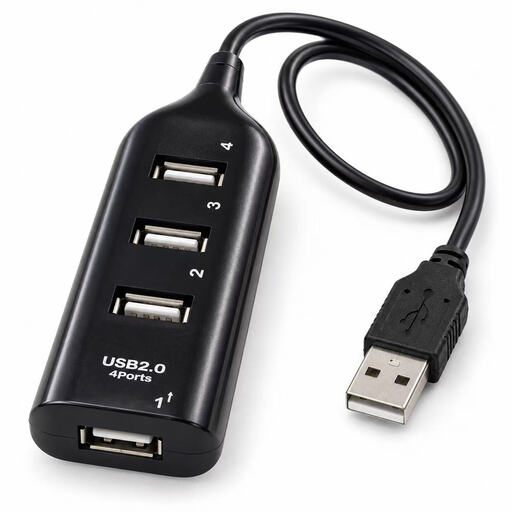
This product is a USB hub for the direct-video route, where the laptop’s own outputs already support both external screens; it adds USB ports but does not provide video output.
 No image available
Compact 4-Port USB 2.0 Hub
For a laptop that already drives both monitors through its own video outputs, this hub adds ports for peripherals.
Four USB 2.0 ports; USB-A input cable.
Joybuy
Frequently asked questions
Can any USB 3.0 port run two monitors from an older laptop?
No: the USB socket alone does not establish that the laptop can run two monitors. Check its supported native display configuration, or choose a dock specifically documented for USB-A DisplayLink video and check its operating-system and simultaneous-output requirements. DisplayLink Support notes that performance depends on the computer.
Will a USB-A-to-USB-C adapter make a USB-C video dock work?
Not if the dock relies on USB-C DisplayPort Alt Mode, which requires a video-capable host USB-C connection. A dock explicitly designed to carry DisplayLink graphics over USB-A is a different type of connection.
What should I check before installing a DisplayLink dock?
Confirm that the dock contains DisplayLink hardware, that its software supports your operating system and that you have permission to install it. DisplayLink Support also documents graphics- and USB-controller-driver checks for older Windows versions.
Will a USB-A dock charge my laptop?
A conventional USB Standard A–B dock is not designed to charge the host computer, so keep the laptop’s appropriate power supply connected. A downstream port that charges an accessory does not establish that the dock can charge the laptop.
How do I check whether both screens will work at the resolutions I want?
Compare your laptop’s documented simultaneous-display support with the dock’s specification for the exact pair of outputs, resolution and refresh rate. Do not use a single-screen maximum as the dual-screen limit; manufacturer documentation can list different limits for different screen configurations.


