Reference-heavy grant writers
If you move between an application form, funder guidance, cited material and a budget, separate work areas can help you keep the documents you need in view.


Choose two separate monitors if you need to position a grant draft or application form independently from guidance, evidence and a budget sheet. A dual-QHD ultrawide offers one continuous workspace instead, but cannot be adjusted as two physical screens; a higher-resolution document monitor addresses dense reading without, on its own, providing the requested second screen. Before buying, confirm what your laptop or dock can drive and whether the screens will fit at a workable viewing distance.
If you move between an application form, funder guidance, cited material and a budget, separate work areas can help you keep the documents you need in view.
If your laptop moves between workplaces, the deciding question is whether it and any dock can operate the intended displays through the available connections. Microsoft Support explains how to arrange multiple screens in Windows after they are connected.
If you spend extended periods reviewing PDFs, budgets and drafts, consider screen position and reflections alongside workspace size. The Health and Safety Executive advises looking at the whole workstation, not just its display.
Choose when: You want to place a draft and reference material on independently positioned screens.
Allow for: Two powered displays and a computer or dock connection that supports the intended pair.
Choose when: You prefer one uninterrupted horizontal workspace and have room for a wide panel.
Allow for: One physical viewing position rather than two separately adjustable screens.
| Concern | What to check | Who this matters to |
|---|---|---|
| Visible work areas | Decide whether you need two independently positioned displays or one continuous screen; check the native resolution of the arrangement you choose. | I want the application and supporting documents visible together without repeatedly switching windows. Around 33% of consumers put this parallel-document need first. |
| Laptop and dock compatibility | Confirm the supported number of external displays, their resolutions and the required connection method with the laptop or dock maker. | If I work from a laptop, I need to know that both intended work areas will operate through my connections. For around 27% of consumers, compatibility is the primary concern. |
| Long-session positioning | Check stand or mounting adjustment and whether the screens can sit at a comfortable height and distance without troublesome reflections. | Reading lengthy guidance and revising a draft means I need screens I can position for my workstation. That is the leading need for around 20% of consumers. |
| Desk and setup fit | Measure usable width and depth, including space for stands or arms, paperwork and the necessary connections. | My desk must still accommodate the screens and the documents I use while writing. Roughly 20% of consumers make the overall setup fit their first consideration. |
Windows can arrange connected displays, but its settings cannot establish that a laptop, dock or cable supports the intended display configuration. LG specifies QHD at 60 Hz for daisy chaining on its 27QP88DP-BS; that monitor specification does not establish compatibility with every laptop.
Check the exact laptop or dock display-output specification against the monitors’ inputs and outputs before ordering. Once connected, use Windows display settings to identify and arrange the screens.
The connection arrangement may require an additional dock, adapter or cable.
LG describes its 49WQ95C-W as a 5120 × 1440 display with the pixel space of two 27-inch QHD areas, but it remains one physical panel. You cannot move its left and right sides independently.
Measure the desk and viewing distance, then decide whether a continuous workspace matters more to you than placing each screen separately.
Features marketed for visual comfort do not replace a workable desk layout. Health and Safety Executive posture guidance addresses screen height and distance as part of using display screen equipment.
Check that the stand or suitable mount lets you position the display for your seated setup, and consider the room’s lighting and reflections.
Dell’s UltraSharp U2724DE is a model to examine if you are planning a pair of 27-inch QHD work areas with hub connectivity.
LG has relevant models on both sides of this decision: the 27QP88DP-BS for a separate-screen arrangement and the 49WQ95C-W for one wide panel.
BenQ’s RD280UG is relevant if a taller document-oriented display is part of your planned workspace.
These choices include individual monitors that could form part of a separate-screen desk and wide single-panel alternatives. A single monitor listing is not a two-screen bundle; choose the arrangement first, then check your desk and computer connections.
 No image available
Consider this single-panel route if you want grant-writing windows across one continuous screen rather than two movable displays.
The product name specifies a 49-inch, 32:9 QD-OLED display with an 1800R curve and Double Quad HD format.
Measure your desk and confirm the required display mode and ports with your computer or dock before choosing it.
 No image available
Consider this as one screen in a separate-monitor arrangement for a draft or application beside reference material.
Its product name identifies an IPS WQHD display. This listing is for one monitor, so plan the second screen and check how both will connect.
 No image available
This is another single-panel option if you prefer to place several grant-writing windows across a wide screen.
The product name specifies a 32:9, 5120 × 1440 display and VESA 75 × 75 mounting. Check desk fit, mounting requirements and whether your computer supports the intended resolution.
 No image available
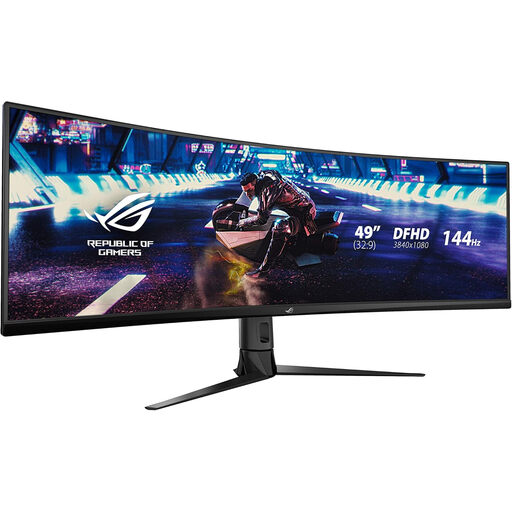
Consider this only if a continuous ultrawide layout suits your writing workflow more than two independently positioned screens.
The product name specifies DFHD and 144 Hz. DFHD is not the dual-QHD format discussed above, so check whether its resolution gives you enough room for your documents.
 No image available
This could serve as a separate display alongside another screen for application materials.
The product name identifies IPS and USB-C. Check the mounting arrangement and its requirements before choosing a support; this single monitor does not establish a complete two-screen setup.
Extend the desktop if you want different documents on each screen. Microsoft Support explains that, after connecting displays in Windows, you can identify and arrange them to match their physical positions.
A USB-C connector alone does not establish two-monitor support. Check the exact laptop or dock documentation for the number of supported external displays, resolutions and connection method; a monitor’s daisy-chain limits also matter.
It can offer a continuous workspace, but it cannot provide two independently positioned physical screens. LG describes the 5120 × 1440 resolution of its 49WQ95C-W as the pixel space of two 27-inch QHD areas; check the resolution of the specific ultrawide you are considering rather than assuming every 49-inch model is equivalent.
Set up the screens around your usual seated position rather than choosing by size alone. Health and Safety Executive posture guidance advises placing the top of a screen around eye level and the display about an arm’s length away; check that your stands, desk and lighting allow a workable arrangement.
It can matter when display-screen use is a significant part of your work. Health and Safety Executive guidance asks employers to consider the whole workstation, including equipment, furniture and working conditions, so assess the home desk arrangement rather than the monitor alone.