What to check before buying
The main choice is whether both screens need comparable text layouts or one screen has a distinct role in reviewing colour-sensitive work.
Two matching 27-inch 4K IPS monitors
Choose when: Spreadsheets, supplier pages and PDFs are the main workload on both screens.
Allow for: Your computer or dock must support two displays at the intended resolution and refresh rate; the connection may require separate cables or a dock.
Colour-focused primary screen with an existing monitor
Choose when: One screen is for branded layouts or product imagery while the other holds spreadsheets and reference material.
Allow for: Resolution, scaling and colour may differ between screens. Review colour-critical work on the specified primary display rather than assuming the existing monitor matches it.
| Concern |
What to check |
Who this matters to |
| Readable detail and workspace |
Check native resolution and usable text scaling on each screen. Microsoft recommends the display’s recommended resolution for sharper text. |
When dense prices and column labels fill both screens, I need to read them without making text uncomfortably small. Around 33% of consumers put readable detail and workspace first. |
| Colour for branded layouts |
Check the primary model’s stated colour-space coverage and calibration claim against the files you work with. |
If product images and brand colours are part of the sheet, I want a defined display for reviewing them. Colour-sensitive layout is the first concern for around 25% of consumers. |
| Laptop connection |
Confirm support for two external displays, the required video connection and the monitor’s stated USB-C charging wattage. |
When I connect my laptop at the desk repeatedly, I want the display and charging connections to fit my equipment. Around 25% of consumers prioritise that connection. |
| Screen positioning |
Check height and tilt adjustment, mounting compatibility if needed, and the available desk depth. |
If I use both screens for long stretches, I need to place them without repeatedly turning or reaching awkwardly. Positioning comes first for around 17% of consumers. |
Joybuy monitors for this setup
These monitors offer options for a detailed price-sheet screen, a colour-focused primary display or a laptop-based desk. Choose the role each screen needs to fill, then check that your computer can drive the complete two-monitor arrangement.
 No image available
BenQ MA270UP 27-inch Nano Glossy 4K monitor
Consider it for detailed price-sheet work at a laptop desk, subject to compatibility with your computer and second screen.
The product name specifies an IPS display, USB-C, HDR, P3 and a height-adjustable stand. Check the exact Mac features you need before relying on them.
View on Joybuy
 No image available
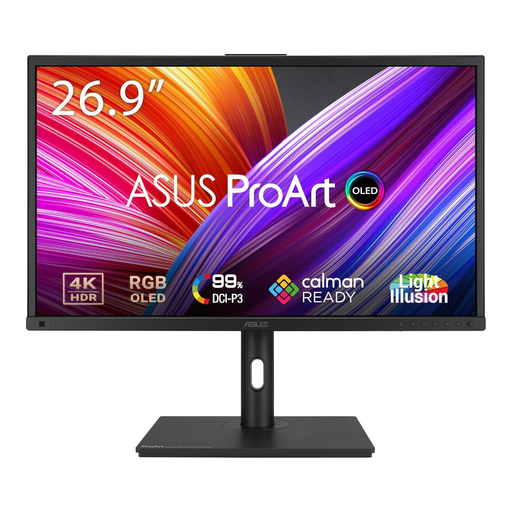
ASUS ProArt PA27DCE-K OLED 4K UHD monitor
Consider it as a primary screen for price sheets containing branded imagery; compare the exact model’s colour and calibration specifications with your workflow.
The product name identifies an OLED 4K UHD model. Check USB-C charging requirements separately if a laptop connection is part of the setup.
View on Joybuy
 No image available
MSI MD272UPSW Smart 27-inch 4K IPS monitor
Consider it for detailed grids at a laptop-based desk, after checking the laptop’s two-display capability and USB-C compatibility.
The product name specifies USB-C 65 W, Google TV, Dolby Audio and Multi-Control. If branded-colour review is important, check the exact model’s colour specifications.
View on Joybuy
 No image available
iiyama ProLite XUB2792UHSU-B6 27-inch 4K monitor
Consider it when choosing a screen for detailed price sheets or planning a pair of matching displays; check the intended connections and positioning for both.
The product name specifies a 4K UHD LED monitor with a 16:9 aspect ratio and matte black finish. Confirm USB-C video and charging requirements separately if using a laptop.
View on Joybuy
 No image available
LG 27UP650K 27-inch 4K IPS monitor
Consider it for detailed price sheets where a stated colour-coverage figure is also relevant; assess the second screen separately if colours must be reviewed across both.
The product name specifies 95% DCI-P3 coverage, HDMI, DisplayPort, built-in speakers, 60 Hz and a white finish. Check the connections your laptop or dock requires.
View on Joybuy
Questions about two-screen price-sheet work
Do both price-sheet monitors need the same resolution?
No, but matching native resolutions are worth considering when you want comparable text and window layouts. Microsoft notes that Microsoft 365 text may appear blurry with an external monitor at a different resolution; set each display to its recommended resolution and assess scaling before committing to a mixed pair.
How do I arrange two displays in Windows?
In Windows display settings, identify the screens and drag their display rectangles to match their positions on your desk. Microsoft advises arranging them this way so pointer movement follows the physical layout.
Can one USB-C cable handle a laptop monitor connection?
It can carry video, data and charging when the laptop, monitor and cable support the required functions, but one monitor connection does not establish support for a second external screen. LG, for example, specifies 4K display, data and charging up to 90 W over USB-C for its 27UP850K-W; check your exact laptop and monitor specifications before planning the full setup.
Where should two monitors sit on the desk?
Position the screens so the work you use most is comfortably in view, then adjust both displays and the desk setup rather than relying on screen size alone. The Health and Safety Executive advises placing the top of a screen at eye level and the screen about an arm’s length away.


