What to check before buying
Choose a screen size and resolution that keep your working documents readable, then check the complete two-display connection path and whether both monitors fit the desk. QHD and 4K are different options for this task, not a reason to skip compatibility or scaling checks.
| Concern | What to check | Who this matters to |
|---|
| Usable workspace |
Compare two matching 27-inch QHD screens at 2560 × 1440 with 4K screens at 3840 × 2160; assess spreadsheet readability at your preferred scaling. |
When budget sheets and invoices must stay visible together, I need room to read both without continually changing windows; around 40% of consumers put usable workspace first. |
| Connection compatibility |
Check the laptop’s external-display limit and the video capability of its ports, dock, cables and monitor inputs at the intended resolution and refresh rate. |
If I connect a laptop at my desk, I need two independent external screens rather than a connection that only duplicates the display; roughly 40% of consumers make compatibility their primary concern. |
| Workstation fit |
Measure desk width and depth, then check stand adjustment or the mounting pattern if you plan to use monitor arms. |
For regular desk work, I need space to position both screens without crowding my documents and keyboard; around 20% of consumers put workstation fit first. |
Joybuy monitor choices
These individual monitors offer QHD or 4K options to consider for a two-screen project-spending desk. If you want a matching pair, check the intended quantity and the compatibility of the complete two-display setup before buying.
 No image available
BenQ MA270UP 27-inch 4K USB-C monitor
Consider this model if detailed reports make a 4K screen relevant to your project desk. Its listed features include a Nano Glossy IPS display and height-adjustable stand; check text scaling and support for two displays on your computer.
View on Joybuy
 No image available
ASUS ProArt PA278CV WQHD IPS monitor
This WQHD IPS model is an option for keeping budget sheets and dashboards on separate screens. If laptop charging or a particular USB-C connection is central to your setup, check the exact listing and your laptop’s display support before buying.
View on Joybuy
 No image available
MSI MD272UPSW 27-inch 4K smart monitor
Consider its 4K IPS display if detailed tables are part of your work. The title lists USB-C with 65W power delivery and Google TV; check whether your laptop can use the intended charging connection and drive two 4K screens at your chosen settings.
View on Joybuy
 No image available
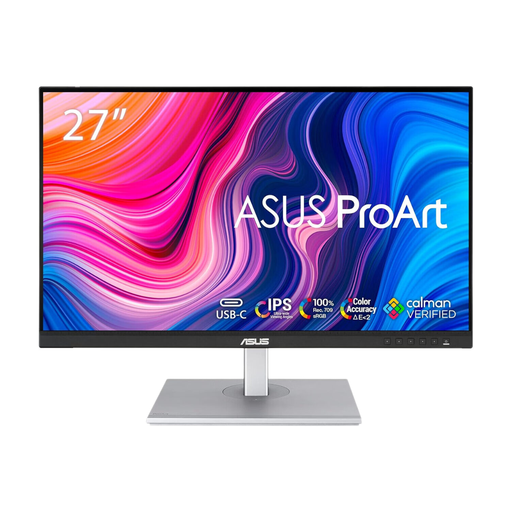
ASUS ProArt PA278CFRV QHD IPS 100Hz monitor
This QHD IPS model is relevant to a desk with a budget sheet on one screen and invoices or dashboards on the other. Its title specifies a 100Hz refresh rate; check the exact model’s connections if USB-C display or laptop charging matters to you.
View on Joybuy
 No image available
LG 27UP650K 27-inch 4K IPS monitor
This model is an option when detailed worksheets or reports justify considering 4K. Its title lists a 60Hz refresh rate, HDMI and DisplayPort inputs; plan the connection to both screens and check that the resulting text size suits your desk.
View on Joybuy
Frequently asked questions
Should both monitors be the same model for project-spending work?
Matching monitors are a practical starting point when you want similar screen size, resolution and scaling for moving spreadsheets and invoices between displays. Different models can make sense if one screen has a distinct job, such as detailed visual reports; check how their text sizes and window layouts work together.
Can one USB-C cable run two monitors and charge my laptop?
Only if the exact laptop and connection path support the required arrangement. Check the laptop’s external-display specification, the monitor’s video and charging features, and any dock or cables you intend to use; a USB-C socket alone does not establish two-screen support.
How do I make two connected screens extend my Windows desktop?
In Windows, open Settings, then System and Display, and select an extended display arrangement rather than duplication. Microsoft Support also advises using Detect under Multiple displays if a connected screen is not shown; arrange the displayed screen positions to match their physical placement.
Does a UK employer need to assess a two-monitor workstation?
The Health and Safety Executive says employers must carry out a workstation assessment for workers who use display screen equipment daily as part of normal work, continuously for an hour or more. The assessment concerns the whole workstation and working conditions, not simply whether the monitors have adjustable stands.


