DAW and library organisers
A second screen can keep sample folders, management software, plug-ins or references visible alongside a DAW. Compare screen dimensions, resolution and positioning before prioritising a headline refresh rate.


Check that your computer can drive two external displays at your chosen resolution before selecting a pair for your DAW and sample library. Two matching 27-inch QHD screens provide space for separate tasks, while two 27-inch 4K screens provide denser detail. USB-C or Thunderbolt hub features are useful only when your computer and cables support the intended display arrangement and charging needs.
A second screen can keep sample folders, management software, plug-ins or references visible alongside a DAW. Compare screen dimensions, resolution and positioning before prioritising a headline refresh rate.
If both screens will connect to a laptop, check its supported number of external displays first. USB-C charging and monitor hub connections are separate considerations from whether the laptop can output to two screens.
Plan where both screens will sit and whether their stands or mounts provide enough adjustment. The Health and Safety Executive advises placing the main screen directly ahead, with its top around eye level and the screen about an arm’s length away.
For sample-library work, establish how the two displays will connect and fit on the desk, then decide whether QHD gives you enough detail or 4K better suits your viewing preference.
| Concern | What to check | Who this matters to |
|---|---|---|
| Usable workspace | Compare native resolution and physical size; decide whether to use two matching displays. | If I keep a DAW open while sorting samples, I want both work areas visible without repeatedly rearranging windows. Around 40% of consumers would put usable workspace first. |
| Laptop connections | Confirm the computer’s two-display limit and the video, cable and charging requirements of the planned connections. | With a laptop at the centre of my setup, I need to know that both screens will work before relying on a USB-C hub or display chain. Around 30% of consumers would make connection compatibility their primary concern. |
| Desk fit and positioning | Measure desk width and depth, then compare stand adjustment and VESA mounting options. | During long organising sessions, I need room to place the main screen ahead of me without an awkward reach or repeated turning. Around 30% of consumers would prioritise desk fit and positioning. |
The connector alone does not establish the laptop’s video-output limit, Thunderbolt support or charging capability. Dell says display daisy-chaining requires Thunderbolt and notes that some M-series chips may not support certain features.
Check the computer manufacturer’s external-display specifications, its ports and the required cables before planning a chain or a single-cable desk connection.
At the same 27-inch size, 4K provides denser detail than QHD, but resolution does not establish whether your computer can run the intended pair or whether you will like the resulting interface scaling.
Choose between QHD and 4K based on the detail you want on each screen, your scaling preference and the computer’s supported two-display configuration.
Two monitors take up desk space and can be awkward to use if the main display cannot sit directly ahead. The Health and Safety Executive advises placing the top of the screen around eye level and the screen about an arm’s length away.
Measure the desk and compare stand footprints, adjustment and VESA compatibility before ordering.
A monitor arm, mount or different desk arrangement may be needed if the supplied stands cannot position both screens comfortably.
A search result is not a substitute for checking the current product-detail page or confirming that its model and variant match the monitor you intend to buy.
Check the live listing, exact model number, availability, seller terms and warranty before committing to a pair.
These brands provide relevant model examples for comparing resolution, connections and positioning; the features below apply to the named monitors, not every model in each range.
The 27-inch U2724D is a QHD example, while the U2725QE is a 27-inch 4K Thunderbolt hub example.
The PD2705U is a 27-inch 4K IPS model to compare when detail, USB-C connectivity and colour specifications matter.
The 27UP850K-W is a 27-inch 4K IPS USB-C model with an adjustable stand.
These QHD and 4K monitors are choices for placing a DAW and sample library across two screens. Decide whether you want a matching pair or a mixed arrangement, then check your computer’s outputs and the space available on your desk.
 No image available
For a laptop-based sample-library desk, consider this height-adjustable screen if you want a 4K main display. Check that your computer supports both external screens and that its video and charging requirements match the intended USB-C connection.
 No image available
For a matched QHD DAW and sample-browser workspace, compare two PA278CV units after confirming that your computer supports the pair. Check the connections, stand positioning and any laptop-charging requirement before choosing the cabling.
 No image available
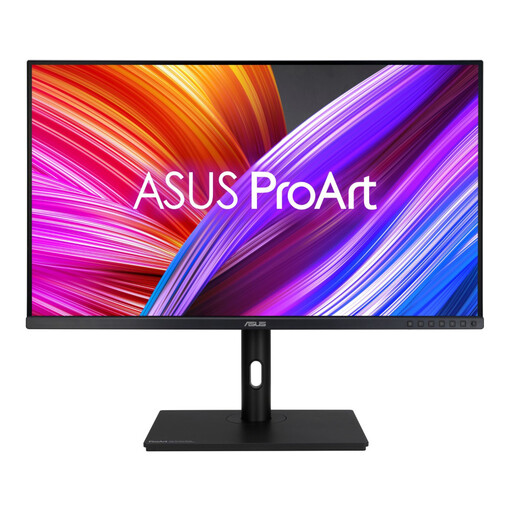
This WQHD option could serve as either the DAW or sample-browser screen in a two-monitor arrangement. Measure the desk for the intended pair and check that your computer provides both display outputs.
 No image available
If you want a 27-inch 4K screen for library lists alongside a DAW, check that your computer supports the intended two-display arrangement. Its stated 65 W USB-C power delivery needs to be checked against your laptop’s charging requirement.
 No image available
For a 27-inch 4K pair, plan how your computer will connect both screens through the listed HDMI or DisplayPort inputs. Confirm the exact port count before choosing cables; the product name also specifies a 60 Hz refresh rate.
Only if the laptop, monitors and cable support the required video arrangement and charging power. A USB-C socket alone does not confirm two-display output; Dell says display daisy-chaining requires Thunderbolt and notes that some M-series chips may not support certain features. Check the laptop manufacturer’s external-display specification before planning the connections.
No, but matching models make it easier to plan consistent dimensions and resolution across a DAW and sample-browser workspace. If you mix models, compare their physical height, native resolution, inputs and mounting options before ordering.
Place the screen you use most directly ahead and arrange the second so you do not need to turn repeatedly. The Health and Safety Executive advises keeping the top of the main screen around eye level and the screen about an arm’s length away; check that your desk and stands allow this arrangement.
It can only do so if the laptop accepts USB-C charging and the monitor supplies enough power for that laptop. BenQ UK lists 65 W for the PD2705U, LG UK lists up to 90 W for the 27UP850K-W, and Dell UK lists up to 140 W for the U2725QE; check the exact monitor variant and your laptop’s requirements rather than assuming those figures apply to other models.