Who needs this setup?
The right two-screen setup depends on whether a seam judgement, a detailed texture view or a laptop-based desk is driving the choice.
Seam-critical 3D and VFX reviewers
If you inspect material transitions and dark gradients across both displays, put consistent brightness and colour ahead of resolution alone. EIZO’s guidance describes uniformity as consistency across a screen and recommends regular recalibration.
4K texture and asset creators
Two screens can give texture maps, UV layouts, references and application panels separate space. Decide whether your work needs 4K detail and which colour space the project uses before selecting a pair.
Laptop-based creative reviewers
USB-C video, power delivery and hub connections may simplify a two-monitor desk. Check that the laptop can drive both displays at the resolution and refresh rate you intend to use.
What matters when choosing?
For texture-seam review, settle the colour target and how you will keep both screens consistent before choosing resolution or desk connections. The concerns below distinguish consumers by the need they would put first when assembling a two-monitor setup.
| Concern | What to check | Who this matters to |
|---|
| Colour and brightness consistency |
Look for documented screen-uniformity handling and a calibration process you can repeat for each display. |
If a seam changes appearance as I move it between screens, I need to know whether the texture or a display caused it. Around 33% of consumers would put cross-screen consistency first. |
| Detail and workspace |
Consider screen size with native resolution, and confirm that the computer can run both displays at the intended settings. |
When I inspect fine texture edges alongside UV layouts and references, I need enough detail and room for the tools. Roughly 27% of consumers would prioritise this workspace need. |
| Colour-space fit |
Match the exact model’s documented gamut and display mode to the project target, such as sRGB/Rec.709, Adobe RGB or DCI-P3. |
If my delivery target is defined, I need both screens set up for that target rather than choosing a wider gamut by default. About 20% of consumers would make colour-space fit their primary concern. |
| Laptop connections |
Check USB-C video and power-delivery requirements against the laptop’s supported external-display number and modes. |
For a laptop-centred desk, I want to connect two screens without making adapters and charging the deciding complication. Around 20% of consumers would put connection simplicity first. |
Brands to consider for a two-screen setup
These product lines illustrate different ways to approach colour management, 4K workspace and connectivity; check specifications for the exact model you plan to pair.
EIZO
ColorEdge is relevant when repeatable calibration and screen-wide consistency are central to seam review.
- EIZO specifies a built-in calibration sensor and USB-C connectivity for the CG2700S, and documents factory uniformity reporting and Digital Uniformity Equalizer correction.
- The CG2700S is 2560 × 1440; compare a 4K model if that resolution is required for your inspection workspace.
BenQ
AQCOLOR may interest buyers looking for a manufacturer-described approach to consistency across multiple screens.
- BenQ says its AQCOLOR process includes full-screen calibration and cross-checking displays for consistency.
- That description does not establish the gamut, calibration features or connections of every model; check the exact pair you intend to use.
ASUS
ProArt includes 27-inch 4K options with different documented colour-space coverage.
- ASUS specifies 100% sRGB and 100% Rec.709 for the PA279CV, while the PA279CRV is specified for 99% Adobe RGB and 99% DCI-P3.
- Choose between these models by the project’s colour target and connection needs; their gamut specifications are not interchangeable.
Dell
UltraSharp is relevant when a creative desk also needs hub connectivity and general desktop features.
- Dell specifies the U2725QE as a 27-inch 4K IPS Black display with a 3000:1 contrast ratio and 120 Hz refresh rate.
- For seam-critical use, check the exact model’s colour and calibration options and compare the two individual displays under your working settings.
Joybuy monitor options
These monitors offer different starting points for a two-screen texture-review desk, from a hardware-calibration model to 4K and WQHD options. Whichever model you pair, assess both individual screens for consistent colour and brightness before relying on them for seam judgements.
 No image available
ASUS ProArt Display PA32UCG-K 32-inch 4K Mini LED monitor
Consider this model if you want 4K detail alongside a hardware-calibration feature for a colour-managed desk.
Its name specifies a 32-inch IPS Mini LED display, 120 Hz, Thunderbolt 3 and HDMI 2.1. Compare the brightness and colour of both units before using them as a reference pair.
Joybuy
 No image available
ASUS ProArt PA278CV WQHD IPS monitor
Consider a pair if WQHD workspace meets your texture-review needs and you can calibrate the two displays individually.
This is the WQHD variant, not a 4K monitor. Check that its pixel detail is sufficient for the seams you inspect.
Joybuy
 No image available
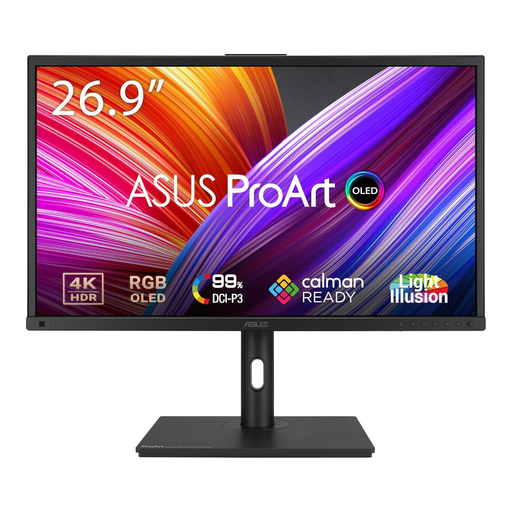
ASUS ProArt PA27DCE-K 4K OLED monitor
Consider this 4K option when detailed texture viewing and an OLED display suit the intended desk.
If editing panels will remain static for long periods, weigh the burn-in risk noted by RTINGS and check the warranty terms. Compare and calibrate both units before seam-critical use.
Joybuy
 No image available
iiyama ProLite XUB2792UHSU-B6 27-inch 4K monitor
Consider this model when 4K texture detail and positioning two displays side by side are priorities.
Check how its brightness settings behave during colour review, then assess and calibrate each screen against the same target.
Joybuy
 No image available
ASUS Eye Care VY27UQ 4K UHD 60 Hz monitor
Consider this 4K model for texture detail if its display connections and your planned calibration process suit the desk.
Its name specifies a 60 Hz refresh rate. Check how you will align and assess two units before choosing it for colour-critical seam review.
Joybuy
Common questions
Should both monitors be the same model for texture-seam review?
Using the same model is a sensible starting point when a texture must look consistent across the two screens. It does not remove differences between individual units, so compare their brightness and colour and calibrate each one to the intended target.
Is 4K essential for reviewing texture seams?
No; prioritise 4K if its extra pixel detail and workspace help your inspection process, not as a substitute for colour consistency. EIZO’s colour-managed CG2700S, for example, is specified at 2560 × 1440 rather than 4K.
How should I calibrate two monitors?
Choose the intended colour target, use comparable brightness settings and calibrate each display individually, assigning each its own resulting profile. EIZO recommends regular recalibration, while Datacolor describes side-by-side monitor calibration among its SpyderPro capabilities.
Can a Windows display setting affect a seam judgement?
Yes, content-adaptive brightness or contrast changes can interfere with a stable visual comparison. Microsoft notes that such changes can be distracting in colour-sensitive photo and video work; check those settings and the monitors’ own brightness controls before reviewing subtle transitions.
Do I need a separate calibration device?
Not necessarily: some monitors, including EIZO’s CG2700S, have an integrated calibration sensor. For other models, check which compatible sensor and software can calibrate each display repeatedly before choosing a device.


