If you regularly enter budgets, attendance figures and timings, start with a keyboard layout that gives you the number-entry keys and UK key positions you want. Prioritise multi-device switching only if you type on separate computers, tablets or phones: two screens connected to one computer do not require it. For longer sessions, consider keyboard shape alongside the position of your screens, chair and desk rather than treating a split design as a complete comfort solution.
Who is this choice for?
Multi-device event coordinators
If you plan on a computer but also type on a tablet or another computer, switching between those separate devices may matter. Logitech and Keychron describe device-switching functions for the models considered here; an additional monitor alone is a different matter.
Spreadsheet and schedule planners
Budgets, rota times and attendance figures make number entry and familiar UK key positions worth checking. Keychron lists a full-size UK-ISO option, but the exact layout still depends on the variant selected.
Planners working for extended periods
If you spend long sessions typing and editing, assess keyboard shape together with your screen, chair and desk arrangement. The Health and Safety Executive advises looking at the whole display-screen workstation, not one accessory in isolation.
What matters when choosing?
Work out whether you use one computer or several host devices, then choose the layout and number-entry arrangement for your planning tasks. Check how the keyboard fits your workstation before treating its shape as a comfort solution.
| Concern |
What to check |
Who this matters to |
| Separate-device switching |
Check how many devices the keyboard can pair with and whether its connections work with yours. |
If I type on a planning computer and a separate tablet or laptop, I want to switch without setting up the keyboard again each time; around 42% of consumers would make separate-device switching their primary concern. |
| Schedules and number entry |
Confirm the exact UK key layout, number-pad arrangement and any shortcut setup you need. |
When I enter budgets, rota times and attendance counts, familiar keys and number entry matter more to me than a smaller footprint; around 33% of consumers would put those planning tasks first. |
| Comfort during long sessions |
Consider keyboard shape and tilt alongside its position relative to your elbows, screens and mouse. |
If I spend extended periods coordinating documents, I need a setup I can use comfortably rather than relying on an ergonomic label; roughly 25% of consumers would prioritise sustained-use comfort. |
Mistakes to avoid
-
Buying multi-device switching just because you have two monitors
A keyboard switches between separate host devices, not between displays attached to the same computer. That distinction matters before you make device switching a purchase priority.
Count the computers, tablets or phones you need to type on. With one host computer, focus instead on layout, number entry and how the keyboard fits your desk.
-
Assuming every variant has UK key positions
A model family can include different regional layouts, so its name alone does not establish the symbols and key positions on the variant you order.
Check the selected variant and photographs for UK-ISO or UK English if familiar UK keys are important to you.
-
Expecting a split keyboard to fix the whole workstation
The Health and Safety Executive advises considering the screen, keyboard and wider workstation together. Keyboard shape alone cannot establish that the arrangement suits an individual.
Keep the main screen and keyboard central, avoid twisting, and position the keyboard just below elbow height. If display-screen work is part of your job, check whether a workstation assessment applies.
-
Choosing a mechanical model without checking its variant
Switch options, layouts and configurations can differ within a product family. A clicky switch may not suit a shared planning space if its sound would be disruptive.
Confirm the fitted switch, regional layout and any configuration requirements for the exact version you intend to buy.
Relevant brands to consider
Logitech
Its keyboard ranges here span low-profile productivity, mechanical switch choices and a split design.
- Logitech specifies switching among up to three devices for MX Keys S and offers full-size and compact MX Mechanical versions with different switch choices.
- The ERGO K860 has a curved split design and adjustable palm lift, but those design features do not establish whether it will feel comfortable in your workstation.
Keychron
The K10 Pro is a full-size mechanical route for planners interested in UK-ISO keys and configurable shortcuts.
- Keychron lists a 100% layout, UK-ISO options, QMK/VIA configuration and Bluetooth pairing with up to three devices for the K10 Pro range.
- Check the selected variant for its switches, keycaps and backlighting rather than assuming every K10 Pro listing is configured alike.
CHERRY
The KC 4500 ERGO is a wired, full-size ergonomic-design option for a fixed workstation.
- CHERRY specifies a curved key layout, padded palm rest, adjustable feet and a 1.8 m USB-A cable.
- CHERRY lists Windows and USB-A in its system requirements; check compatibility if your workstation uses another operating system or lacks that connection.
Joybuy keyboard choices
These keyboards offer different starting points for event-planning tasks, from full-size wireless models to mechanical and split designs. Check each variant against your preferred UK layout, number-entry arrangement and workstation before choosing.
 Image unavailable
Targus EcoSmart™ Full Size Wireless Keyboard (UK)
Consider this full-size wireless model if you enter schedules and attendance figures at a shared planning desk. The title identifies a UK version; check the selected listing and key photographs for the exact legends you need.
View on Joybuy
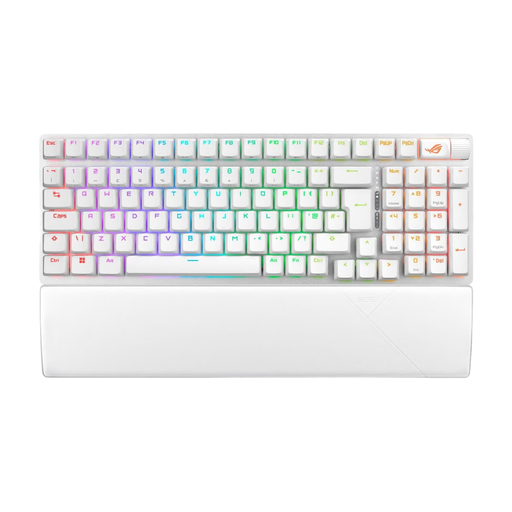 Image unavailable
ASUS ROG Strix Scope II 96 Wireless Gaming Keyboard, White, UK Layout
Consider this UK-layout model if you want a mechanical keyboard for planning and data entry. Confirm the fitted switch before ordering if key feel or sound matters in your working space; the model name alone does not settle that choice.
View on Joybuy
 Image unavailable
Hyper® HyperSpace Next Bluetooth Wireless Keyboard (UK), White
This UK-designated Bluetooth keyboard is a choice to examine if you type on separate devices while organising event documents. Check its number-entry layout and switching controls against the devices you use; two monitors on one computer do not make switching necessary.
View on Joybuy
 Image unavailable
HP 960 Ergonomic Split Layout Wireless Keyboard with Padded Wrist Rest
If a split design is your priority for longer planning sessions, assess this model against your desk arrangement and individual comfort. Check the exact key layout before buying if UK key positions are essential; the padded wrist rest does not replace a suitable workstation setup.
View on Joybuy
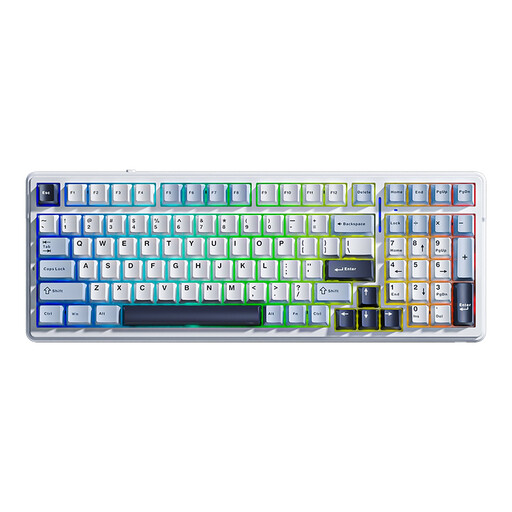 Image unavailable
AULA F99 Mechanical Wireless Keyboard, US QWERTY, Light Blue, Reaper Switch
Consider this variant only if US QWERTY key positions suit your event-planning work: its title identifies a US layout, not a UK one. It specifies wired, Bluetooth and 2.4G connection modes; confirm compatibility and any shortcut-configuration requirements for your devices.
View on Joybuy
Common questions
Do two screens mean I need a multi-device keyboard?
No. If both screens connect to one computer, a keyboard that works with that computer is enough for typing across them. Device switching matters when you also type on a separate laptop, tablet or computer; Logitech and Keychron describe switching among up to three devices for the models discussed here.
Should I choose a UK-ISO keyboard for event planning?
Choose a UK layout if you want familiar UK key positions and symbols while entering event details. Check the exact variant for UK-ISO or UK English rather than relying on the keyboard family name; a US QWERTY variant is not the same layout.
Where should the keyboard sit with two screens?
Position the keyboard just below elbow height and keep it central to your main working screen. The Health and Safety Executive also advises avoiding a twisted back, so arrange the screen you use most directly in front of you rather than expecting a different keyboard to compensate for the desk layout.
Does display-screen workstation guidance apply when I plan events from home?
It can apply if event planning is part of your work and you use display-screen equipment daily for continuous periods of an hour or more. The Health and Safety Executive says employers should assess qualifying workstations, including relevant home-working arrangements; that employer duty is not a general requirement for occasional personal volunteering.


