Single-computer, two-screen editors
If both displays run from one computer, familiar key placement, typing feel and desk position matter more than switching between devices.


If both screens are connected to one computer, choose a keyboard for comfortable typing, a familiar layout and the editing keys you use; device switching is optional. Look for multi-device controls if you also type on a separate computer, tablet or phone. Keyboard comfort depends on the wider desk arrangement too: the Health and Safety Executive advises keeping the screen and keyboard central and the keyboard just below elbow height.
If both displays run from one computer, familiar key placement, typing feel and desk position matter more than switching between devices.
If you move your typing between a computer and another computer, tablet or phone, clearly labelled pairing and switching controls can be useful. Logitech describes this kind of switching for its Easy-Switch keyboards.
For repeated editing sessions, assess keyboard height and feel alongside your chair, desk and screen positions. The Health and Safety Executive treats keyboard placement as part of the whole workstation.
Start with the number of separate devices you type on, not the number of screens. Then check the physical layout, the keys you rely on and the space available for the keyboard and mouse.
| Concern | What to check | Who this matters to |
|---|---|---|
| Device switching | Count the separate computers or mobile devices you type on. For one computer, check its keyboard connection and compatibility. | If my two displays run from one computer, I want a keyboard that connects to that computer without paying attention to switching controls I will not use. Around 33% of consumers put that single-host need first. |
| Typing comfort | Assess key feel, keyboard height and angle, and whether it fits centrally on the desk. | During frequent editing sessions, I need a typing position that fits my desk rather than relying on a comfort label. For around 25% of consumers, that is the primary concern. |
| UK layout and editing keys | Confirm the exact physical layout and check for the navigation, function and shortcut keys you use. | When I correct punctuation and move through a draft, I want familiar printed keys and convenient editing controls. That need comes first for around 25% of consumers. |
| Space, noise and connection | Measure the keyboard-and-mouse area, decide whether you need a number pad, and check the connection method. | At a crowded or shared desk, I need the keyboard to fit and its key noise and connection to suit the space. Around 17% of consumers prioritise those practical constraints. |
Device-switching controls are for typing on separate hosts, such as another computer or tablet; they do not make two displays attached to one computer separate typing devices.
Count the devices that actually receive your typing before making multi-device pairing a priority.
A different physical layout can make familiar punctuation and shortcuts less intuitive, even when the computer is set to UK English.
Check the selected variant and product photographs for the physical key arrangement. Keychron, for example, lists UK ISO models as a distinct collection.
Keyboard height is only one part of positioning. The Health and Safety Executive advises keeping the screen and keyboard central and avoiding a twisted posture.
Arrange the workstation first, with the keyboard just below elbow height, then judge whether its shape and depth suit that position.
Logitech describes keyboards that connect by Bluetooth or a wireless receiver; the connection available depends on the model.
Check the exact keyboard’s connection method and operating-system support against your computer, including whether a compatible USB port is needed for a receiver.
Relevant if you are considering low-profile typing or switching between separate devices.
Relevant for office-style keyboards where pairing options and desk fit influence the choice.
Relevant if you specifically want to compare mechanical keyboards offered in UK ISO configurations.
These keyboards cover different choices for a two-screen writing desk, including compact, full-size and wireless designs. Match the physical layout and connection to the computer you use; prioritise device switching only if you type on separate hosts.
 No image available
Consider this for a fixed editing desk if you prefer a split keyboard and have room for its padded wrist rest.
Check the physical UK layout, computer compatibility and any software requirements before choosing it.
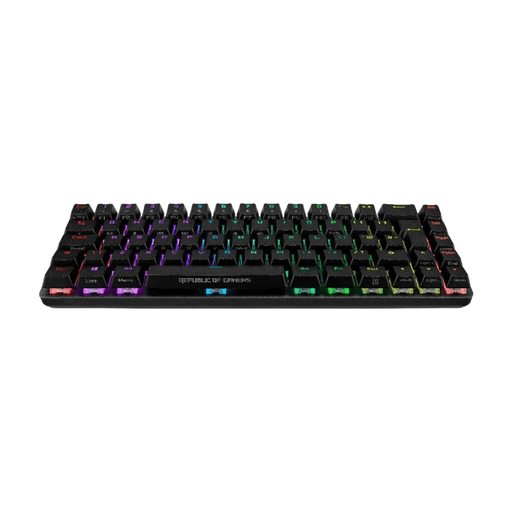 No image available
This 65% keyboard is worth considering if you want a compact, UK-labelled arrangement for editing on one computer.
Check that its key arrangement includes the editing controls you use. Its listed compatibility is Windows 10/11; verify support before using another operating system.
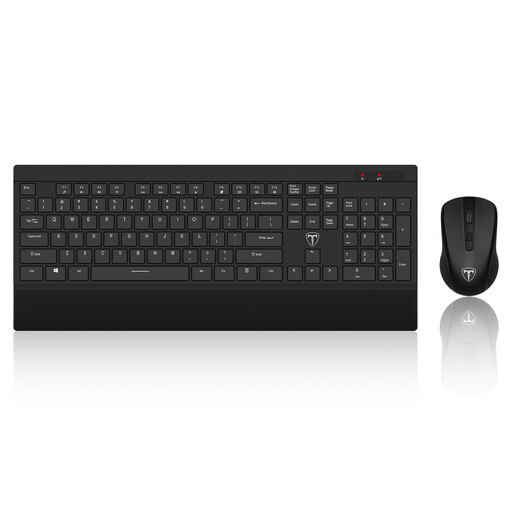 No image available
This keyboard-and-mouse set suits a one-computer desk if you want a full-size arrangement and can use its US layout.
Check that the physical punctuation keys suit your typing habits and that your computer has a compatible connection for the wireless receiver.
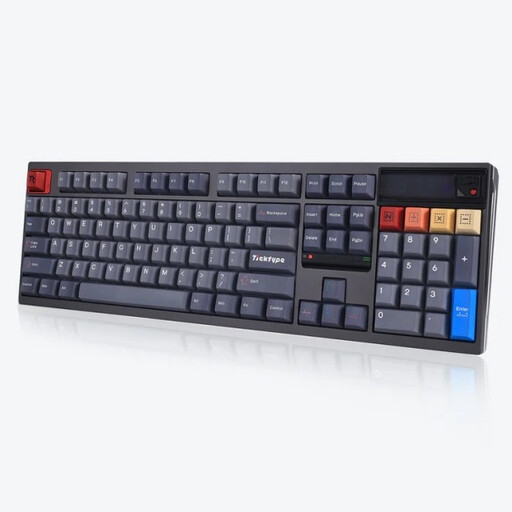 No image available
Consider this if you want a full-size mechanical keyboard and are comfortable editing on a US physical layout.
The title specifies 108 keys, tri-mode connectivity and silent tactile switches; it does not establish how quiet the keys will seem at your desk. Check connection and operating-system compatibility for your computer.
 No image available
If you type on separate devices, check whether this 75% wireless keyboard’s switching controls and connection methods suit each one.
Confirm the physical UK key arrangement rather than relying on the UK wording in the title, and check how your intended computer connects to it.
No, not when both monitors are connected to one computer. Multi-device switching matters if you also type on a separate computer, tablet or phone; Logitech and HP describe the feature as switching between paired devices.
Choose an explicitly labelled UK ISO variant if you want familiar UK punctuation placement and physical key shapes. Check the selected configuration: an English-language listing, or UK in a product title, does not by itself settle the exact physical layout.
Position the keyboard centrally rather than turning it towards one display. The Health and Safety Executive advises keeping the screen and keyboard central, placing the keyboard just below elbow height and arranging the setup to avoid twisting your back.
Put the keyboard into its pairing mode, then select it in the computer’s Bluetooth settings, following any code prompt. Logitech’s setup guidance points users to the computer’s Bluetooth menu; use the instructions for your exact keyboard for its pairing controls.