What matters when choosing?
Decide how much desk space the keyboard and mouse can share, then weigh sustained typing, numerical entry and any need to switch between separate devices.
| Concern | What to check | Who this matters to |
|---|
| Typing position and comfort |
Check that the keyboard can sit centrally just below elbow height and that the mouse stays within easy reach. |
For long stretches drafting lessons, I want a typing position that does not make me twist or reach; around 36% of consumers put comfort and workstation positioning first. |
| Numerical entry |
Decide whether a dedicated number pad earns its desk space if you regularly enter marks or timetable figures. |
If I enter marks and attendance records often, I want number entry to be straightforward; roughly 29% of consumers make this their primary concern. |
| Separate-device switching |
Count the computers and tablets you use, then check each one's supported connection and operating system. |
When I move between a school computer and a home device, I want to switch where my typing goes without reconnecting each time; this is the main need for about 21% of consumers. |
| Mouse room and key feel |
Check the keyboard's width and exact key arrangement; if sound matters, check the selected switch or quiet-key claim. |
With limited room beside my displays, I want space for the mouse without giving up keys I use regularly; preserving desk space or a preferred typing feel comes first for around 14% of consumers. |
Joybuy keyboard choices
These choices cover full-size, split-layout and 96% keyboards for lesson-planning desks. Compare their exact key layouts with the room you need for your mouse.
 No image available
Targus EcoSmart Full-Size Wireless Keyboard (UK)
Consider this full-size keyboard if your planning includes frequent numerical entry; check that it can sit centrally without pushing the mouse out of easy reach.
The product name identifies a wireless UK variant. Confirm its exact key arrangement and connection requirements for your computer.
View on Joybuy
 No image available
HP 960 Ergonomic Split Layout Wireless Keyboard with Padded Wrist Rest
Consider the split layout if you want to try a different hand position during extended planning sessions; allow for an adjustment period and keep the workstation positioned appropriately.
A padded wrist rest is identified in the product name. Confirm the exact key layout if UK key positions are important to you.
View on Joybuy
 No image available
Hyper HyperSpace Next Bluetooth Wireless Keyboard (UK), White
This Bluetooth keyboard is a choice to examine if you want a UK-labelled variant for a lesson-planning desk; check its exact keys and available mouse room.
If you work in a shared space, check the typing sound of the selected keyboard rather than assuming it will be quiet.
View on Joybuy
 No image available
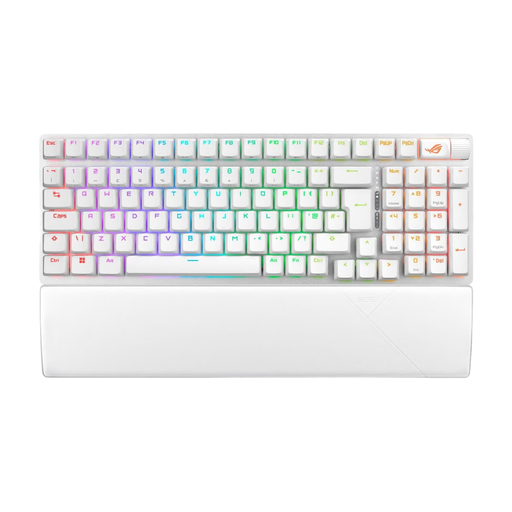
ASUS ROG Strix Scope II 96 Wireless Gaming Keyboard, White, UK Layout
Consider its 96 layout if you want to compare a different key arrangement with a conventional full-size board while planning lessons and entering figures.
The product name identifies a wireless UK-layout variant. Check the exact switch option, key positions and physical fit before choosing it for regular typing.
View on Joybuy
 No image available
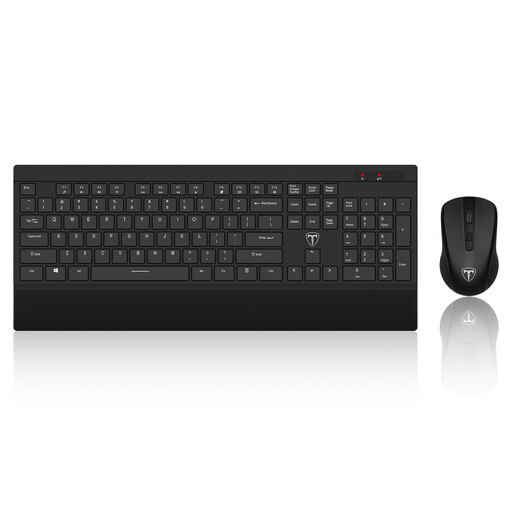
ET Silent Wireless Keyboard and Mouse Set, US Layout
This keyboard-and-mouse set may suit a desk where both input devices are being chosen together, provided its US key layout works for your lesson materials.
The product name specifies a wireless 2.4 GHz set. Check the keyboard's dimensions and connection requirements for your workstation; do not treat the Silent name as a measured noise rating.
View on Joybuy
Questions about two-screen setups
Do two screens mean I need a multi-device keyboard?
No. If both screens connect to one computer, the keyboard only needs to connect to that computer. Device switching becomes useful when you also alternate between separate computers or a tablet; check compatibility with each device.
Should I choose a compact keyboard or one with a number pad?
Choose a number-pad layout if marks, attendance or timetable figures are a regular part of your work; consider compact if mouse room matters more. Check the exact key arrangement, since compact layouts may omit or move keys you use.
Where should the keyboard sit with two screens?
The Health and Safety Executive advises keeping the screen and keyboard central so you do not twist your back, with the keyboard just below elbow height. Arrange the display you work on most, the keyboard and the mouse around that typing position rather than relying on the keyboard's shape alone.
When does a workplace display-screen assessment apply?
In the UK, the Health and Safety Executive says employers must assess workstations for workers who use display screen equipment daily as part of normal work, continuously for an hour or more. If that describes your work, ask your employer about its workstation assessment; the duty concerns the working setup, not certification of a keyboard.


